

Create a HubSpot CRM contact for every new ANGI Leads lead
Every lead that ANGI Leads assigns to your account becomes a new HubSpot CRM contact, with the lead’s details mapped in, so your team can follow up from HubSpot instead of the ANGI dashboard.
 ANGI Leads
 HubSpot CRM
2 steps Setup ~5 min Used on 1.5k sites Free to import
What this workflow does
Home service leads lose value fast. If they sit in the ANGI Leads portal until someone copies them into your CRM, the homeowner may have hired another contractor by then. This workflow puts each lead into HubSpot as soon as ANGI hands it to you.
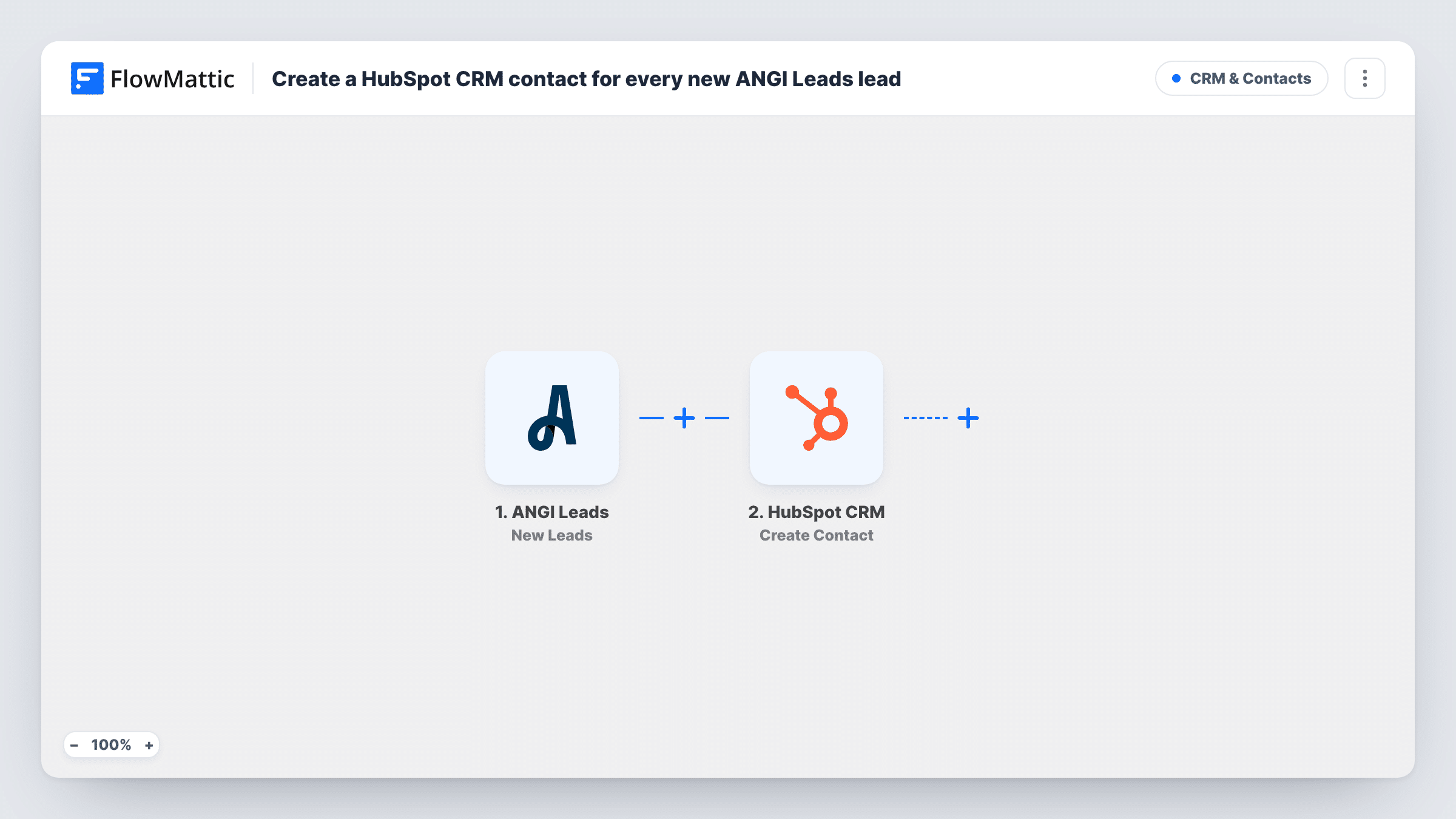
The ANGI Leads trigger, New Leads, fires when a lead is assigned to your account. Whatever details ANGI sends with the lead come into FlowMattic as data you can map. The next step uses HubSpot CRM Create Contact to add a contact with the fields you map.
The HubSpot action here makes new records and never edits old ones. If the same homeowner reaches you through ANGI twice, HubSpot may refuse the second contact because the email already exists, and Task History shows that response. Each run is logged there, so you can confirm a lead made it across.
Roofing company with a phone team
Each ANGI roofing lead lands in HubSpot, where the phone team works from a contact view instead of logging into ANGI to see who to call.
Plumber tracking lead sources
Map a fixed value such as ANGI into a HubSpot contact property, so you can compare how ANGI leads do against your other lead sources.
Cleaning service with several crews
New ANGI jobs become HubSpot contacts that an office manager assigns to a crew owner, keeping every customer record in one CRM.
How this workflow runs
What happens at each step once the workflow is on, and what you need before you import it.
 ANGI Leads New Leads
Fires when ANGI Leads assigns a new lead to your account. Whatever ANGI includes with the lead is passed to the HubSpot step for mapping.
- HubSpot CRM Create Contact
Adds the ANGI lead to HubSpot CRM as a new contact. Map the lead's email and name to the matching HubSpot properties, and connect the HubSpot account that should receive the leads.
What you need
- FlowMatticCore
- ANGI Leads AccountAccount
- HubSpot CRM AccountAccount
After importing, map your own data. To keep the template universal, not every step is pre-filled. Open each step in the builder and connect your accounts and fields (channels, lists, sheets, recipients) before you switch the workflow on.
Make it yours
Changes worth making after you import it.
- If the ANGI lead includes the service requested, map it into a HubSpot contact property so whoever calls the homeowner knows the job before dialling.
- Add a Slack Send Channel Message step after HubSpot if your team wants a ping for each ANGI lead as well as the new contact.
- Once a real lead arrives, open Task History to see every field ANGI sent, then go back and map any you missed into the HubSpot step.
Questions about this workflow
What if the ANGI lead is already a HubSpot contact?
Create Contact is create-only. HubSpot may refuse a second contact with the same email, and the error appears on that step in Task History. Nothing is merged for you.
Are past ANGI Leads imported into HubSpot?
No. The trigger fires for leads assigned after the workflow is on. Leads you already had stay in ANGI unless you add them to HubSpot yourself.
Does the workflow reply to the homeowner from HubSpot?
No. Its single action is adding the person to HubSpot. Any call, text or email to the homeowner is up to your team, or to a step you add after the HubSpot one.
Which ANGI lead fields reach HubSpot?
Just the values you place in the HubSpot step's mapping. Send or wait for one lead, then check Task History to see what ANGI provided before you finish the mapping.
More CRM & Contacts workflows
Other ready-to-import templates from the same category.



Import this workflow into your WordPress site
Download the JSON, import it from the Workflows screen and connect your accounts. Every run stays on your server, with no per-task fees.
30-day money-back guarantee Unlimited workflows and runs Self-hosted