

When a new contact is added to FluentCRM, create a new WordPress user
Each time a contact is created in FluentCRM, this workflow creates a WordPress user on the same site from that contact’s details, so people on your list also get an account.
 FluentCRM
 WordPress
2 steps Setup ~5 min Used on 1.8k sites Free to import
What this workflow does
Contacts reach FluentCRM from forms, imports, purchases and manual entry. If your site has members-only pages, a customer area or a course, each of those people also needs a WordPress account, and creating them one by one in the Users screen is slow. This workflow creates the account when the contact is added.
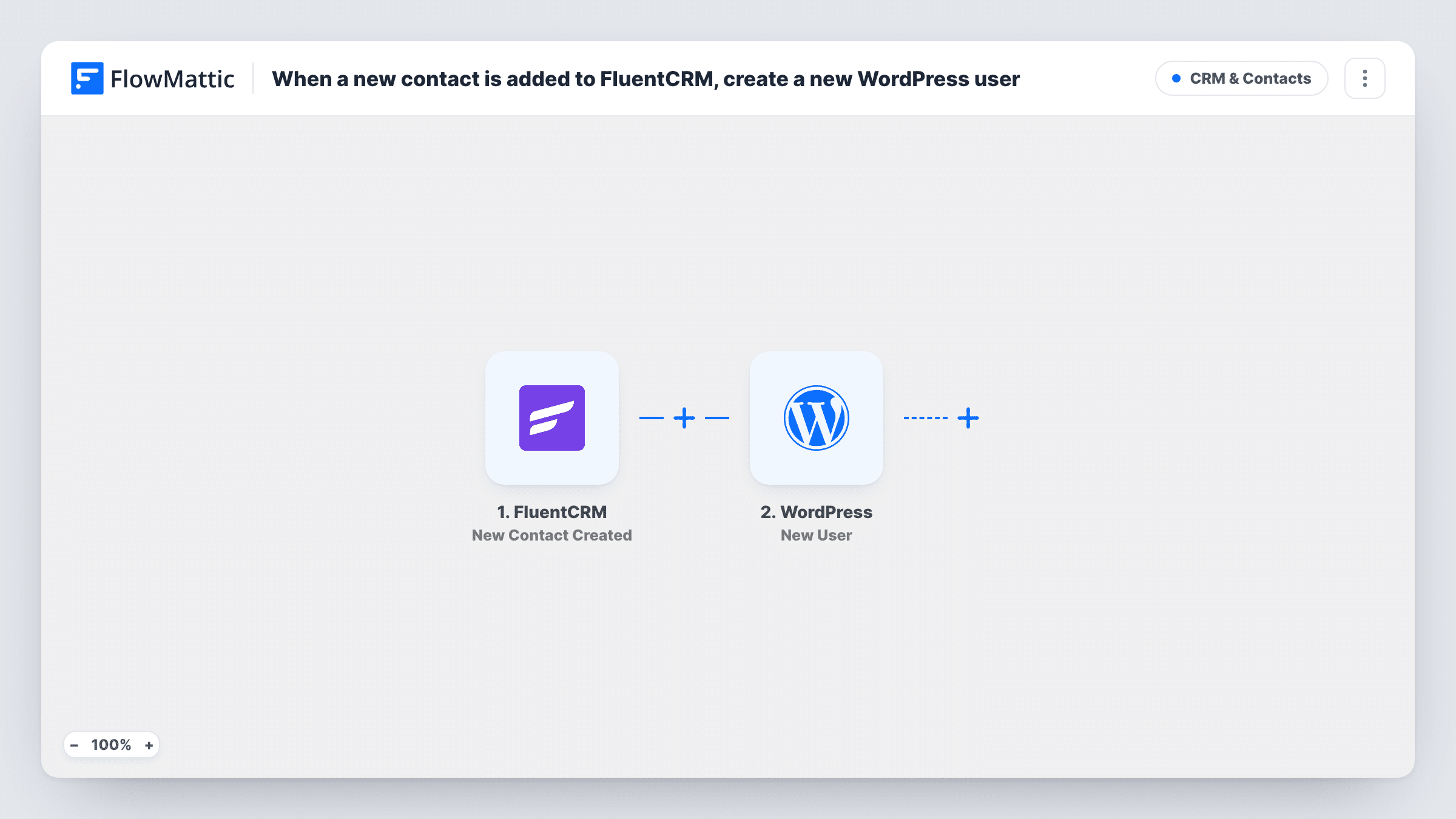
The FluentCRM trigger runs whenever a new contact is created. FlowMattic receives that contact's details. The WordPress step then adds a new user to your site, and you map the contact's email and name into it.
Both apps run on your own WordPress install, so no contact data leaves the site. With no Filter, every new contact that fires the trigger gets an account, so decide first which contacts should really have one. A contact whose email is already registered doesn't get a second user: the step returns the ID of the account that holds that address, and Task History shows it.
Membership site sign-ups
People who join your FluentCRM list through a sign-up form get a WordPress account they can use to log in to members-only pages.
Client portal access
When you add a new client to FluentCRM by hand, an account is created for them so you can give them access to their portal pages.
Course students added by staff
Your team adds each new student to FluentCRM after payment, and the student gets a WordPress account ready for your LMS plugin without a second admin task.
How this workflow runs
What happens at each step once the workflow is on, and what you need before you import it.
 FluentCRM New Contact Created
Runs each time a new contact is created in FluentCRM, for example from a sign-up form or the admin screen. The contact's details are passed to the next step.
- WordPress New User
Creates a new WordPress user on this site from the contact. Map the contact's email and name, then run a test to see the remaining options and check the user that is created.
What you need
- FlowMatticCore
- FluentCRM PluginPlugin
After importing, map your own data. To keep the template universal, not every step is pre-filled. Open each step in the builder and connect your accounts and fields (channels, lists, sheets, recipients) before you switch the workflow on.
Make it yours
Changes worth making after you import it.
- Add a Filter between the FluentCRM trigger and the WordPress step so only contacts with a certain status or source become users, rather than everyone you add to FluentCRM.
- Test with a contact whose email is not yet a WordPress user. Then check the Users screen to confirm the account and the role it was given.
- Add an email step after WordPress to send the new user a link to your login page, so they know the account exists.
Questions about this workflow
What happens if the FluentCRM contact already has a WordPress account?
No new account is created for an email WordPress already holds. The step reports success with that existing user's ID, which you can check in Task History. If you chose a role in the step, the role is added to that user alongside the ones they have.
Will importing contacts into FluentCRM create a WordPress user for each one?
It can, if the import creates new contacts and FluentCRM fires the trigger for them. Try a small import of two or three test contacts first, and add a Filter between the FluentCRM trigger and the WordPress step if imported contacts should not get accounts.
Does the new WordPress user get a login email?
That depends on the options in the New User step. Run a test after import to see them, and add your own email step if you want to be sure people are told.
More CRM & Contacts workflows
Other ready-to-import templates from the same category.




Import this workflow into your WordPress site
Download the JSON, import it from the Workflows screen and connect your accounts. Every run stays on your server, with no per-task fees.
30-day money-back guarantee Unlimited workflows and runs Self-hosted