

Create a HubSpot CRM contact from each new Divi Engine form submission
Each successful submission of a Divi Engine form on your WordPress site creates a new contact in HubSpot CRM from the fields you map, so site enquiries reach your CRM without copying.
 Divi Engine
 HubSpot CRM
2 steps Setup ~5 min Used on 2.7k sites Free to import
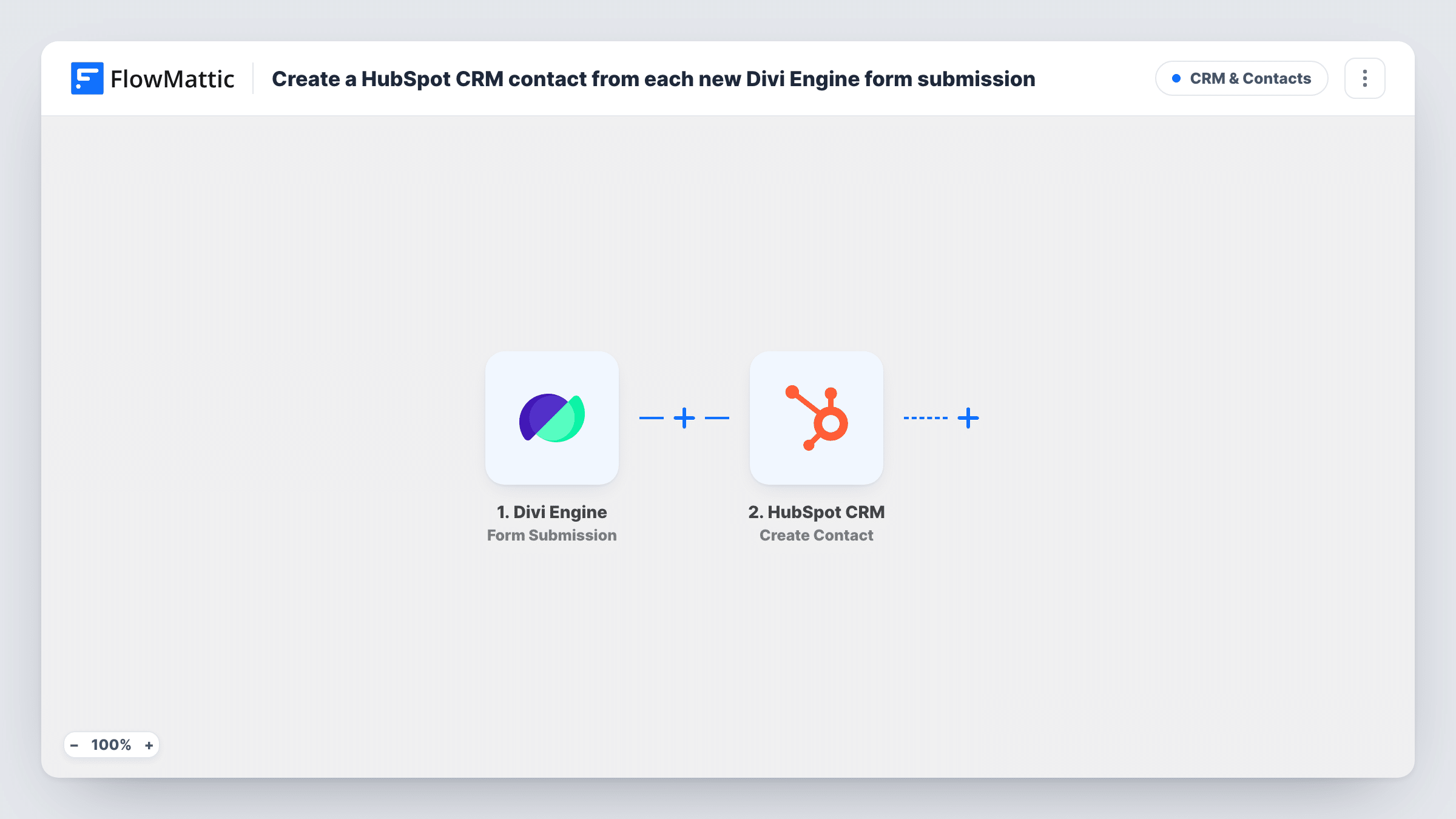
What this workflow does
Divi sites often collect leads through Divi Engine forms, but the sales team works in HubSpot. Exporting entries or retyping them leaves gaps and delays the first reply. This workflow sends each submission to HubSpot as a contact.
The Divi Engine trigger fires when a visitor successfully submits a Divi form. FlowMattic passes the submitted fields to the Create Contact action in HubSpot CRM. You map the form's email field to the contact's email, plus any name, phone or company fields you collect.
The action creates contacts only. If the visitor is already in HubSpot, HubSpot may refuse a duplicate email address, and the run's entry in Task History shows the response. Because FlowMattic runs on the same WordPress site as the form, the submission data only leaves your site when it is sent to HubSpot.
Agency site contact form
A Divi-built agency site collects project enquiries. Each enquirer becomes a HubSpot contact the sales lead can assign and follow up.
Free consultation requests
A consultant's Divi booking request form adds each person to HubSpot, so their details are ready before the call is scheduled.
Newsletter sign-up in a footer
A short Divi Engine sign-up form in the footer creates HubSpot contacts you can include in email lists later.
How this workflow runs
What happens at each step once the workflow is on, and what you need before you import it.
 Divi Engine Form Submission
Starts as soon as a Divi Engine form on your site goes through without errors. The submitted fields are passed on for mapping in HubSpot.
- HubSpot CRM Create Contact
Creates a contact in HubSpot CRM from the Divi form data. Map the email field to the contact's email, and test with a fresh address to confirm the contact appears.
What you need
- FlowMatticCore
- Divi Engine AccountAccount
- HubSpot CRM AccountAccount
After importing, map your own data. To keep the template universal, not every step is pre-filled. Open each step in the builder and connect your accounts and fields (channels, lists, sheets, recipients) before you switch the workflow on.
Make it yours
Changes worth making after you import it.
- Submit the Divi form once after import with test details, so the field values are captured and you can map them into the HubSpot step.
- Add a Filter after the trigger that continues only when the consent checkbox is ticked, if your form has one, so only people who agreed are added.
- Running several Divi forms on the site? Add a Filter on the form's ID or name, if the submission carries it, so only the form you intend creates contacts.
Questions about this workflow
What if the Divi form visitor is already a HubSpot contact?
This step has no update mode, so a second submission from a known address may be rejected by HubSpot; the run's log shows what HubSpot said. Swap in a create-or-update style step if repeat visitors are common.
Does Divi still send its own form notification email?
Yes. The workflow only listens for submissions and doesn't change the form's settings, so its usual notifications continue.
Will past Divi Engine submissions go to HubSpot?
No. Only forms submitted after the workflow is switched on are sent. Older entries need to be imported into HubSpot separately.
More CRM & Contacts workflows
Other ready-to-import templates from the same category.






Import this workflow into your WordPress site
Download the JSON, import it from the Workflows screen and connect your accounts. Every run stays on your server, with no per-task fees.
30-day money-back guarantee Unlimited workflows and runs Self-hosted