

Create HubSpot contacts from new Mailchimp subscribers
Every time someone is added as a subscriber to your Mailchimp audience, FlowMattic creates a matching contact in HubSpot CRM with the email and name you map.
 Mailchimp
 HubSpot CRM
2 steps Setup ~5 min Used on 1.2k sites Free to import
What this workflow does
Your newsletter audience in Mailchimp often holds people your sales team has never heard of. Once they are in HubSpot CRM, sales can see them, assign owners and follow up. This workflow copies each new Mailchimp subscriber into HubSpot as a contact as soon as they join.
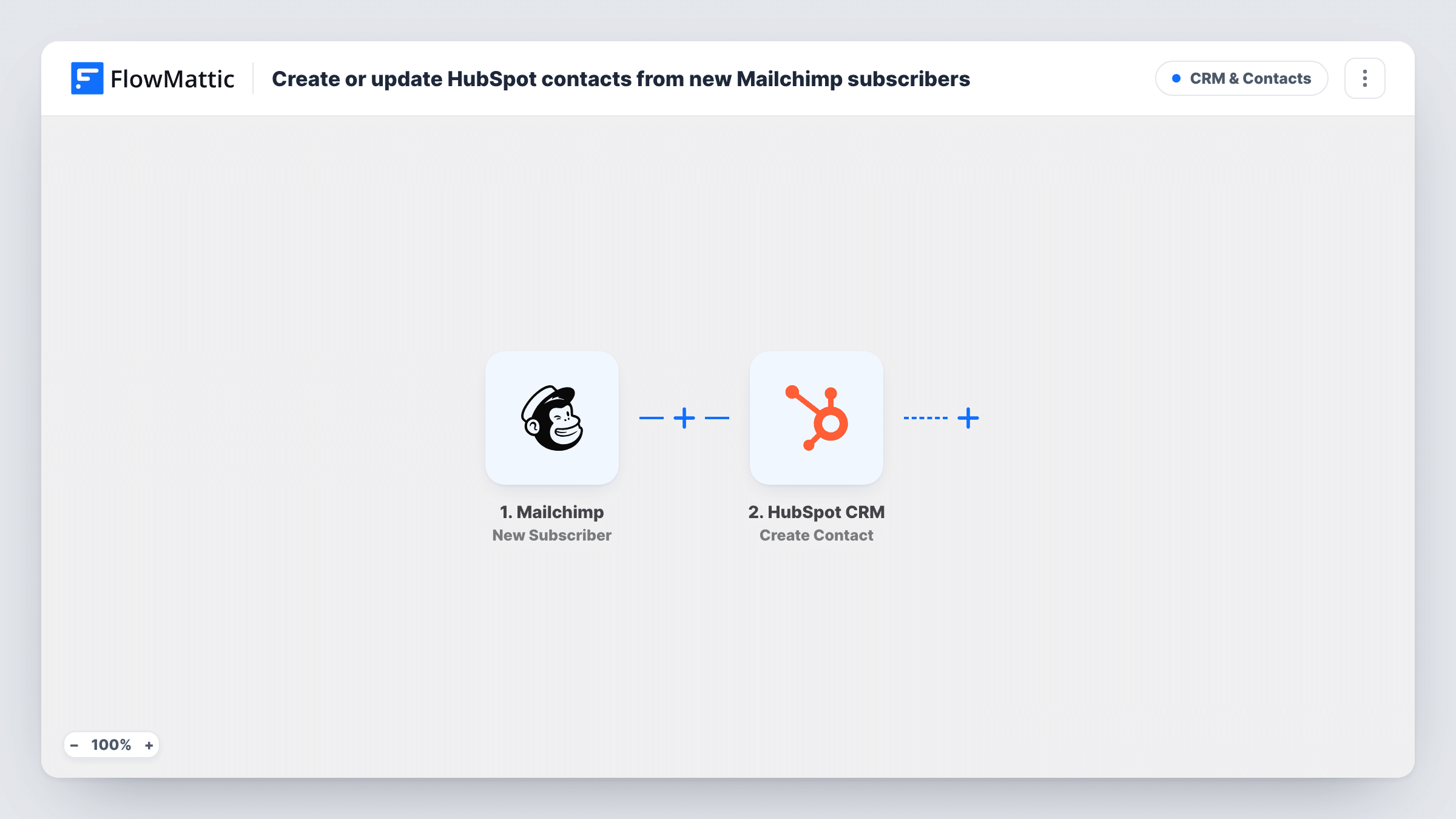
The Mailchimp trigger fires when a new subscriber is added in Mailchimp. Their email address, name fields and other merge fields are passed to HubSpot CRM, where the Create Contact step makes a new contact from the properties you map.
Nothing is mapped in the HubSpot step yet. After import, connect your HubSpot account and map at least the subscriber's email to the contact's email property, plus first and last name if you collect them. You can also set a fixed value, such as a lead source, so contacts from Mailchimp are easy to find.
HubSpot's Create Contact action adds records and does not merge them. If the subscriber's email already belongs to a HubSpot contact, HubSpot may refuse the request, and Task History shows its response. Each new subscriber is a separate run, so a large sign-up day means many new HubSpot contacts.
Newsletter readers visible to sales
A software company's sales reps see every new Mailchimp newsletter subscriber in HubSpot and can spot readers from target companies.
Lead source reporting
A marketing team sets a source property on each contact created from Mailchimp, so HubSpot reports show how many CRM contacts started as subscribers.
One contact record for event sign-ups
An events business that collects sign-ups in Mailchimp keeps those people in HubSpot as well, where it tracks ticket sales and calls.
How this workflow runs
What happens at each step once the workflow is on, and what you need before you import it.
 Mailchimp New Subscriber
Starts a run for each person newly subscribed in Mailchimp. The subscriber's email, name and merge fields become available to map into HubSpot.
- HubSpot CRM Create Contact
Creates a new contact in HubSpot CRM from the subscriber's details. Connect HubSpot and map the email, name and any other properties you want filled after import.
What you need
- FlowMatticCore
- Mailchimp AccountAccount
- HubSpot CRM AccountAccount
After importing, map your own data. To keep the template universal, not every step is pre-filled. Open each step in the builder and connect your accounts and fields (channels, lists, sheets, recipients) before you switch the workflow on.
Make it yours
Changes worth making after you import it.
- Set a fixed lead source or lifecycle stage property in the Create Contact step, so you can tell which HubSpot contacts came from Mailchimp.
- Map Mailchimp merge fields such as company or phone into HubSpot properties of the same kind, if your sign-up form collects them.
- Add a Filter between the Mailchimp trigger and the HubSpot step on a merge field, such as an interest you ask about, if only some subscribers belong in the CRM. The field and value are yours to set.
Questions about this workflow
What if the Mailchimp subscriber is already a HubSpot contact?
Create Contact doesn't update existing contacts, so HubSpot may refuse a duplicate email. Open that run in Task History to read what HubSpot sent back.
Will my existing Mailchimp subscribers be copied to HubSpot?
No. The trigger reacts to subscribers who join once the workflow is active, not to the people already in your audience. Import your current audience into HubSpot separately if you need them there.
Which Mailchimp audience does the trigger watch?
Connect Mailchimp in the New Subscriber trigger after import and check its settings. Send a test sign-up to the audience you care about and confirm in Task History that it started a run.
More CRM & Contacts workflows
Other ready-to-import templates from the same category.






Import this workflow into your WordPress site
Download the JSON, import it from the Workflows screen and connect your accounts. Every run stays on your server, with no per-task fees.
30-day money-back guarantee Unlimited workflows and runs Self-hosted