

Create a HubSpot CRM contact from each new Formspree submission
Every new submission to your Formspree form creates a contact in HubSpot CRM, with the visitor’s email, name and other answers mapped to contact properties, ready for your sales follow-up.
 Formspree
 HubSpot CRM
2 steps Setup ~5 min Used on 593 sites Free to import
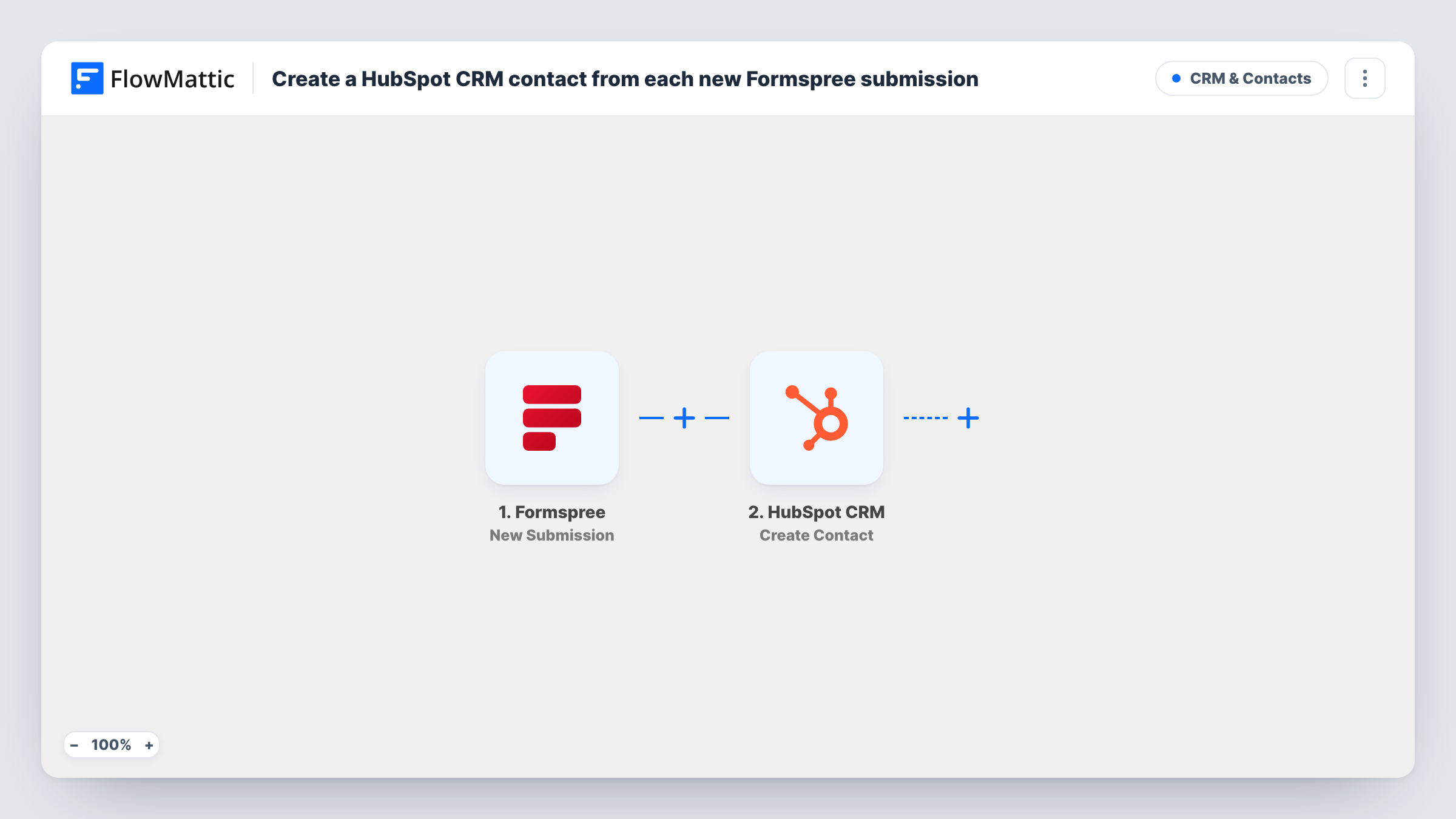
What this workflow does
Formspree gives a static site or a hand-coded form a place to send its submissions, without a server of your own. Those submissions are often leads, and leads need to be in your CRM. Instead of reading each Formspree email and typing the details into HubSpot, you can let this workflow create the contact for you.
The Formspree trigger, New Submission, fires for each new submission to your form. Every field your form sends is passed on. The HubSpot CRM step then runs Create Contact with the fields you map, usually the email address, name and any company or message fields your form collects.
Create Contact adds contacts and doesn't edit existing ones. A visitor who fills in the form again with the same email may be refused by HubSpot as a duplicate, and the step's result in Task History tells you. Spam that gets through to Formspree is passed on too, since the template has no Filter.
Contact form on a static marketing site
A site built with a static generator posts its contact form to Formspree. Every enquiry now also opens a HubSpot contact your sales team can work.
Demo request form on a landing page
Visitors asking for a demo through a Formspree form become HubSpot contacts, so the next step in your sales process starts from the CRM.
Portfolio site for a freelancer
A designer's portfolio uses a Formspree form for project enquiries, and each one becomes a HubSpot contact for quotes and follow-up.
How this workflow runs
What happens at each step once the workflow is on, and what you need before you import it.
 Formspree New Submission
Fires for each new submission to your Formspree form. The submitted fields, such as email and name, are passed on for mapping in HubSpot.
- HubSpot CRM Create Contact
Adds a contact to HubSpot CRM from the Formspree submission. Connect your HubSpot account and map the submitted email and other fields to HubSpot contact properties.
What you need
- FlowMatticCore
- Formspree AccountAccount
- HubSpot CRM AccountAccount
After importing, map your own data. To keep the template universal, not every step is pre-filled. Open each step in the builder and connect your accounts and fields (channels, lists, sheets, recipients) before you switch the workflow on.
Make it yours
Changes worth making after you import it.
- Use the HTML required attribute on your form's email input so every Formspree submission carries an address for the HubSpot contact.
- Add a Filter after the trigger that stops submissions whose email field is empty, so HubSpot isn't asked to create contacts with nothing to identify them.
- If several forms post to different Formspree endpoints, import this workflow once per form and map each copy to suit its fields.
Questions about this workflow
Will a repeat Formspree submission update the HubSpot contact?
No. Create Contact never edits a record that HubSpot already holds. If the email is already in HubSpot, the create may be turned down as a duplicate, and the existing contact stays as it was.
Does Formspree still email me each submission?
This workflow only receives the submission. It doesn't change anything in Formspree, so your form's own notifications carry on as you have them set.
Which Formspree fields can I send to HubSpot?
Whatever inputs your Formspree form posts are available. Send a test submission after import, then map the fields that appear to the HubSpot contact properties you use.
Are earlier Formspree submissions copied into HubSpot?
No. Only submissions made after the workflow is on create contacts. Export older ones from Formspree if you want them in HubSpot.
More CRM & Contacts workflows
Other ready-to-import templates from the same category.






Import this workflow into your WordPress site
Download the JSON, import it from the Workflows screen and connect your accounts. Every run stays on your server, with no per-task fees.
30-day money-back guarantee Unlimited workflows and runs Self-hosted