

Create a HubSpot CRM contact from each Kixie SMS
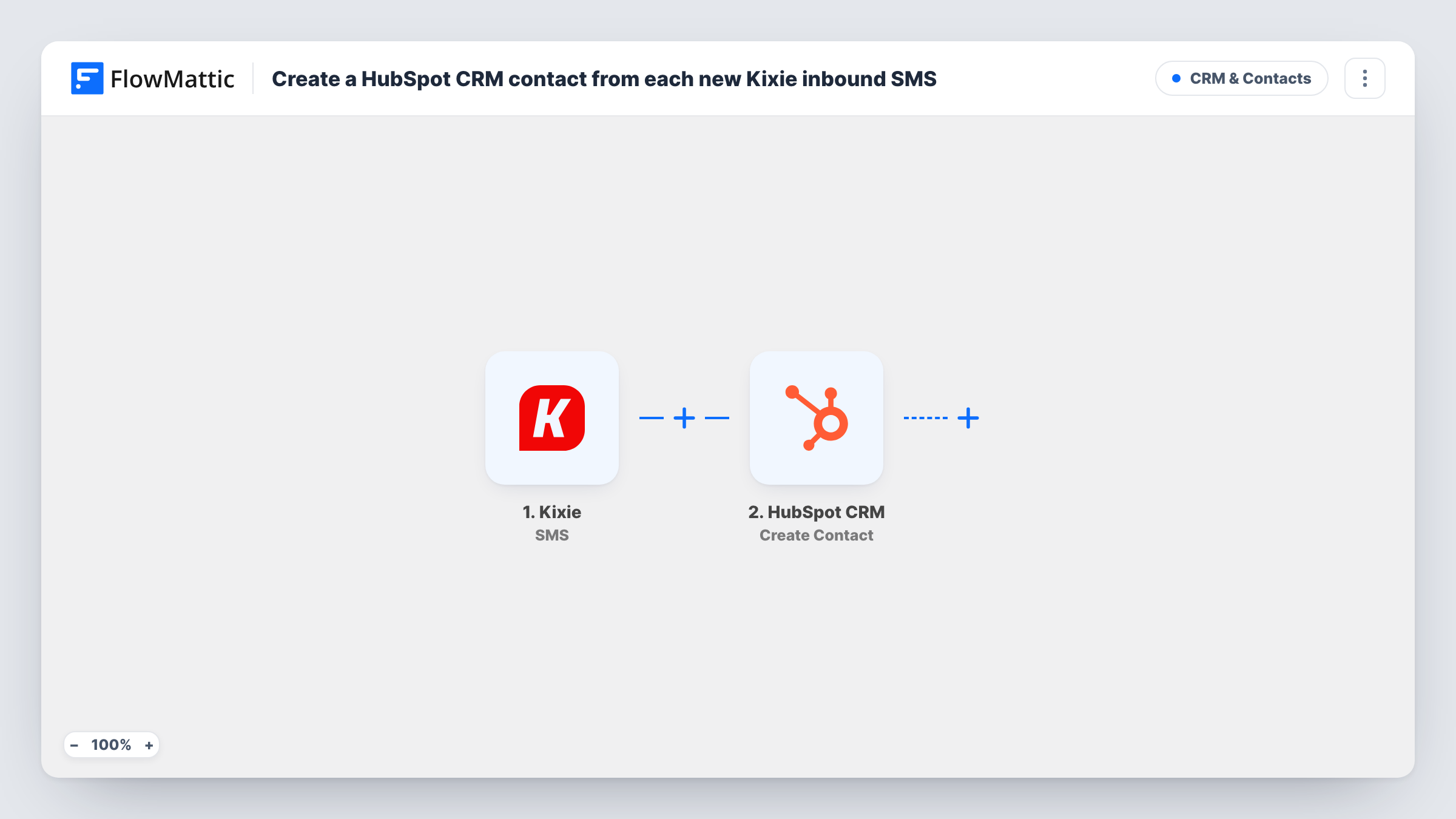
Every SMS Kixie logs, whether your team sent it or a contact texted in, creates a contact in HubSpot CRM with the phone number and any other details you map.
 Kixie
 HubSpot CRM
2 steps Setup ~5 min Used on 2.3k sites Free to import
What this workflow does
Texts often start conversations with people who aren't in your CRM yet, such as a reply to a marketing number or a lead who messages from an ad. This workflow takes each SMS that Kixie reports and creates a contact for it in HubSpot CRM, so the number is on record for your sales team.
The Kixie SMS trigger fires when an SMS is sent or received. That means outgoing texts from your reps count as well as incoming ones, and every message in a back-and-forth starts its own run. The message details, such as the phone numbers and text, are passed on.
The HubSpot step only creates contacts; it doesn't check for an existing one first. HubSpot matches duplicates by email address, so if you only map a phone number, repeat texts from the same person can create several contacts. Check Task History for HubSpot's response to each run.
The step ships unmapped. After import you connect HubSpot and map the contact's phone number from the SMS, plus a name or email if Kixie's event carries one. Send and receive a test text to see which fields arrive before you go live.
Text-in lead capture
A real estate team advertises a Kixie number on signs, and each person who texts it becomes a HubSpot contact the agents can follow up.
Logging numbers from rep outreach
Sales reps text prospects from Kixie, and the numbers they reach are added to HubSpot so managers can see who has been contacted.
Support numbers on record
A service company records each customer who texts the support line as a HubSpot contact, with the number mapped into the phone field.
How this workflow runs
What happens at each step once the workflow is on, and what you need before you import it.
 Kixie SMS
Fires when an SMS is sent or received through Kixie. Both directions start a run, and each message in a conversation counts. The phone numbers and message details are passed on.
- HubSpot CRM Create Contact
Adds a new HubSpot CRM contact for the texter. Nothing is mapped yet: connect HubSpot and map the phone number from the SMS, plus any name or email the Kixie event carries.
What you need
- FlowMatticCore
- Kixie AccountAccount
- HubSpot CRM AccountAccount
After importing, map your own data. To keep the template universal, not every step is pre-filled. Open each step in the builder and connect your accounts and fields (channels, lists, sheets, recipients) before you switch the workflow on.
Make it yours
Changes worth making after you import it.
- To create contacts only from incoming texts, put a Filter between the Kixie trigger and the HubSpot step on the message direction field. Run a test to see the field name and values Kixie sends.
- Map the message text into a HubSpot contact property, so the first thing the person wrote is visible on their record.
- Review the contacts this workflow creates each week and merge any duplicates in HubSpot, since contacts with only a phone number aren't matched by email.
Questions about this workflow
Does an outgoing Kixie text also create a HubSpot contact?
Yes. The SMS trigger fires for sent and received messages. Add a Filter on the direction between the Kixie trigger and the HubSpot step if you only want incoming texts.
Will the same person get several HubSpot contacts?
They can. Every SMS starts a run and Create Contact doesn't look for an existing record. HubSpot may refuse a duplicate email, but a contact with only a phone number can be created again. Check Task History.
Which Kixie SMS details can I put on the contact?
Whatever the SMS event carries. Send a test message, then map the phone number and any other fields you see into the Create Contact step.
More CRM & Contacts workflows
Other ready-to-import templates from the same category.






Import this workflow into your WordPress site
Download the JSON, import it from the Workflows screen and connect your accounts. Every run stays on your server, with no per-task fees.
30-day money-back guarantee Unlimited workflows and runs Self-hosted