

Create a HubSpot CRM contact from each new Peggy Pay submission
Each new submission in Peggy Pay creates a contact in HubSpot CRM from the details the person entered, so the people paying or signing up through Peggy Pay show up in your CRM.
 Peggy Pay
 HubSpot CRM
2 steps Setup ~5 min Used on 2.3k sites Free to import
What this workflow does
Peggy Pay collects payments and sign-ups, but your sales and service history may live in HubSpot. Without a link between them, the person who just paid is a stranger to your CRM until someone copies them across. This workflow adds each Peggy Pay submitter to HubSpot as they come in.
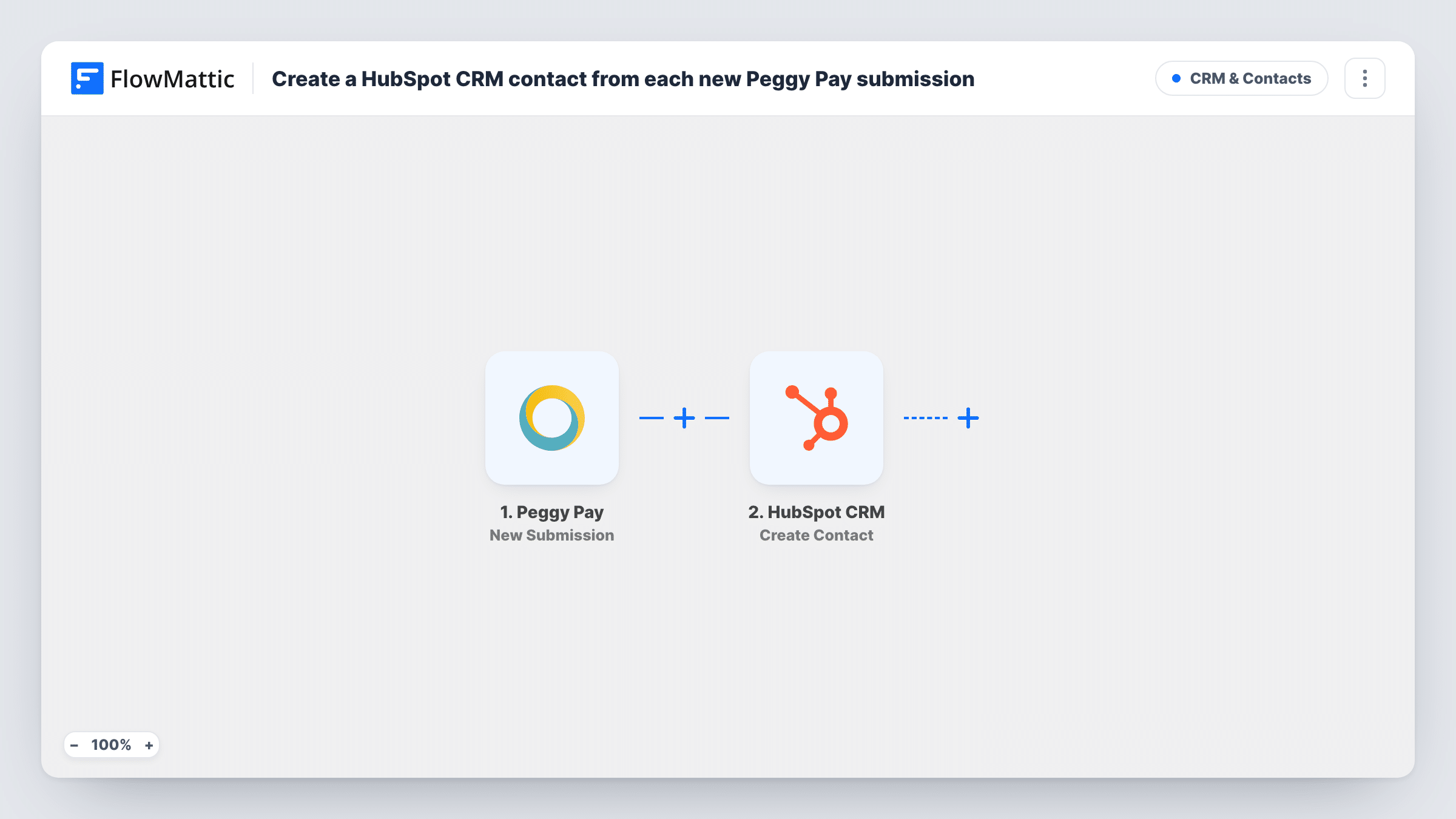
The Peggy Pay trigger, New Submission, fires for each new submission and passes on the submitted details. FlowMattic then runs HubSpot CRM Create Contact, which creates a contact in HubSpot. You map the email address and any name or phone fields Peggy Pay provides into the contact properties.
Create Contact only creates; it does not look for an existing contact first. HubSpot may refuse a duplicate email address, and the run's response in Task History tells you when that happens. Run a test submission after import to check which Peggy Pay fields are available before you finish the mapping.
Service business taking deposits
Clients pay a booking deposit through Peggy Pay. Each one becomes a HubSpot contact, so the account manager can see them in the CRM before the first call.
Membership sign-ups
New members sign up and pay through Peggy Pay. Their contact record in HubSpot lets you add them to lists and track conversations from there.
Event tickets paid by direct debit
Attendees register for a paid event via Peggy Pay. HubSpot holds a contact for each, ready for pre-event emails from your marketing team.
How this workflow runs
What happens at each step once the workflow is on, and what you need before you import it.
 Peggy Pay New Submission
Fires for each new submission in your Peggy Pay account. The details the person submitted are passed on so they can fill the HubSpot contact.
- HubSpot CRM Create Contact
HubSpot CRM gets a fresh contact record from the submission. Map the Peggy Pay email first, then names and phone. It does not update an existing contact with the same email.
What you need
- FlowMatticCore
- Peggy Pay AccountAccount
- HubSpot CRM AccountAccount
After importing, map your own data. To keep the template universal, not every step is pre-filled. Open each step in the builder and connect your accounts and fields (channels, lists, sheets, recipients) before you switch the workflow on.
Make it yours
Changes worth making after you import it.
- Make a test submission in Peggy Pay after import so FlowMattic captures the fields, then map them to HubSpot contact properties from that sample.
- Add HubSpot's Create Deal step after this one if you also want each Peggy Pay payment tracked as a deal in your pipeline.
- Expect repeat customers? Look at HubSpot's Get Contact step after import. If it can find a person by email, place it first with a Filter after it, so Create Contact runs only for new people.
Questions about this workflow
What happens if the Peggy Pay customer is already in HubSpot?
This step never updates or merges. HubSpot may reject a duplicate email address, and Task History shows the response for that run. Nothing changes on the contact HubSpot already holds.
Which Peggy Pay events count as a new submission?
FlowMattic describes the trigger simply as firing for a new submission. Submit a test through your Peggy Pay page and check Task History to see what starts a run.
Are past Peggy Pay customers added to HubSpot?
No. The workflow reacts to submissions made after it is turned on. Earlier customers would need an import into HubSpot.
Can the HubSpot contact be added to a list as well?
Yes, by adding HubSpot's Add Contact To List step after Create Contact and mapping the new contact into it. Check the result with a test submission.
More CRM & Contacts workflows
Other ready-to-import templates from the same category.




Import this workflow into your WordPress site
Download the JSON, import it from the Workflows screen and connect your accounts. Every run stays on your server, with no per-task fees.
30-day money-back guarantee Unlimited workflows and runs Self-hosted