

Create a HubSpot CRM contact from each completed SendOwl order
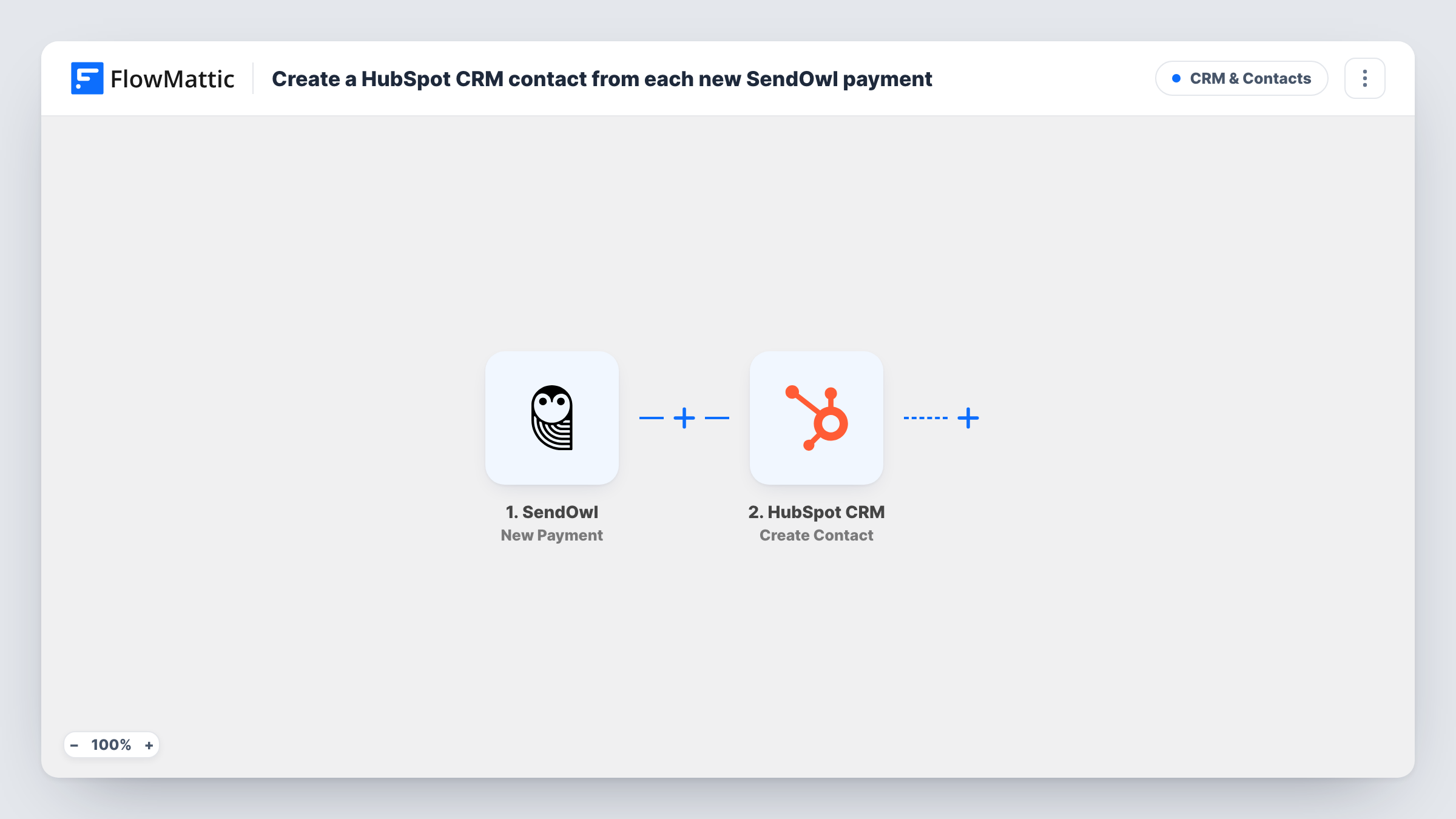
Each time a SendOwl order completes and the payment has cleared, FlowMattic sends the buyer’s details to HubSpot CRM as a new contact, ready for your follow-up emails and sales notes.
 SendOwl
 HubSpot CRM
2 steps Setup ~5 min Used on 906 sites Free to import
What this workflow does
Digital product sales in SendOwl and your contact records in HubSpot live in separate places, so buyers often never make it into the CRM unless someone exports them. This workflow creates a HubSpot contact for each buyer as their order completes, so your list of customers grows with your sales.
The SendOwl trigger fires when an order is completed, which FlowMattic describes as the point where payment has cleared and the products are available for download. Orders that never clear don't start a run. The order's buyer details are then passed to the next step.
Next, HubSpot CRM receives a Create Contact request, which the template leaves without mapping. After import you connect your HubSpot account and map the buyer's email, plus any name or order fields you want stored on the contact.
This step adds new records and doesn't update existing ones. A buyer who comes back for a second purchase starts another run, and HubSpot may refuse a duplicate email; Task History shows the response for each order. Run a test purchase in SendOwl before you rely on the workflow.
E-book buyers in your CRM
An author selling e-books through SendOwl wants every reader who pays saved as a HubSpot contact, so launch announcements for the next book reach them.
Course and template sales tracked by customer
A designer who sells templates on SendOwl keeps buyer records in HubSpot to see who bought and to log support conversations against the right person.
Sales team follow-up on paid downloads
A software company selling licence downloads hands each new paying buyer to its HubSpot sales pipeline for an onboarding call.
How this workflow runs
What happens at each step once the workflow is on, and what you need before you import it.
 SendOwl Order Completed
Starts a run when a SendOwl order is completed, meaning the payment has cleared and the products are ready to download. The buyer and order details are passed on to HubSpot.
- HubSpot CRM Create Contact
Turns the SendOwl buyer into a fresh HubSpot CRM contact record. Nothing is mapped in the template, so connect HubSpot and map at least the buyer's email from the SendOwl order, along with any name fields you want on the record.
What you need
- FlowMatticCore
- SendOwl AccountAccount
- HubSpot CRM AccountAccount
After importing, map your own data. To keep the template universal, not every step is pre-filled. Open each step in the builder and connect your accounts and fields (channels, lists, sheets, recipients) before you switch the workflow on.
Make it yours
Changes worth making after you import it.
- Map the product name from the SendOwl order into a HubSpot contact property, so you can segment contacts by what they bought.
- If only some of your SendOwl products should feed HubSpot, put a Filter on the product name between the SendOwl trigger and the Create Contact step.
- Run one test purchase and open Task History to see exactly which SendOwl fields arrive before you finish the HubSpot mapping.
Questions about this workflow
Does an unpaid or pending SendOwl order create a HubSpot contact?
No. The trigger fires only when the order is completed, after payment clears and the products become available. Orders that stop before that point don't start a run.
What if the SendOwl buyer is already a contact in HubSpot?
Create Contact only creates new records, so HubSpot may refuse a duplicate email. Task History shows HubSpot's response for that order.
Which buyer details end up on the HubSpot contact?
Only what you map. The Create Contact step is empty in the template, so you choose the email and any other order or buyer fields after import.
Are my past SendOwl orders added when I turn this on?
No. Only orders that complete after the workflow is active start a run. Import earlier buyers into HubSpot separately if you need them.
More CRM & Contacts workflows
Other ready-to-import templates from the same category.




Import this workflow into your WordPress site
Download the JSON, import it from the Workflows screen and connect your accounts. Every run stays on your server, with no per-task fees.
30-day money-back guarantee Unlimited workflows and runs Self-hosted