

Create a HubSpot CRM contact from each new Tilda Publishing lead
Each time a visitor submits a form on your Tilda Publishing site, this workflow creates a contact in HubSpot CRM from the lead, so your sales team has the new person in the CRM to follow up.
 Tilda Publishing
 HubSpot CRM
2 steps Setup ~5 min Used on 378 sites Free to import
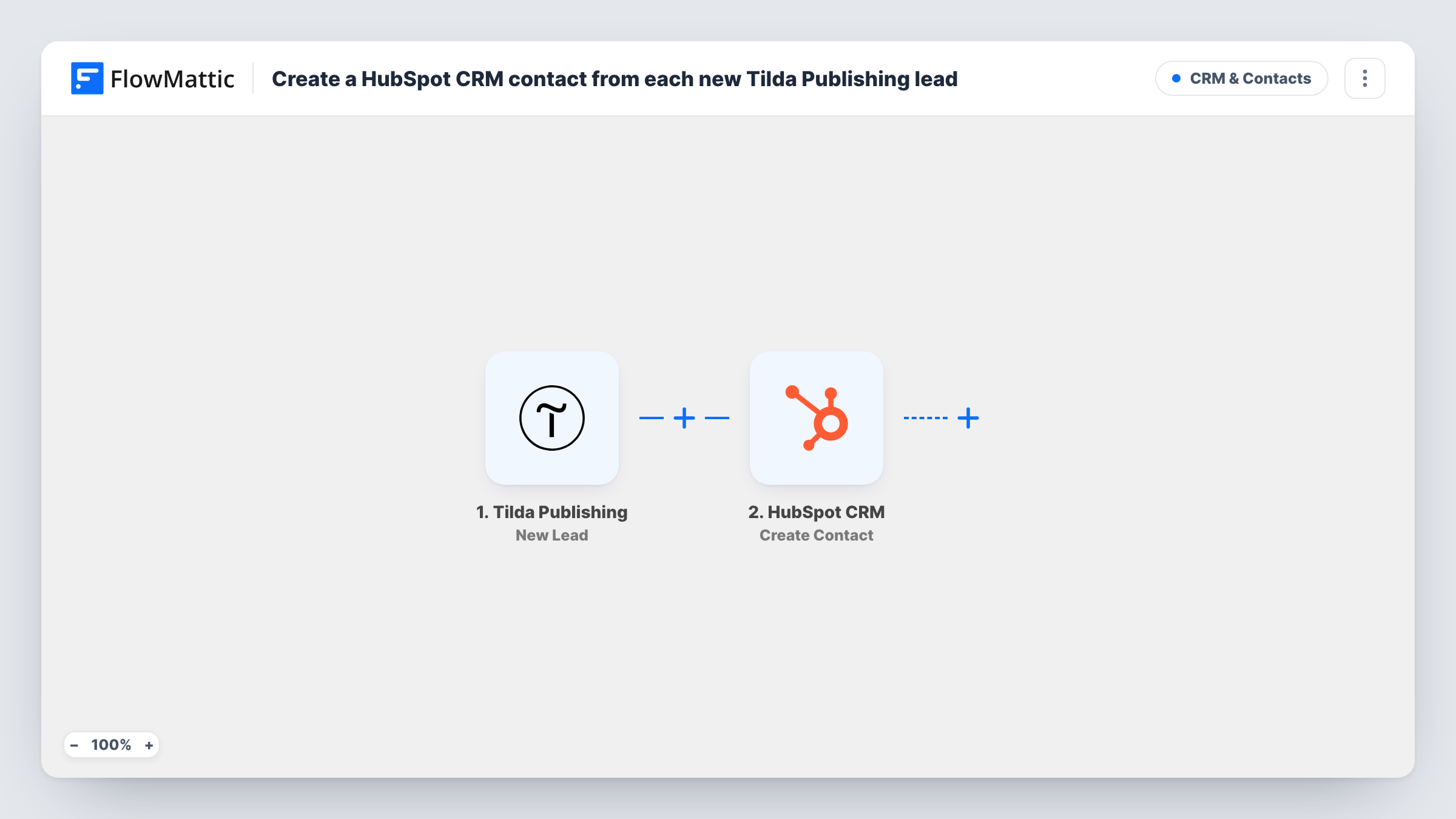
What this workflow does
A landing page built on Tilda can collect leads well, but your sales team works in HubSpot. Downloading lead lists from Tilda and importing them again leaves gaps and delays. This workflow adds each new Tilda lead to HubSpot as a contact.
The Tilda Publishing trigger fires when a new lead comes in from one of your Tilda forms. FlowMattic passes the form data to HubSpot CRM, where the Create Contact action adds the person using the values you map, such as their email, name and phone number.
Every lead produces one attempt to create a contact. Someone who fills in a form twice, or who is already in HubSpot, will not be added a second time because HubSpot keeps one contact per email address. Task History shows each run, including any lead that HubSpot turned down.
Landing pages for paid campaigns
Each campaign has its own Tilda page. Leads from all of them land in HubSpot, where your team follows up from one list.
Consultation requests for a service business
A Tilda booking-request form feeds HubSpot, so the person who handles consultations sees each request as a contact ready to call.
Event pre-registration
People who register interest on a Tilda event page become HubSpot contacts you can email with details as the date gets closer.
How this workflow runs
What happens at each step once the workflow is on, and what you need before you import it.
 Tilda Publishing New Lead
Fires when a new lead is submitted through a form on your Tilda Publishing site. The submitted fields are passed on for mapping into HubSpot.
- HubSpot CRM Create Contact
Creates a contact in HubSpot CRM from the Tilda lead. Connect your HubSpot account and map the form's email, name and other fields to the contact.
What you need
- FlowMatticCore
- Tilda Publishing AccountAccount
- HubSpot CRM AccountAccount
After importing, map your own data. To keep the template universal, not every step is pre-filled. Open each step in the builder and connect your accounts and fields (channels, lists, sheets, recipients) before you switch the workflow on.
Make it yours
Changes worth making after you import it.
- Make the email field required in your Tilda form so HubSpot always gets an address to create the contact with.
- Submit a test lead from your Tilda page after import so FlowMattic captures the form's fields before you map them.
- Add a Slack message after the HubSpot step so sales hears about each new Tilda lead as soon as the contact is created.
Questions about this workflow
What happens when a Tilda lead is already a HubSpot contact?
HubSpot doesn't allow two contacts with the same email, so the Create Contact step returns an error and the existing contact stays as it was. You can see that error on the HubSpot step in Task History.
Do leads from every Tilda form go to HubSpot?
Every lead the Tilda trigger receives starts a run. Add a Filter after the trigger if you want only one form or page to create contacts.
Are leads collected before import sent to HubSpot?
No. Only leads that come in after you turn the workflow on create HubSpot contacts.
More CRM & Contacts workflows
Other ready-to-import templates from the same category.






Import this workflow into your WordPress site
Download the JSON, import it from the Workflows screen and connect your accounts. Every run stays on your server, with no per-task fees.
30-day money-back guarantee Unlimited workflows and runs Self-hosted