

Create a HubSpot CRM ticket when a Mixmax unsubscribe link is clicked
When someone clicks the unsubscribe link in a Mixmax email, FlowMattic creates a ticket in HubSpot CRM so your team can review the opt-out and follow up where needed.
 Mixmax
 HubSpot CRM
2 steps Setup ~5 min Used on 2.9k sites Free to import
What this workflow does
An unsubscribe from a sales email is worth knowing about. It may mean a prospect has lost interest, a customer is unhappy, or someone's details need to be updated in your CRM. This workflow turns each Mixmax unsubscribe click into a HubSpot ticket, so the opt-out lands in a queue a person checks instead of passing unnoticed.
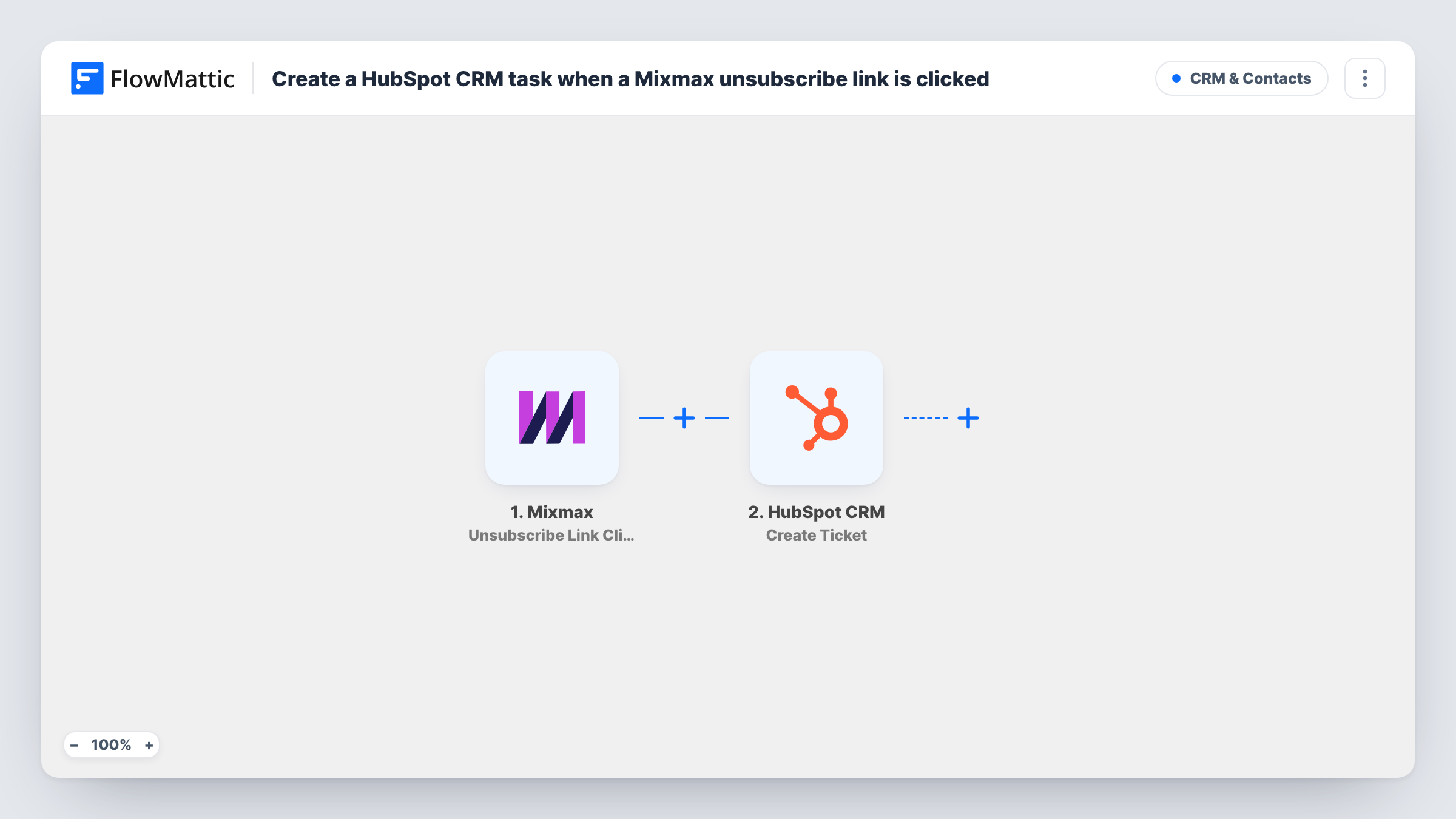
The Mixmax trigger fires when someone clicks the unsubscribe link in one of your Mixmax emails. It passes the details Mixmax sends about that event, such as the recipient's email, to the next step.
The HubSpot CRM Create Ticket step then opens a new ticket. It ships unmapped: after import, connect HubSpot and fill in the ticket, for example a subject like "Unsubscribed from Mixmax" with the recipient's email mapped in. A test click shows which Mixmax fields you can use.
Every unsubscribe click opens its own ticket, including repeat clicks by the same person. The workflow doesn't change the contact's email preferences in HubSpot. Task History records what Mixmax sent and HubSpot's reply.
Account managers hear about unhappy customers
A software company's customer success team gets a HubSpot ticket when a current customer unsubscribes from Mixmax sequences, and checks in with them.
Keeping CRM consent tidy
A sales operations lead works through the tickets each week and updates contact records so the opt-out is respected across tools.
Spotting sequence problems
A sales manager reviews unsubscribe tickets to see which outreach emails people leave from, then rewrites those messages.
How this workflow runs
What happens at each step once the workflow is on, and what you need before you import it.
 Mixmax Unsubscribe Link Clicked
Fires when a recipient clicks the unsubscribe link in a Mixmax email. The event's details, including who clicked, are passed to HubSpot.
- HubSpot CRM Create Ticket
Opens a new ticket in HubSpot CRM for the unsubscribe. The step ships unmapped: connect HubSpot, then write the ticket subject and map the recipient's email and other Mixmax details into it.
What you need
- FlowMatticCore
- Mixmax AccountAccount
- HubSpot CRM AccountAccount
After importing, map your own data. To keep the template universal, not every step is pre-filled. Open each step in the builder and connect your accounts and fields (channels, lists, sheets, recipients) before you switch the workflow on.
Make it yours
Changes worth making after you import it.
- Put the recipient's email at the start of the ticket subject, so the HubSpot ticket list shows who unsubscribed without opening each ticket.
- Send one test unsubscribe from a Mixmax email to your own address before mapping, so the Mixmax fields appear in FlowMattic.
- Add a Slack step after the HubSpot step if the team should also hear about each unsubscribe in a channel.
Questions about this workflow
Does this unsubscribe the person in HubSpot as well?
No. It only creates a ticket. Someone on your team, or another step you add, has to update the contact's subscription settings in HubSpot.
Will a person who clicks the Mixmax unsubscribe link twice get two tickets?
Yes. Each click Mixmax reports starts a run, and Create Ticket always opens a new ticket.
Which HubSpot pipeline does the unsubscribe ticket go into?
Whatever you set in the Create Ticket step after import. The step ships empty, so run a test and check Task History to confirm HubSpot accepted the ticket.
More CRM & Contacts workflows
Other ready-to-import templates from the same category.






Import this workflow into your WordPress site
Download the JSON, import it from the Workflows screen and connect your accounts. Every run stays on your server, with no per-task fees.
30-day money-back guarantee Unlimited workflows and runs Self-hosted