

Delete a tag in Chatrace on new webhook received
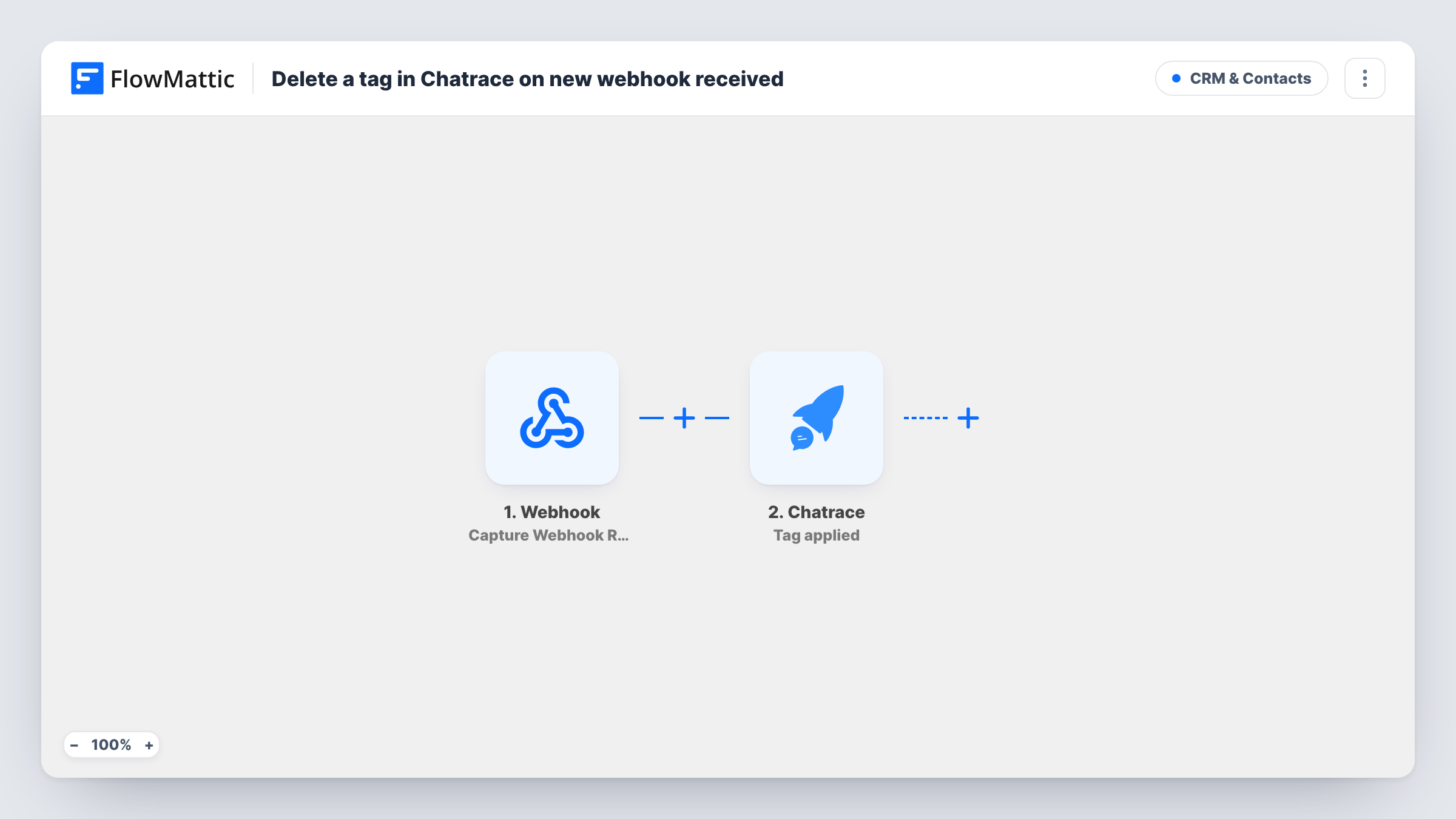
When your FlowMattic webhook URL receives a request, the workflow deletes a tag from your Chatrace account, either one fixed tag or the tag named in the incoming data.
 Webhook
 Chatrace
2 steps Setup ~5 min Used on 3.3k sites Free to import
What this workflow does
Chatbot accounts collect tags over time: campaign tags, test tags, tags for offers that ended. Removing them by hand is easy to forget. This workflow lets another system, a script or a form tell FlowMattic when a tag should go, and the tag is deleted from Chatrace in response.
The Webhook trigger listens on its own address, created when you add the step. Whatever posts to it, such as your own app, a scheduled job or another automation tool, sends the data that starts a run. The webhook accepts requests from any sender unless you turn on authentication in the trigger's settings, so do that if the URL could be found.
The second step uses Chatrace Delete a tag. This deletes the tag itself from your Chatrace account, not just from one contact. The step ships unmapped: after import you either set the tag to delete in the step, or map the tag's identifier from the webhook data so the sender decides which tag goes each time.
Because the step removes the tag from your whole account, try it on a spare tag first. Task History shows the data that arrived and Chatrace's response.
Clean-up after a campaign ends
A marketing script posts the campaign's tag to the webhook on its end date, and the tag is removed from the Chatrace account so it no longer shows up in segments.
Admin panel button for tag removal
An internal tool used by a support team sends a request to the webhook when someone retires a tag, so nobody needs to log in to Chatrace.
Removing temporary test tags
A developer building chatbot flows creates throwaway tags while testing, then calls the webhook with each tag to delete it afterwards.
How this workflow runs
What happens at each step once the workflow is on, and what you need before you import it.
 Webhook Capture Webhook Response
Gives you a webhook URL and starts a run each time it receives a request. The data in that request, such as the tag to remove, becomes available to the Chatrace step.
- Chatrace Delete a tag
Deletes a tag from your Chatrace account. The step ships unmapped, so after import set the tag to delete or map it from the webhook payload, then test with a tag you don't need.
What you need
- FlowMatticCore
- Chatrace AccountAccount
After importing, map your own data. To keep the template universal, not every step is pre-filled. Open each step in the builder and connect your accounts and fields (channels, lists, sheets, recipients) before you switch the workflow on.
Make it yours
Changes worth making after you import it.
- Turn on the webhook trigger's authentication setting and give the key only to the system that should be able to delete tags.
- Have the sender include the Chatrace tag's identifier in the webhook payload, then map it into the Delete a tag step and test with a known spare tag.
- Add Chatrace's Get a tag by name action between the Webhook trigger and the Delete a tag step if your sender only knows the tag's name, and map the result into the delete step.
Questions about this workflow
Does this remove the tag from one Chatrace contact or from the whole account?
From the account. Delete a tag deletes the tag itself. To take a tag off one contact, use the Remove Tag from Contact action in FlowMattic's Chatrace V2 integration instead.
Who can send requests to the Chatrace tag webhook?
Anything that can post to the URL, unless you turn on the trigger's authentication setting. Then only callers that send your key, or a valid signature, start a run.
How do I tell the workflow which Chatrace tag to delete?
Either set one fixed tag in the Delete a tag step, or have the webhook sender include the tag in the request and map it into the step. Check a test run to see what Chatrace expects.
More CRM & Contacts workflows
Other ready-to-import templates from the same category.





Import this workflow into your WordPress site
Download the JSON, import it from the Workflows screen and connect your accounts. Every run stays on your server, with no per-task fees.
30-day money-back guarantee Unlimited workflows and runs Self-hosted