

Create a HubSpot CRM contact from every new Lead Prosper lead
Every new lead captured through a Lead Prosper campaign is created as a contact in HubSpot CRM, so your sales team can work it in HubSpot straight away instead of waiting for an import.
 Lead Prosper
 HubSpot CRM
2 steps Setup ~5 min Used on 361 sites Free to import
What this workflow does
Lead Prosper collects and routes leads from your campaigns, but your sales reps work in HubSpot. Exporting and importing lead lists leaves a gap where new leads sit untouched. This workflow creates the HubSpot contact as each lead is captured.
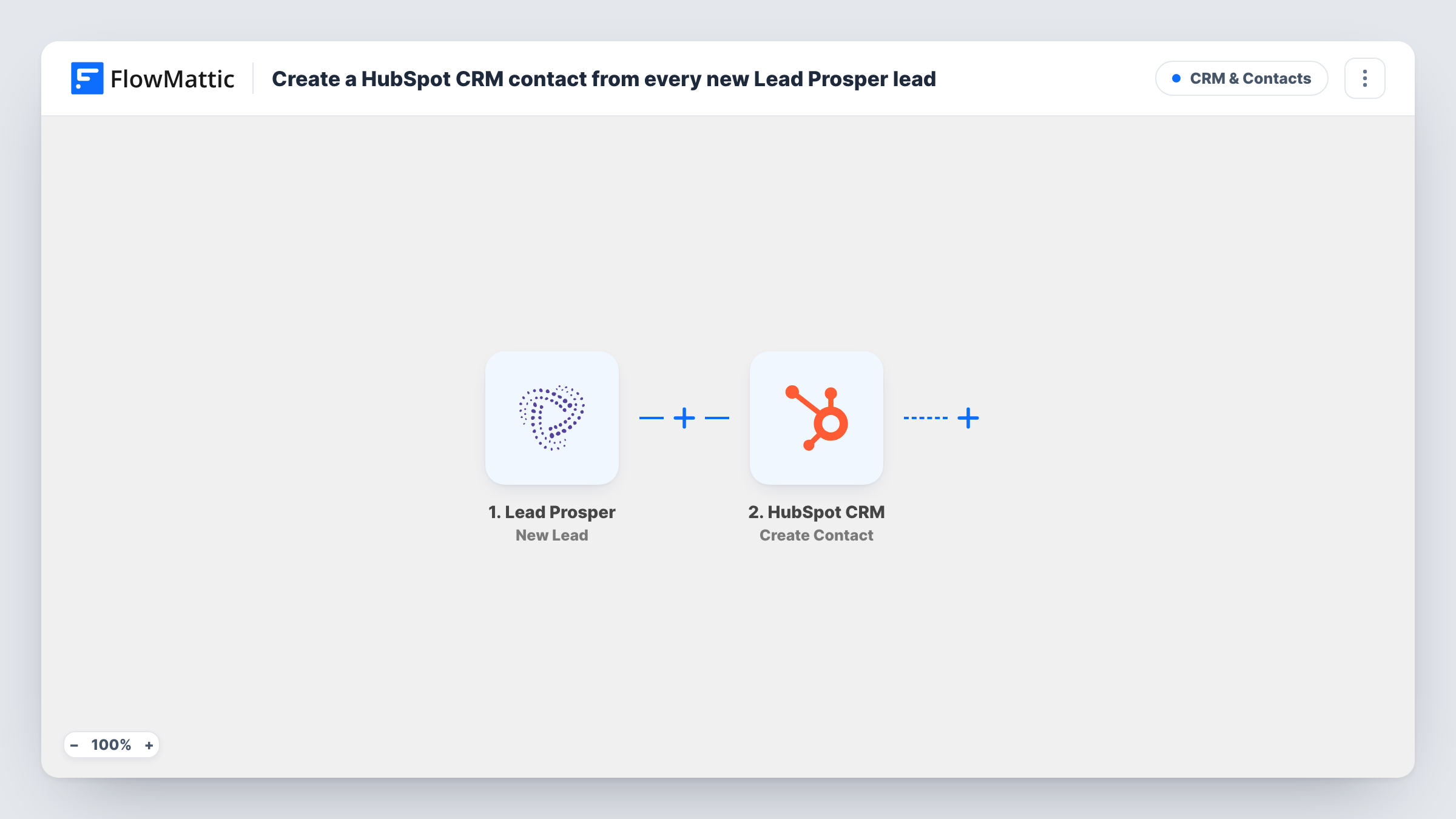
The Lead Prosper trigger, New Lead, fires when a new lead is captured through a Lead Prosper campaign. The lead's fields become values you can map. The HubSpot CRM step then runs Create Contact, and you map the lead's details to HubSpot contact properties.
The HubSpot step never searches for a matching contact and never edits one. If the email already belongs to a HubSpot contact, HubSpot may refuse the new one, and Task History shows that response on the step. Each lead gives one run.
Insurance lead buyer
Leads bought through Lead Prosper campaigns become HubSpot contacts, and agents call them from their HubSpot task queue.
Home improvement company
Quote requests captured by Lead Prosper land in HubSpot as contacts the sales team assigns and follows up.
Agency reselling campaign leads
An agency running Lead Prosper campaigns for a client creates contacts in the client's HubSpot portal, so the client works leads in their own CRM.
How this workflow runs
What happens at each step once the workflow is on, and what you need before you import it.
 Lead Prosper New Lead
Fires when a new lead is captured through one of your Lead Prosper campaigns. Connect Lead Prosper; the lead's fields are passed to HubSpot.
- HubSpot CRM Create Contact
Turns the Lead Prosper lead into a new HubSpot CRM contact. Connect HubSpot and map the lead's email and the other Lead Prosper fields you see in a test lead to HubSpot contact properties.
What you need
- FlowMatticCore
- Lead Prosper AccountAccount
- HubSpot CRM AccountAccount
After importing, map your own data. To keep the template universal, not every step is pre-filled. Open each step in the builder and connect your accounts and fields (channels, lists, sheets, recipients) before you switch the workflow on.
Make it yours
Changes worth making after you import it.
- Map the Lead Prosper campaign name into a HubSpot property, if the lead data includes it, so reps can see where each contact came from.
- Add a Filter after the trigger that continues only when the email is not empty, so leads without one don't fail in HubSpot.
- Run one test lead after import and open the new contact in HubSpot to check every mapped property arrived.
Questions about this workflow
What if the Lead Prosper lead is already a HubSpot contact?
The step won't merge the lead into that contact. HubSpot may reject a second contact with the same email; the step's result in Task History will say so, and the existing record stays as it was.
Does every Lead Prosper campaign feed HubSpot?
Every new lead the trigger receives starts a run. Add a Filter on the campaign if you only want some campaigns' leads in HubSpot.
Can the HubSpot contact get an owner automatically?
Only if you map an owner in the Create Contact step, where the step offers it. Otherwise use HubSpot's own assignment rules after the contact is created.
More CRM & Contacts workflows
Other ready-to-import templates from the same category.







Import this workflow into your WordPress site
Download the JSON, import it from the Workflows screen and connect your accounts. Every run stays on your server, with no per-task fees.
30-day money-back guarantee Unlimited workflows and runs Self-hosted