

Create a HubSpot CRM contact when a new easybill customer is created
Each customer you create in easybill is added to HubSpot CRM as a new contact, so your sales team sees billing customers in HubSpot without anyone copying names and email addresses across.
 easybill
 HubSpot CRM
2 steps Setup ~5 min Used on 1.4k sites Free to import
What this workflow does
Billing often starts in easybill, while sales and support work from HubSpot. When the two systems hold different customer lists, people end up emailing someone the CRM has never heard of. This workflow adds each new easybill customer to HubSpot as it is created.
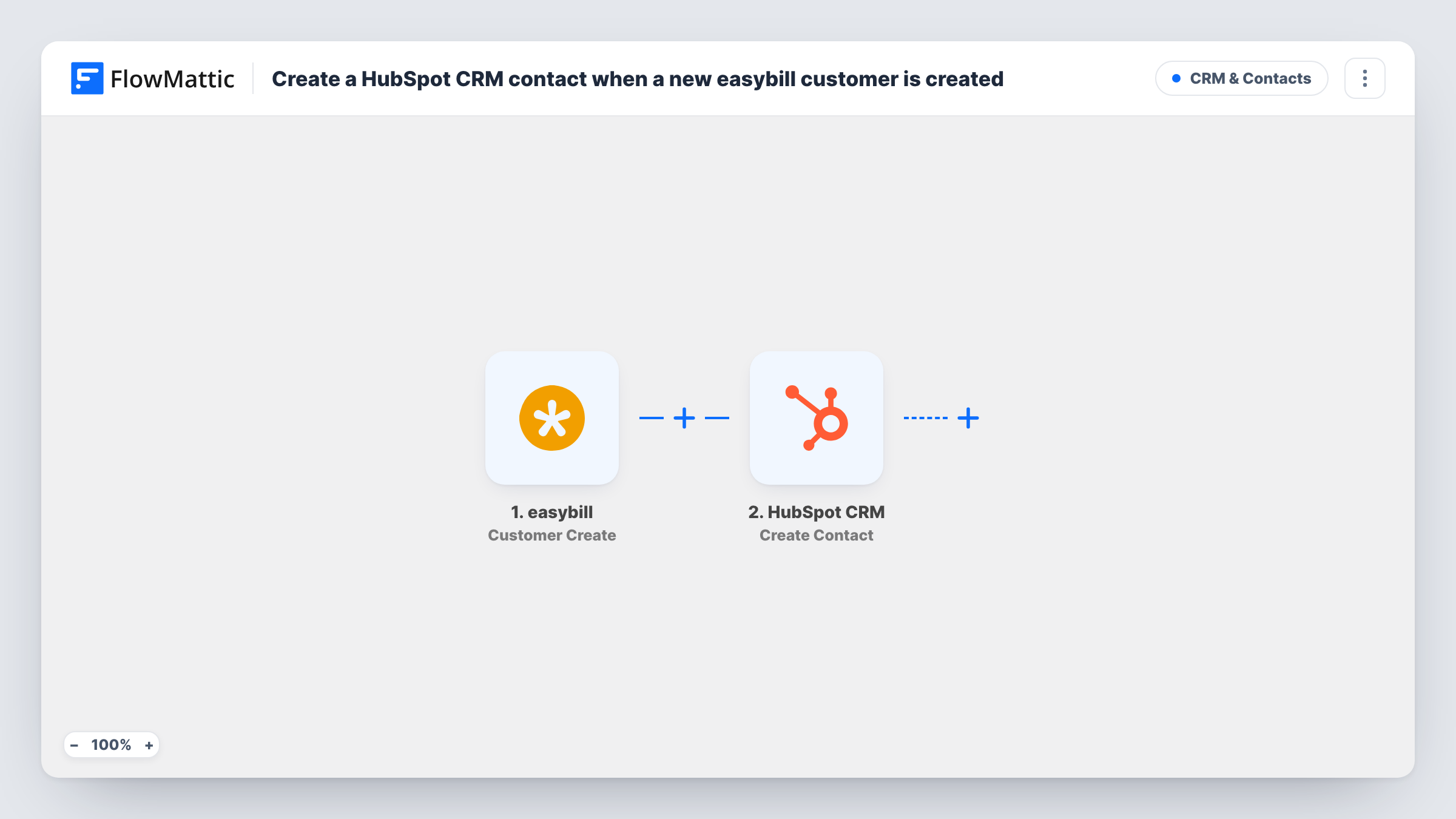
The easybill Customer Create trigger fires when a new customer is created in easybill and passes the customer data on. Next, a contact is made for that customer in HubSpot CRM. You map the easybill fields, such as name, email and company, into the HubSpot contact properties.
This step makes new contacts and never edits existing ones. If the email already belongs to a HubSpot contact, HubSpot may refuse the duplicate, and Task History shows its response. Changes you make to the customer later in easybill are not copied over by this template.
Freelancers who bill before they sell again
A new client is set up in easybill for the first invoice. The HubSpot contact is there when you want to send them a follow-up offer.
Small agency with separate finance and sales
Finance creates customers in easybill. Sales works from HubSpot and sees each new customer without waiting for an export.
Support team context
When a paying customer emails support, the HubSpot contact already exists, so the team knows they are a billing customer.
How this workflow runs
What happens at each step once the workflow is on, and what you need before you import it.
 easybill Customer Create
Runs when a new customer is created in your easybill account. The customer's details are passed on for mapping into HubSpot.
- HubSpot CRM Create Contact
Creates a contact in HubSpot CRM from the easybill customer. Map the email, first and last name and company fields, and check a test run to confirm HubSpot accepted the contact.
What you need
- FlowMatticCore
- easybill AccountAccount
- HubSpot CRM AccountAccount
After importing, map your own data. To keep the template universal, not every step is pre-filled. Open each step in the builder and connect your accounts and fields (channels, lists, sheets, recipients) before you switch the workflow on.
Make it yours
Changes worth making after you import it.
- Add a Filter after the trigger that continues only when the easybill customer has an email address, so HubSpot always gets an address to create the contact with.
- Create one test customer in easybill after import so FlowMattic captures the real field names before you map them into HubSpot.
- Map the easybill customer number into a custom HubSpot contact property, so you can match the two records later when you look someone up.
Questions about this workflow
What if the easybill customer already exists in HubSpot?
The HubSpot step here never changes a contact that is already there. HubSpot may reject a contact whose email is already in the CRM, and Task History shows the response for that run.
Are easybill customers created before import copied to HubSpot?
No. Only customers created after the workflow is on start a run. Use HubSpot's import tool for your existing list.
Does the HubSpot contact get a company record too?
Not as imported. The workflow creates a contact only. You can map the company name into a contact property, or add a HubSpot Create Company step after the contact step.
More CRM & Contacts workflows
Other ready-to-import templates from the same category.





Import this workflow into your WordPress site
Download the JSON, import it from the Workflows screen and connect your accounts. Every run stays on your server, with no per-task fees.
30-day money-back guarantee Unlimited workflows and runs Self-hosted