

Create a HubSpot CRM contact when a new Ortto record is created
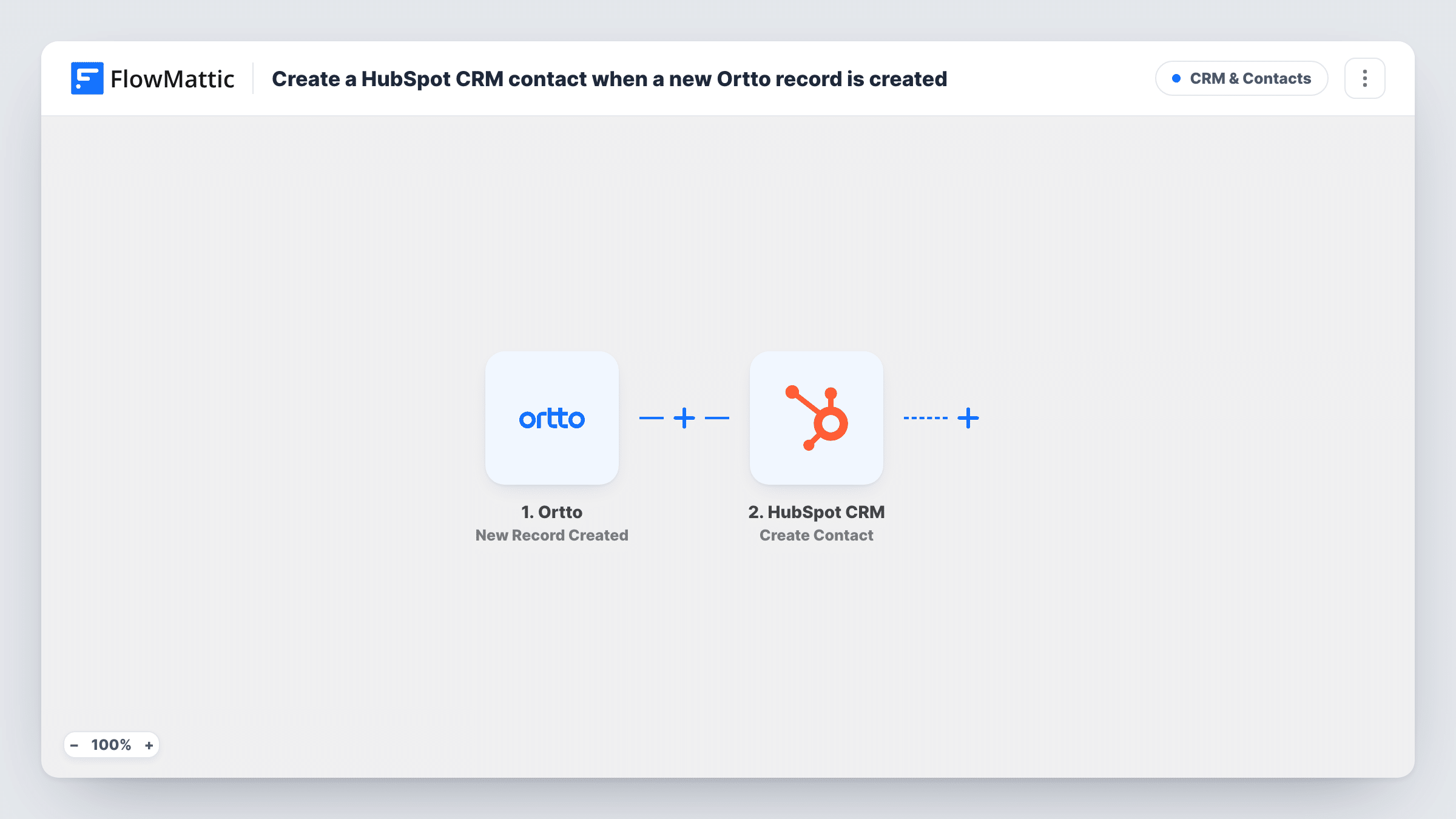
When a new record is created in Ortto, this workflow creates a matching contact in HubSpot CRM, so people who enter your Ortto marketing data also show up for your sales team.
 Ortto
 HubSpot CRM
2 steps Setup ~5 min Used on 2.4k sites Free to import
What this workflow does
Teams often run marketing in Ortto and sales in HubSpot. A person who enters Ortto doesn't appear in HubSpot until someone exports and imports a list, so sales works from an old copy. This workflow creates the HubSpot contact as each Ortto record is made.
The Ortto trigger fires when a new record is created in your connected account. FlowMattic passes the record's data on, and the HubSpot CRM Create Contact action adds a contact from the values you map, such as the email address and name Ortto holds for that person.
The HubSpot action is create-only. It doesn't look for an existing HubSpot contact first, so if the person is already in HubSpot, HubSpot may refuse the duplicate email. Each run's HubSpot reply is listed in Task History.
New Ortto leads handed to sales
Leads that land in Ortto become HubSpot contacts straight away, so reps can start outreach from the CRM they already use.
Keep two tools' contact lists closer together
Marketing adds people to Ortto from events and imports. HubSpot gets a contact for each new record, instead of waiting for a monthly export.
Agency running Ortto for a HubSpot client
An agency manages campaigns in Ortto while the client's team lives in HubSpot. New Ortto records reach the client's CRM without a shared login.
How this workflow runs
What happens at each step once the workflow is on, and what you need before you import it.
 Ortto New Record Created
Runs when a new record is created in your connected Ortto account. The record's data is passed to the HubSpot step for mapping.
- HubSpot CRM Create Contact
Creates a contact in HubSpot CRM from the Ortto record. Map the email and any other values you want stored, then check the new contact in HubSpot after a test run.
What you need
- FlowMatticCore
- Ortto AccountAccount
- HubSpot CRM AccountAccount
After importing, map your own data. To keep the template universal, not every step is pre-filled. Open each step in the builder and connect your accounts and fields (channels, lists, sheets, recipients) before you switch the workflow on.
Make it yours
Changes worth making after you import it.
- If people may already be in HubSpot, add a HubSpot Get Contact step before Create Contact and a Filter that continues only when no contact came back.
- Add a Filter after the trigger that continues only when the Ortto email is not empty, so records without an address don't reach HubSpot.
- Create a test record in Ortto after import so FlowMattic captures its fields, then map them in the HubSpot step before you turn the workflow on.
Questions about this workflow
What happens if the Ortto person is already a HubSpot contact?
Create Contact doesn't check first, so HubSpot may refuse the duplicate email and no new contact is made. You can read HubSpot's reply in Task History. Add a Get Contact step and a Filter to avoid it.
Do Ortto field updates reach HubSpot?
No. This workflow runs on new records only. Ortto also has a Fields Updated trigger in FlowMattic, which you could pair with HubSpot's Update Contact in a separate workflow.
Will existing Ortto records be copied to HubSpot?
No. The trigger only picks up Ortto records made once the workflow is switched on. Move older records with a one-time import into HubSpot.
More CRM & Contacts workflows
Other ready-to-import templates from the same category.






Import this workflow into your WordPress site
Download the JSON, import it from the Workflows screen and connect your accounts. Every run stays on your server, with no per-task fees.
30-day money-back guarantee Unlimited workflows and runs Self-hosted