

Create a HubSpot CRM contact when an Act-On form is submitted
When someone submits an Act-On form, FlowMattic creates a contact in HubSpot CRM from the answers, so marketing leads captured in Act-On reach the sales team’s CRM.
 Act-On
 HubSpot CRM
2 steps Setup ~5 min Used on 3.0k sites Free to import
What this workflow does
Plenty of teams run marketing in Act-On and sales in HubSpot. Leads captured by an Act-On form then sit on the marketing side until someone moves them. This workflow sends each form submission to HubSpot as a new contact.
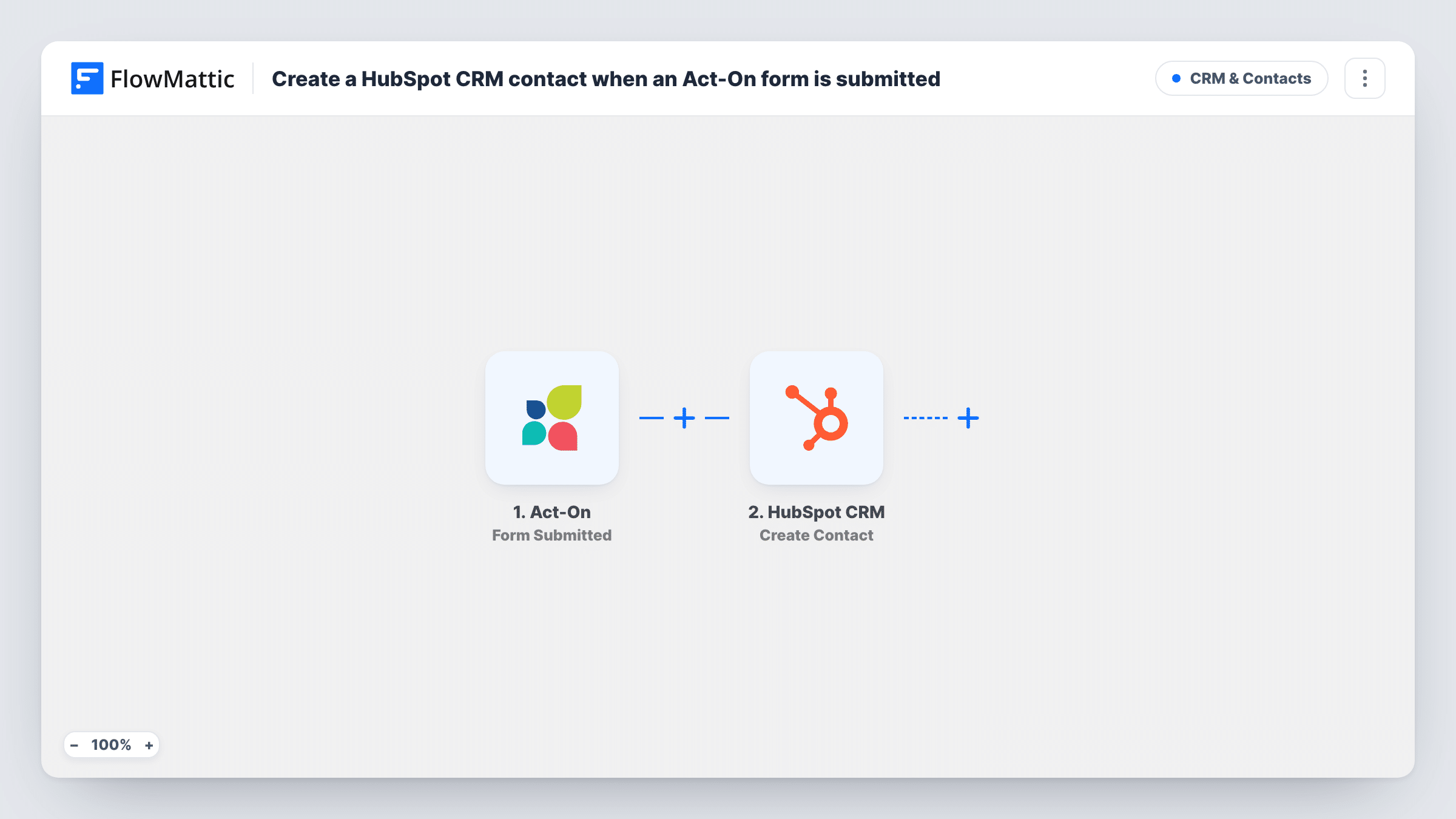
The Act-On trigger, Form Submitted, fires when a form is submitted. FlowMattic passes the submitted data to HubSpot CRM, where Create Contact adds a new contact. You map the email, name and any other answers to HubSpot contact properties.
This action never edits an existing HubSpot record. It doesn't look for an existing record first, so a person who submits again, or who is already in HubSpot, may get an error back from HubSpot instead of an update. Task History shows HubSpot's response for each run, which is where you check whether a contact was made.
Demo requests for sales
A demo request form built in Act-On creates the HubSpot contact the sales team calls, without waiting for a weekly export.
Content download leads
Whitepaper forms in Act-On create HubSpot contacts, so sales reps can see who downloaded what next to their own notes.
Webinar sign-ups
Registrants from an Act-On form appear in HubSpot, where account owners can follow up after the session.
How this workflow runs
What happens at each step once the workflow is on, and what you need before you import it.
 Act-On Form Submitted
Fires when a form in your Act-On account is submitted. The submitted fields are passed on so you can map them into HubSpot.
- HubSpot CRM Create Contact
Adds the submitter to HubSpot CRM as a new contact. Map the email from the Act-On form plus first name, last name and any other properties you want filled.
What you need
- FlowMatticCore
- Act-On AccountAccount
- HubSpot CRM AccountAccount
After importing, map your own data. To keep the template universal, not every step is pre-filled. Open each step in the builder and connect your accounts and fields (channels, lists, sheets, recipients) before you switch the workflow on.
Make it yours
Changes worth making after you import it.
- Add a Filter after the trigger on the form name or ID, if Act-On sends it, so only the forms meant for sales create HubSpot contacts.
- Submit a test entry on the Act-On form after import, so FlowMattic captures the real field names before you map them to HubSpot properties.
- Make the email field required on the Act-On form, so every run hands HubSpot an address for the new contact.
Questions about this workflow
What happens if the Act-On submitter is already a HubSpot contact?
Create Contact makes new records only, so HubSpot may refuse a duplicate email. Task History shows the response on the HubSpot step for that run.
Does every Act-On form create a HubSpot contact?
As imported, yes, for each Form Submitted event from your connected Act-On account. Add a Filter on the form to narrow it.
Does this change the contact in Act-On?
No. Act-On records the submission as usual. The workflow only reads it and writes to HubSpot.
More CRM & Contacts workflows
Other ready-to-import templates from the same category.






Import this workflow into your WordPress site
Download the JSON, import it from the Workflows screen and connect your accounts. Every run stays on your server, with no per-task fees.
30-day money-back guarantee Unlimited workflows and runs Self-hosted