

Create a HubSpot CRM contact when an Attentive email is subscribed
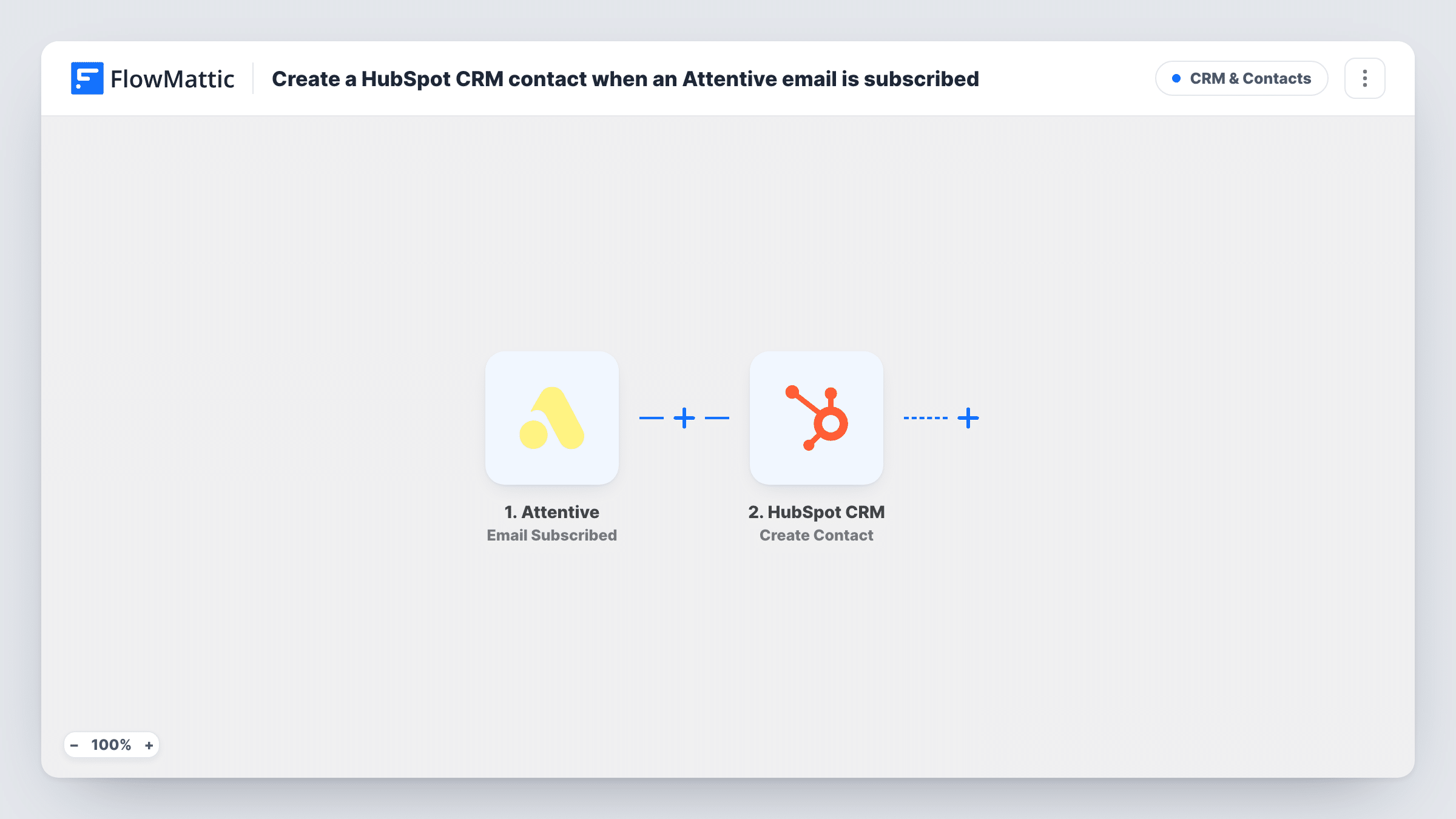
When someone subscribes to your email list in Attentive, FlowMattic creates a matching contact in HubSpot CRM, so your sales and service teams can see each new email opt-in alongside your other contacts.
 Attentive
 HubSpot CRM
2 steps Setup ~5 min Used on 1.8k sites Free to import
What this workflow does
Attentive collects your email opt-ins, but your sales team lives in HubSpot. Without a link, an engaged subscriber can be a stranger to the rep who answers their question. This workflow copies each new Attentive email subscriber into HubSpot as a contact.
This template starts from the Attentive Email Subscribed trigger, so each new email opt-in starts one run. The subscriber's details from Attentive become values you can map in the next step.
The HubSpot CRM step runs Create Contact. It makes a new contact from the email and any other values you map, such as a phone number if Attentive sends one. The action creates only, so a person who is already in HubSpot may be refused as a duplicate. In that case the existing contact stays as it is, and Task History shows the response for the run. SMS-only sign-ups don't fire this trigger, because it listens for email subscriptions.
Retail brand with a wholesale sales team
Shoppers who join the Attentive email list show up in HubSpot, where the wholesale team spots buyers from businesses they already sell to.
Support context for new subscribers
A support agent opening a HubSpot ticket can see that the customer signed up for email through Attentive.
Lead scoring in HubSpot
New email opt-ins enter HubSpot as contacts, so the lead scoring and lists you already run there include them.
How this workflow runs
What happens at each step once the workflow is on, and what you need before you import it.
 Attentive Email Subscribed
Fires when a user subscribes to email in Attentive. The subscriber's data from Attentive is passed to the HubSpot step for mapping, starting with the email address.
- HubSpot CRM Create Contact
Adds the Attentive subscriber to HubSpot CRM as a new contact. Connect your HubSpot account and map the subscriber's email, plus any name or phone values Attentive provides.
What you need
- FlowMatticCore
- Attentive AccountAccount
- HubSpot CRM AccountAccount
After importing, map your own data. To keep the template universal, not every step is pre-filled. Open each step in the builder and connect your accounts and fields (channels, lists, sheets, recipients) before you switch the workflow on.
Make it yours
Changes worth making after you import it.
- Map a fixed value such as Attentive into a HubSpot contact property for lead source, so you can tell these contacts apart in lists and reports.
- Add a Filter after the trigger if you want only some sign-ups in HubSpot, based on a value you see in a test run from Attentive.
- Subscribe a test email in Attentive after import so FlowMattic captures the data, then map it in the HubSpot step before you switch the workflow on.
Questions about this workflow
What happens if the Attentive subscriber already exists in HubSpot?
Create Contact doesn't update existing records, so HubSpot may refuse the duplicate email. The contact you already have is left unchanged, and Task History shows the response.
Do SMS subscribers from Attentive reach HubSpot too?
Not with this trigger. Email Subscribed fires on email sign-ups only. Attentive also has an SMS Subscribed trigger in FlowMattic, which you can use in a second workflow for those.
Will my current Attentive email list be copied to HubSpot?
No. Only people who subscribe after the workflow is active start a run. Earlier subscribers need a one-time import into HubSpot.
Does this unsubscribe people in HubSpot when they leave Attentive?
No. The workflow only reacts to new email subscriptions and only creates contacts. Unsubscribes in Attentive are not passed to HubSpot.
More CRM & Contacts workflows
Other ready-to-import templates from the same category.






Import this workflow into your WordPress site
Download the JSON, import it from the Workflows screen and connect your accounts. Every run stays on your server, with no per-task fees.
30-day money-back guarantee Unlimited workflows and runs Self-hosted