

Create a Notion database entry from each new SurveyCTO submission
Every new SurveyCTO form submission becomes an item in the Notion database you choose, so field data sits next to your team’s project notes and plans.
 SurveyCTO
 Notion
2 steps Setup ~5 min Used on 590 sites Free to import
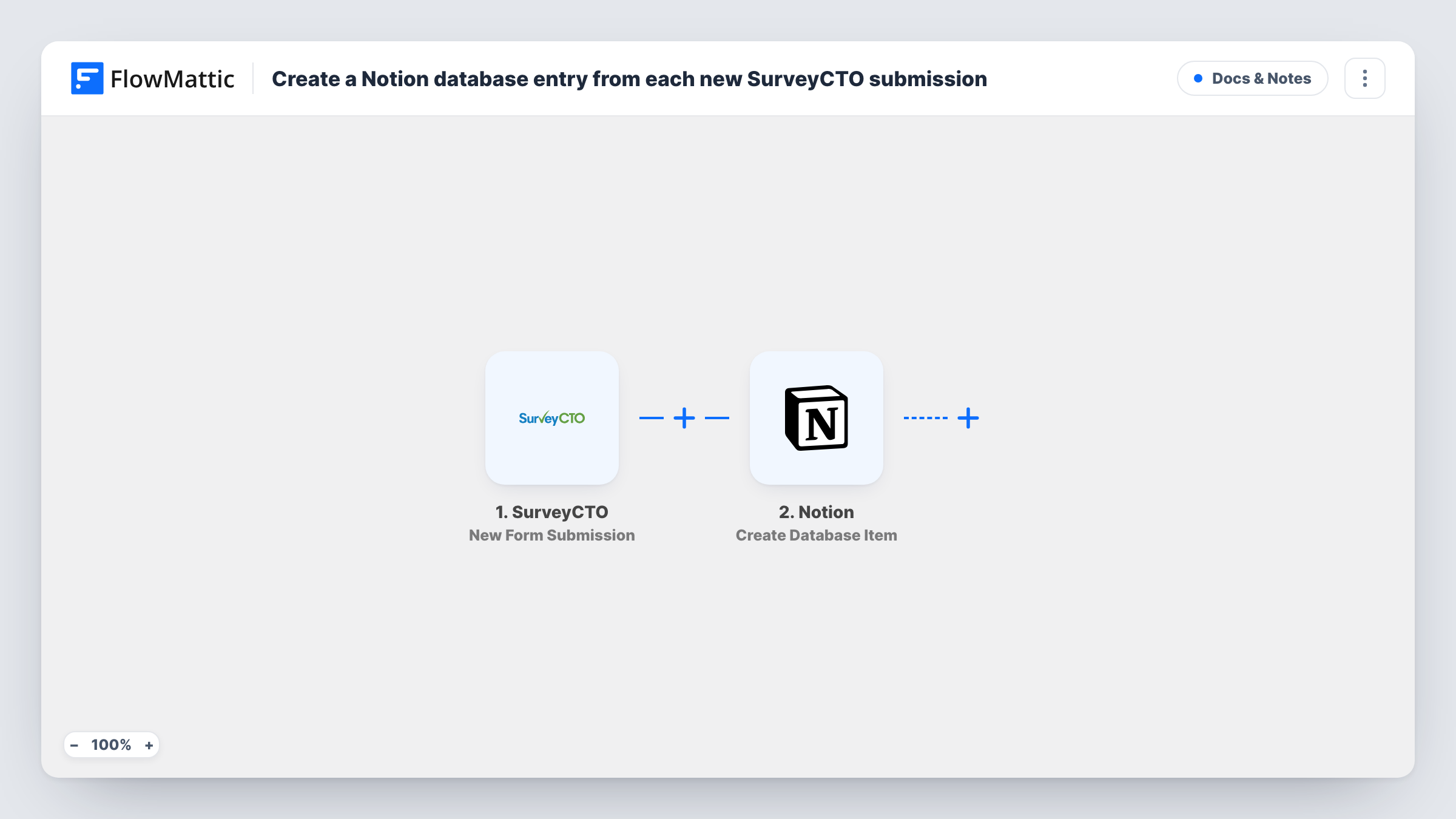
What this workflow does
SurveyCTO is built for collecting data in the field, but the people who plan and discuss the work often live in Notion. Exporting submissions and pasting them in means the database is always behind. This workflow adds each new submission to Notion as it arrives.
The SurveyCTO trigger fires for a new form submission. The submitted values are passed to Notion, where Create Database Item adds an item to the database you pick. You map SurveyCTO fields to the database's properties, such as the respondent, location, date and key answers.
Set up the Notion database with properties that match the answers you want to keep, and match property types where you can, for example a date field to a Date property. Each submission creates one item. Notion's reply for every submission is kept in Task History.
Site visits for an NGO programme
Field staff record each site visit in SurveyCTO. The Notion database fills with visits that the programme team can sort, tag and comment on.
Household survey tracking
Enumerators submit surveys from the field. A Notion item per submission lets the supervisor track progress by area and date.
Research interviews
Interview forms collected in SurveyCTO arrive in a Notion research database, where the team links them to themes and notes.
How this workflow runs
What happens at each step once the workflow is on, and what you need before you import it.
 SurveyCTO New Form Submission
Fires for each new form submission in SurveyCTO. The submitted values are passed to the Notion step for mapping.
- Notion Create Database Item
Adds one item per submission to your selected Notion database. Map SurveyCTO fields to the database properties, then send a test submission to check each value lands where you expect.
What you need
- FlowMatticCore
- SurveyCTO AccountAccount
- Notion AccountAccount
After importing, map your own data. To keep the template universal, not every step is pre-filled. Open each step in the builder and connect your accounts and fields (channels, lists, sheets, recipients) before you switch the workflow on.
Make it yours
Changes worth making after you import it.
- Add a Filter after the trigger if only some submissions belong in Notion, for example ones from a certain region or survey round.
- Put a unique SurveyCTO value, such as the submission ID, in a Notion property so each item can be traced back to the original record.
- Use a Router to send submissions from different forms or regions to separate Notion databases, giving each route a condition on a distinct value.
Questions about this workflow
Will older SurveyCTO submissions be copied to Notion?
No. Only submissions made after the workflow is turned on are added. Older data stays in SurveyCTO.
Do I need to create the Notion database first?
Yes. The step adds items to an existing database, so set it up with the properties you want before mapping SurveyCTO fields.
What if a SurveyCTO value doesn't fit the Notion property type?
Notion may reject or drop that value. Task History shows Notion's response, so test with a full submission and adjust the property types if needed.
More Docs & Notes workflows
Other ready-to-import templates from the same category.




Import this workflow into your WordPress site
Download the JSON, import it from the Workflows screen and connect your accounts. Every run stays on your server, with no per-task fees.
30-day money-back guarantee Unlimited workflows and runs Self-hosted