

When new form data is received in MachForm, create a new record in Notion
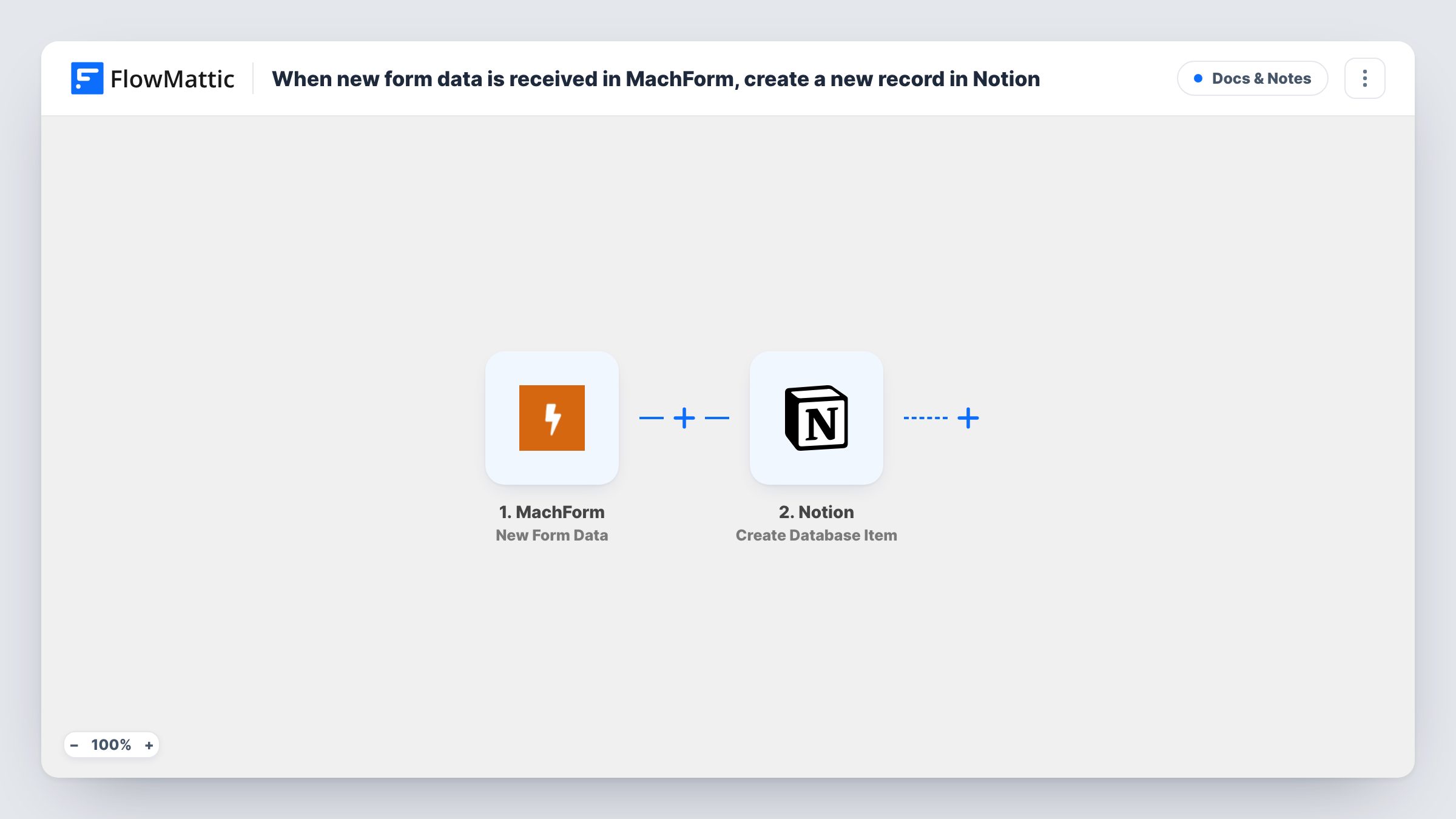
Every time MachForm sends new form data, this workflow creates an item in a Notion database with the answers you map, so responses are kept in your workspace alongside the rest of your notes.
 MachForm
 Notion
2 steps Setup ~5 min Used on 562 sites Free to import
What this workflow does
MachForm is good at collecting responses, but your team may plan and track work in Notion. Copying each response into a Notion database by hand is slow and easy to forget. This workflow adds the item for you as each response comes in.
The MachForm trigger runs when new form data is sent to FlowMattic. The answers then go to Notion, where Create Database Item adds a new entry to the database you pick. You map form answers to the database's properties, such as the title and any text, date or select properties you use.
One response creates one Notion item, and nothing filters entries in between. MachForm keeps its own copy of the data. Task History logs each run with Notion's response, which shows whether a property was rejected.
Client intake database
New clients complete a MachForm intake form. Each response becomes a Notion item your team opens to start the project.
Job applications in Notion
Applicants apply through MachForm. Their answers fill a Notion hiring database where reviewers add notes and change the stage.
Event feedback collection
Attendees rate a session through MachForm. Each response lands in a Notion database you can sort and group by session.
How this workflow runs
What happens at each step once the workflow is on, and what you need before you import it.
 MachForm New Form Data
Runs when MachForm sends new form data. Every answer in the response is ready to map into the Notion step.
- Notion Create Database Item
Adds a fresh entry to whichever Notion database you select for MachForm responses. Connect Notion, share the database with the integration, and map form answers to its properties.
What you need
- FlowMatticCore
- MachForm AccountAccount
- Notion AccountAccount
After importing, map your own data. To keep the template universal, not every step is pre-filled. Open each step in the builder and connect your accounts and fields (channels, lists, sheets, recipients) before you switch the workflow on.
Make it yours
Changes worth making after you import it.
- Share the Notion database with the FlowMattic connection before you test. Notion only lets an integration write to pages it has been given access to.
- Match each MachForm answer to a Notion property of a fitting type, such as a date answer to a Date property, and run a test response to see that each value lands as expected.
- Add a Filter after the MachForm trigger when only some responses belong in Notion, for example ones with a particular answer in a department field.
Questions about this workflow
Which Notion database receives the MachForm responses?
The one you pick in the Create Database Item step. You can point it at any database your Notion connection has access to.
What happens if a MachForm answer does not fit a Notion property?
Notion may reject the value, and Task History shows its response on that step. Check that each answer suits the property type you mapped it to.
Will MachForm entries from before the import show up in Notion?
No. Only new form data sent after you turn on the workflow creates Notion items.
More Docs & Notes workflows
Other ready-to-import templates from the same category.





Import this workflow into your WordPress site
Download the JSON, import it from the Workflows screen and connect your accounts. Every run stays on your server, with no per-task fees.
30-day money-back guarantee Unlimited workflows and runs Self-hosted