

When a new row is added in Smartsheet, create a presentation from a template in Google Slides
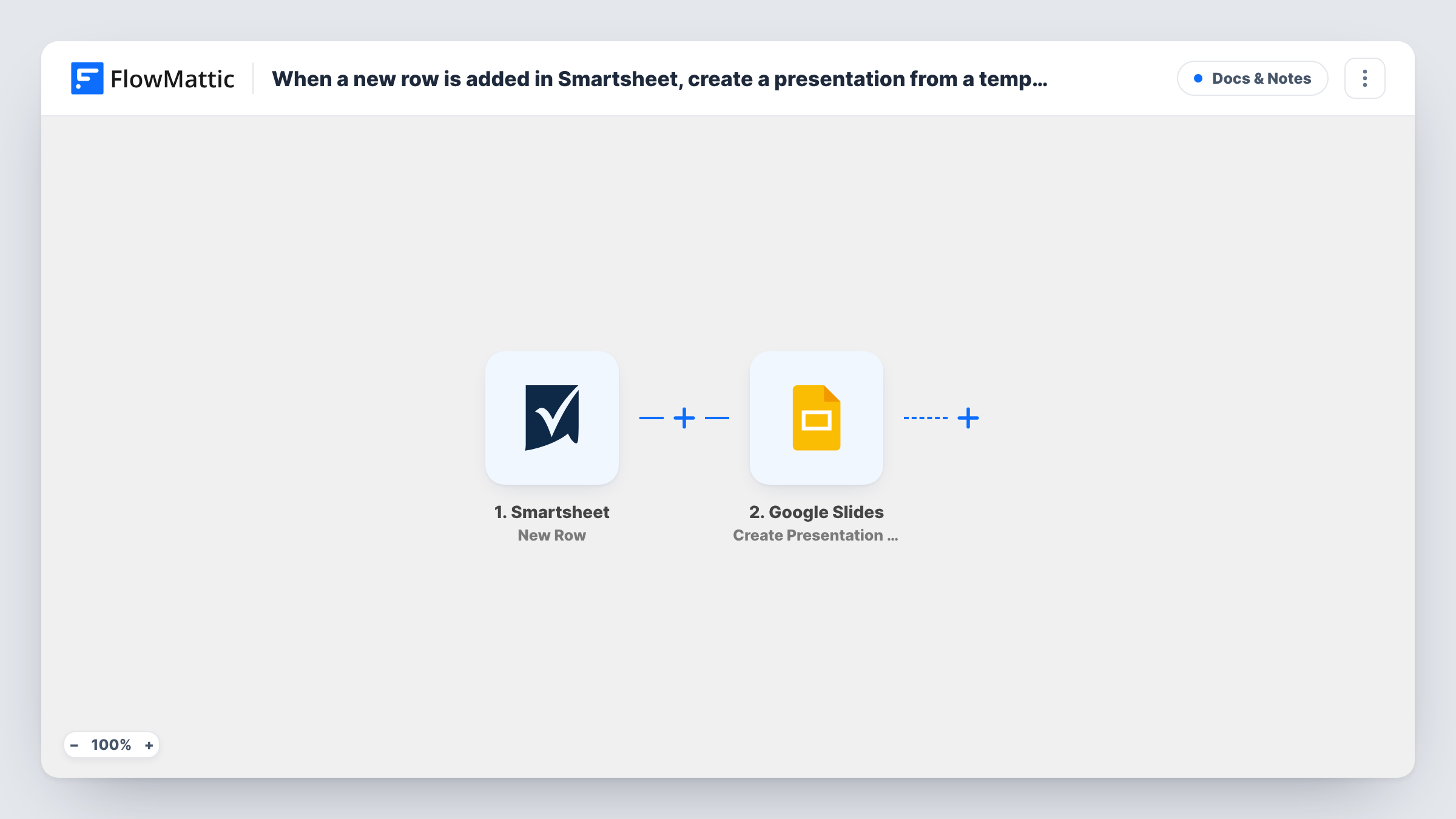
Each new row in a Smartsheet sheet creates a new Google Slides presentation from a template you prepare, so every project, client or request starts with its own deck.
 Smartsheet
 Google Slides
2 steps Setup ~5 min Used on 1.2k sites Free to import
What this workflow does
Teams that track work in Smartsheet often need a deck for each new item: a kickoff presentation for a project, a proposal for a client, a review for a request. Copying the template and renaming it every time is repetitive. This workflow makes the copy as soon as the row exists.
The Smartsheet New Row trigger fires when a row is added to the sheet you connect. FlowMattic passes the row's values on to Google Slides, where Create Presentation From Template creates a new presentation based on your template. Values from the row, such as the project or client name, can be mapped into the step wherever it accepts them.
Each new row gives one new presentation, and edits to existing rows don't start a run. What the step can fill inside the deck depends on its options, so do a test run with a sample row and open the result. If you need row data placed on particular slides, the tips below show how to add it.
Kickoff deck for each new project
A project manager adds a project row in Smartsheet. A presentation built from the kickoff template is waiting in Google Slides for the first meeting.
Proposal deck per client request
Sales logs each incoming request as a Smartsheet row, and the workflow creates a proposal presentation from the agency's standard template.
Monthly review for each team
Adding one row per team at the start of the month creates a review deck for each, all starting from the same layout.
How this workflow runs
What happens at each step once the workflow is on, and what you need before you import it.
 Smartsheet New Row
Starts a run for each row that appears in the connected Smartsheet sheet. The row's cell values are passed to Google Slides for mapping.
- Google Slides Create Presentation From Template
Creates a new Google Slides presentation from your template. Map values from the Smartsheet row where the step accepts them, then open the deck from a test run to check the result.
What you need
- FlowMatticCore
- Smartsheet AccountAccount
- Google Slides AccountAccount
After importing, map your own data. To keep the template universal, not every step is pre-filled. Open each step in the builder and connect your accounts and fields (channels, lists, sheets, recipients) before you switch the workflow on.
Make it yours
Changes worth making after you import it.
- Add a Google Slides Insert Text step after the presentation is created to place a value from the row, such as the client name, into a text box or shape on a slide.
- Add Smartsheet Add Discussion to Row after the Slides step to leave a note on the row with the new presentation's details from the step output.
- Put a Filter after the trigger on a column such as type or status if only some new rows should get a deck.
Questions about this workflow
Does updating a Smartsheet row create another Google Slides deck?
No. The trigger is New Row, so only rows added after the workflow is active start a run. Editing a row that already exists leaves the workflow idle.
Will the Smartsheet row values appear inside the presentation automatically?
Only where the Create Presentation From Template step lets you map them. Run a test and open the deck. To place values on specific slides, add an Insert Text step.
Where is the new Google Slides presentation saved?
In the Google account you connect to the Slides step. Check its location after a test run, and keep the template where that account can open it.
Do I need a Google Slides template before importing?
Yes. The step works from a template deck, so build it in Google Slides first and point the step at it during setup.
More Docs & Notes workflows
Other ready-to-import templates from the same category.





Import this workflow into your WordPress site
Download the JSON, import it from the Workflows screen and connect your accounts. Every run stays on your server, with no per-task fees.
30-day money-back guarantee Unlimited workflows and runs Self-hosted