

Create a Notion page for each new Zoom meeting
Whenever a meeting is created in your Zoom account, this workflow adds a page for it in Notion under the parent page you choose, so each call has a place for its agenda and notes.
 Zoom
Zoom
 Notion
2 steps Setup ~5 min Used on 837 sites Free to import
What this workflow does
Meeting notes tend to scatter. Someone opens a doc, someone else writes in a chat, and a week later nobody can find what was agreed. If your team keeps its notes in Notion, a page per meeting that already exists when the call is booked gives everyone one obvious place to write.
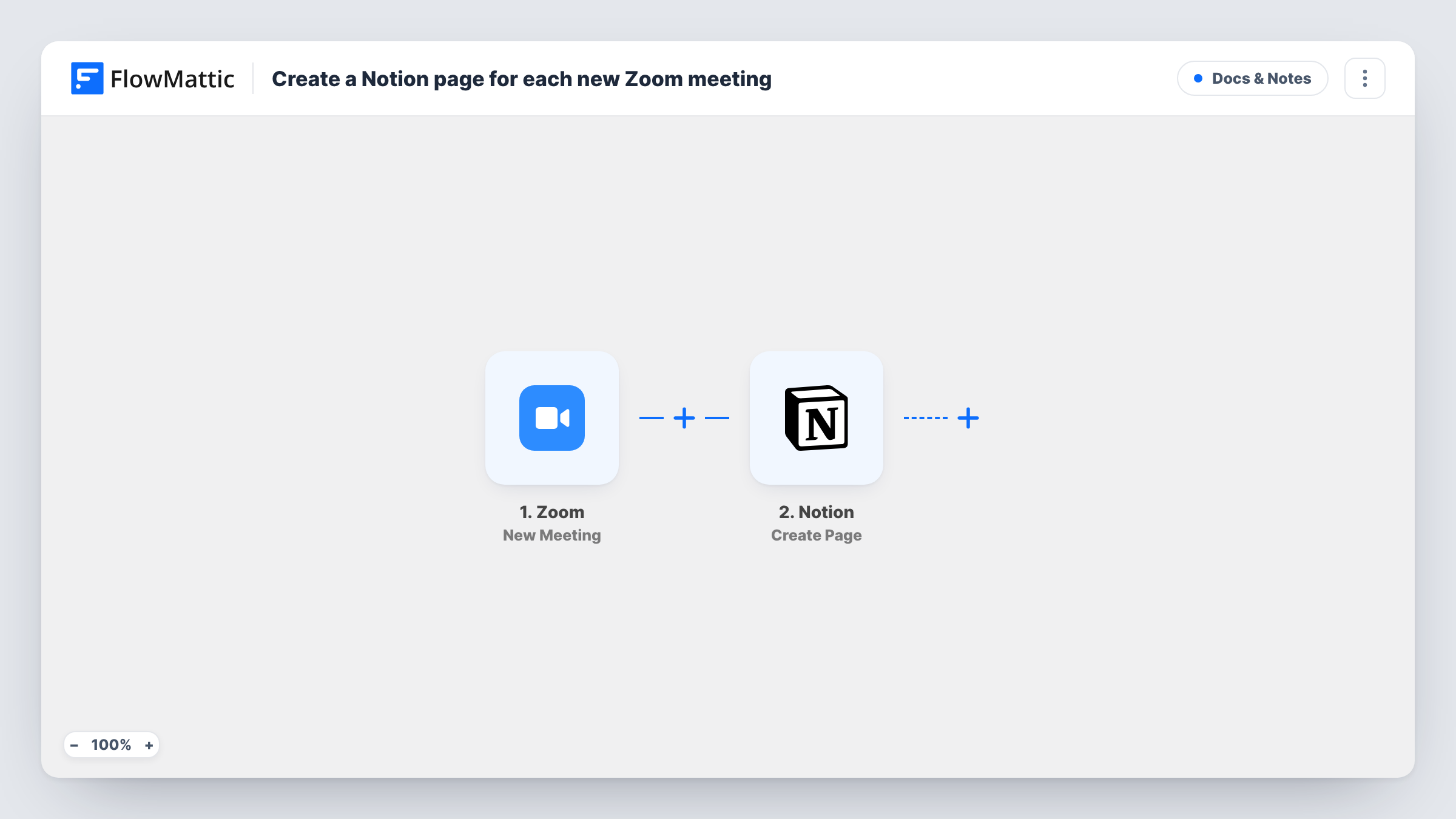
The Zoom trigger fires when a new meeting is created in the connected account. FlowMattic receives the meeting's details from Zoom and makes them available to map. The Notion step then runs Create Page, which adds a page inside a parent page. You decide what goes on it: the meeting topic as the title, for example, plus the start time or join link in the content.
This flow only creates pages. It doesn't record the meeting, write notes for you or update the Notion page later if the meeting moves. Run a test by scheduling a meeting in Zoom after import, then check Task History to see which Zoom fields arrived and map the ones you want.
Client calls for a consultancy
Each client call booked in Zoom gets its own Notion page, so the consultant can add an agenda beforehand and the action items afterwards in the same spot.
Weekly team stand-ups
When the organiser schedules the stand-up in Zoom, a Notion page appears for it, and the team fills in updates before the call starts.
Interview log for hiring
Recruiters create a Zoom meeting per candidate interview, and each one adds a Notion page where interviewers write their feedback.
How this workflow runs
What happens at each step once the workflow is on, and what you need before you import it.
 Zoom New Meeting
Fires when a new meeting is created in the Zoom account you connect. The meeting's details from Zoom, such as its topic and start time, become available for mapping.
- Notion Create Page
Creates a page inside a parent page in your Notion workspace. Connect Notion, pick where the page goes, and map Zoom meeting details into the page title and content.
What you need
- FlowMatticCore
- Zoom AccountAccount
- Notion AccountAccount
After importing, map your own data. To keep the template universal, not every step is pre-filled. Open each step in the builder and connect your accounts and fields (channels, lists, sheets, recipients) before you switch the workflow on.
Make it yours
Changes worth making after you import it.
- Add a Filter after the Zoom trigger that continues only when the meeting topic contains a word such as Client, so personal or internal meetings don't get a Notion page.
- Put the Zoom join link into the Notion page content, so anyone opening the page can join the call from there.
- For a follow-up when the call finishes, build a second workflow on Zoom's Meeting Ended trigger that uses Notion's Find Page (By Title) and then Create Comment on page to mark the page as done.
Questions about this workflow
Will meetings I already scheduled in Zoom get Notion pages?
No. The trigger fires on new meetings, so only meetings created after you turn the workflow on get a page.
Does the Notion page update if I reschedule the Zoom meeting?
No. This workflow runs once, when the meeting is created. Zoom also offers a Meeting Updated trigger in FlowMattic, which you could use in a separate workflow to find the page by title and add a comment about the change.
Can each Zoom meeting go into a Notion database instead?
Yes, with a change. Swap the Create Page step for Notion's Create Database Item action, then map the meeting details into your database's properties.
What is on the Notion page when it is first created?
Only what you map into the step, such as the Zoom meeting topic and start time. Anything else, like the agenda, is added by you or your team afterwards.
More Docs & Notes workflows
Other ready-to-import templates from the same category.


Import this workflow into your WordPress site
Download the JSON, import it from the Workflows screen and connect your accounts. Every run stays on your server, with no per-task fees.
30-day money-back guarantee Unlimited workflows and runs Self-hosted