

Save Flock conversation notes to a Notion database
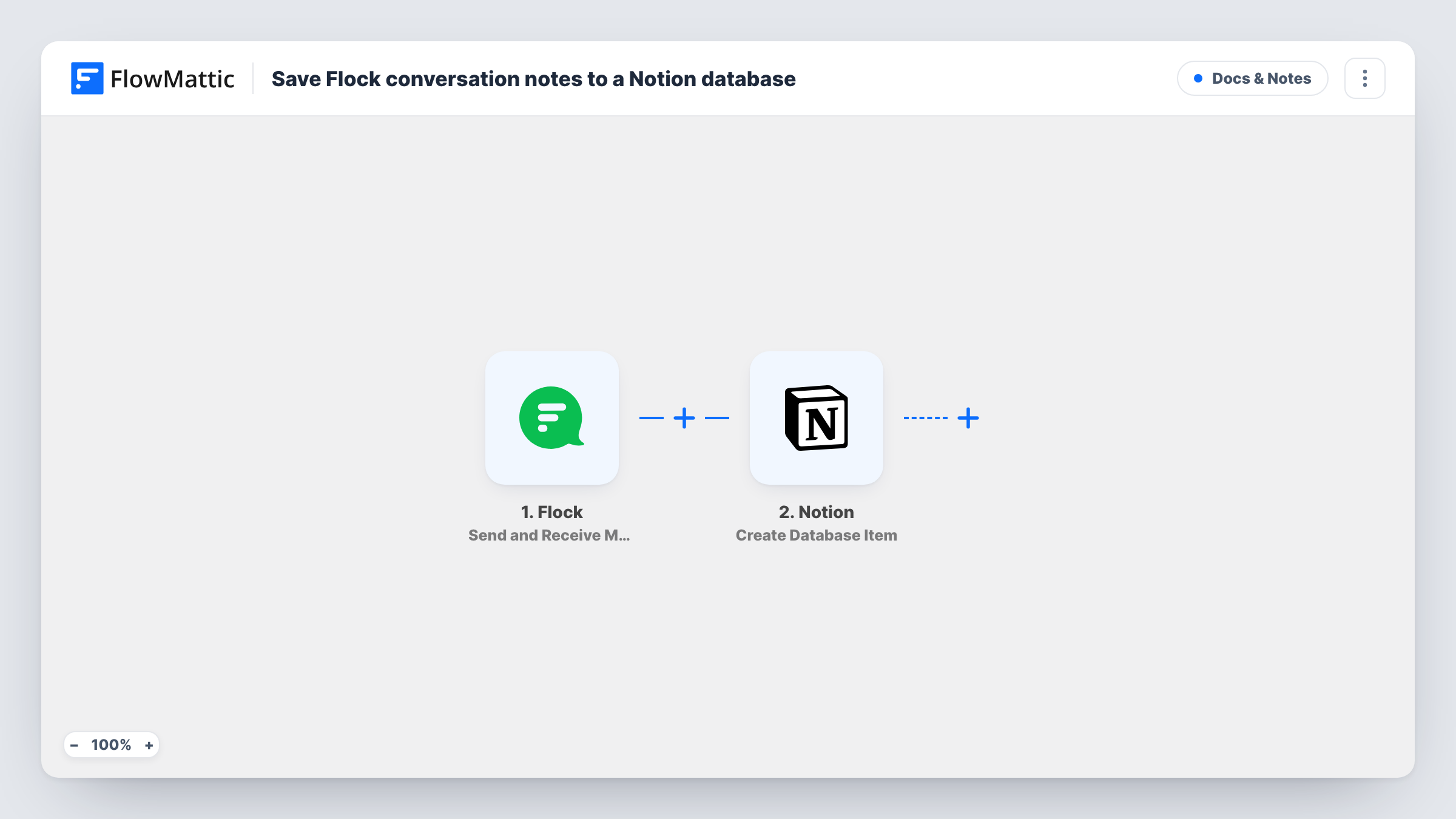
Messages that reach this workflow’s Flock trigger are saved as new items in a Notion database, so notes shared in chat end up in the workspace where your team keeps its documentation.
 Flock
Flock
 Notion
2 steps Setup ~5 min Used on 2.2k sites Free to import
What this workflow does
Useful notes get typed into chat all the time: a decision from a call, a customer's request, a link someone will need next month. In Flock they scroll out of view. In Notion they can sit in a database your team sorts, filters and links to other pages. This workflow moves those messages across.
The Flock trigger here is Send and Receive Messages. When a message reaches it, FlowMattic receives the message data. The Notion step then creates a database item, and you map the message text and any other values into the database's properties.
As imported, there is no condition, so every message the trigger receives becomes its own Notion item, not only the ones you would call notes. Send a test message after import to confirm which conversations reach the trigger. If you only want deliberate notes, add a Filter, as the tips explain. Each run is listed in Task History.
Meeting notes from a team channel
After a call, someone posts the key decisions in Flock. The message is stored in a Notion meetings database the whole team can search later.
Customer requests captured by support
Support staff post customer requests in a Flock conversation, and each one becomes a Notion item the product team reviews each week.
Quick ideas log
Team members drop ideas into a Flock chat as they think of them, building a Notion database of ideas you can tag and prioritise later.
How this workflow runs
What happens at each step once the workflow is on, and what you need before you import it.
 Flock Send and Receive Messages
Runs when a message reaches the Flock Send and Receive Messages trigger. The message data is passed to the Notion step, and a test message shows exactly what arrives.
- Notion Create Database Item
Creates a new item in the Notion database you choose for each message. Connect Notion, give it access to the database, and map the message parts into its properties.
What you need
- FlowMatticCore
- Flock AccountAccount
- Notion AccountAccount
After importing, map your own data. To keep the template universal, not every step is pre-filled. Open each step in the builder and connect your accounts and fields (channels, lists, sheets, recipients) before you switch the workflow on.
Make it yours
Changes worth making after you import it.
- Agree on a prefix such as note: and add a Filter after the trigger that continues only when the message text starts with it, so ordinary chat stays out of Notion.
- Add a Created time property to the Notion database so each saved message shows when it arrived, without mapping a date yourself.
- Want notes sorted by topic? Use a Router that checks a keyword in the message and sends each match to a different Notion database.
Questions about this workflow
Will every Flock message end up in Notion?
Every message that reaches the trigger does, because there is no condition as imported. Add a Filter after the trigger to keep only the messages you mark as notes.
Are earlier Flock conversations copied into the Notion database?
No. Only messages the trigger receives while the workflow is on create items. Older chat history stays in Flock.
What Notion setup does this Flock workflow need?
A database with the properties you want to fill, and a Notion connection that has access to it. Pick the database in the Notion step after import.
More Docs & Notes workflows
Other ready-to-import templates from the same category.





Import this workflow into your WordPress site
Download the JSON, import it from the Workflows screen and connect your accounts. Every run stays on your server, with no per-task fees.
30-day money-back guarantee Unlimited workflows and runs Self-hosted