

Create a RSS Feed for the alerts from TradingView
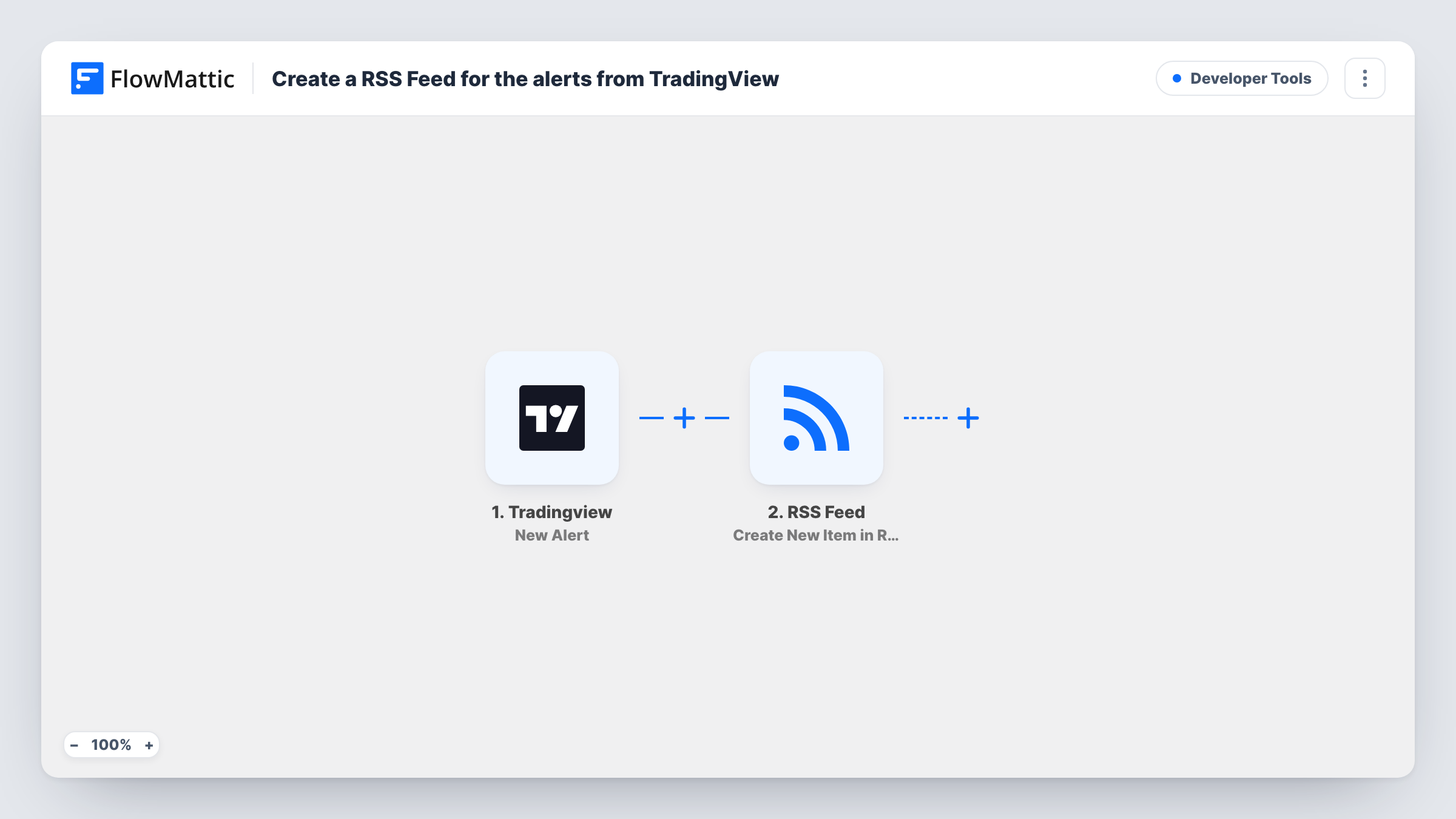
Each time a TradingView alert fires and reaches FlowMattic, this workflow adds a new item to an RSS feed powered by FlowMattic, so your signals can be followed in any feed reader or picked up by other tools that read RSS.
 Tradingview
 RSS Feed
2 steps Setup ~5 min Used on 1.3k sites Free to import
What this workflow does
TradingView can push an alert to your phone or inbox, but that only reaches you. An RSS feed is a format almost any reader, dashboard or automation tool can subscribe to. This workflow turns each alert into a feed item so others can follow your signals without a TradingView login.
The TradingView trigger hands you a unique address to receive alerts. Put it in an alert's webhook setting, and whenever the alert fires, TradingView posts the alert message to FlowMattic. Writing the message as JSON gives you separate fields, such as the ticker and the price, instead of one block of text.
The RSS Feed step uses Create New Item in RSS Feed to add an entry built from those fields. You decide what goes into each item after import. Every alert adds one item; nothing is edited or removed from the feed. Task History records each alert received and the item created from it.
A public signals feed for subscribers
A trading educator publishes alerts from a chart setup as an RSS feed, and members follow it in the feed reader they already use.
Feeding a website widget
A site that shows recent market alerts in a sidebar reads them from the RSS feed this workflow fills, instead of copying alerts by hand.
A personal alert history
Subscribe to your own feed so every alert you set in TradingView is kept in order in your reader, separate from the rest of your notifications.
How this workflow runs
What happens at each step once the workflow is on, and what you need before you import it.
 Tradingview New Alert
Receives the alert TradingView posts to this workflow's webhook URL when the alert's condition is met. The message, and any JSON keys you include in it, become fields to map.
- RSS Feed Create New Item in RSS Feed
Adds a new item to your FlowMattic-powered RSS feed. Map alert fields into the item after a test alert, then open the feed to confirm the entry looks right.
What you need
- FlowMatticCore
- TradingView AccountAccount
After importing, map your own data. To keep the template universal, not every step is pre-filled. Open each step in the builder and connect your accounts and fields (channels, lists, sheets, recipients) before you switch the workflow on.
Make it yours
Changes worth making after you import it.
- Write the TradingView alert message as JSON with keys for the symbol, price and a short note, so each value arrives as its own field to place in the feed item.
- Fire one test alert after import so FlowMattic captures the message, then map its fields in the RSS Feed step before you turn the workflow on.
- Running several strategies? Add a strategy name to each alert's JSON message and map it into the item title, so readers can tell the signals apart in one feed.
Questions about this workflow
Where do I paste the FlowMattic URL in TradingView?
In the notifications part of the alert's settings, where TradingView lets you enter a webhook URL. You'll find the address to paste in the trigger step once the workflow is imported.
What text shows up in each RSS item from a TradingView alert?
Only what you map from the alert message. FlowMattic receives the message TradingView sends, so put the details you want, such as the ticker and price, in that message.
Do TradingView alerts that fired before import appear in the feed?
No. An alert reaches FlowMattic only after you add the webhook URL to it and switch the workflow on. Earlier alerts are not sent again.
Can I send TradingView alerts somewhere besides RSS?
Yes. Add a Slack, Telegram or Google Sheets step after the RSS Feed step, or build a separate workflow from the same kind of TradingView trigger.
More Developer Tools workflows
Other ready-to-import templates from the same category.





Import this workflow into your WordPress site
Download the JSON, import it from the Workflows screen and connect your accounts. Every run stays on your server, with no per-task fees.
30-day money-back guarantee Unlimited workflows and runs Self-hosted