

When a new media is uploaded in WordPress, create a short URL using Bitly
Whenever a file is uploaded to your WordPress Media Library, this workflow sends its address to Bitly and creates a short link, ready to share for images, PDFs and other files.
 WordPress
 Bitly
2 steps Setup ~5 min Used on 2.5k sites Free to import
What this workflow does
Media file addresses in WordPress are long. They include the uploads folder, the year and month, and the file name, which makes them awkward to paste into a social post or read out loud. This workflow creates a Bitly short link for each new upload so a compact version exists from the start.
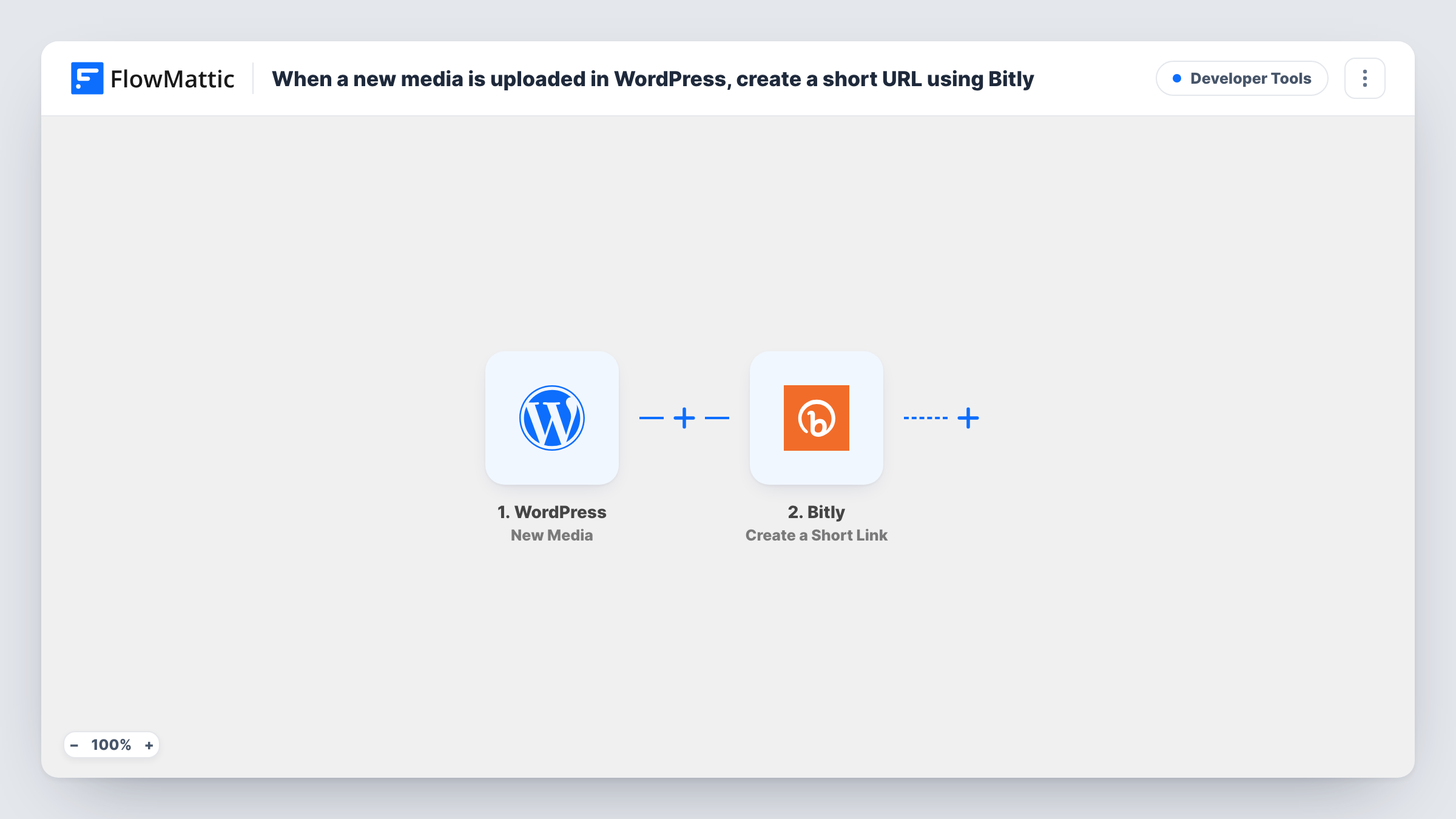
The WordPress trigger fires when new media is uploaded. FlowMattic passes the upload's data to Bitly, and the Create a Short Link action shortens the address you map from it, usually the file's URL. The new short link is then stored in your Bitly account.
Bitly is the last step in this template. The short link is not written back into WordPress, so you find it in Bitly or in the step's output in Task History. If you want it somewhere else, such as a sheet or a message, add another step that uses the Bitly result.
Sharing downloadable PDFs
You upload a price sheet or guide as a PDF and want a short link you can paste into an email signature or a printed flyer.
Images for social media posts
Each image you add to the Media Library gets a Bitly link, which you can share and later look up in your Bitly account.
Audio or video files for a podcast
Episode files uploaded to WordPress are shortened right away, so you have a compact link for show notes on other platforms.
How this workflow runs
What happens at each step once the workflow is on, and what you need before you import it.
 WordPress New Media
Fires when a new file is uploaded to the WordPress Media Library. Details of the upload, including its address, are passed to the Bitly step.
 Bitly Create a Short Link
Creates a short link in Bitly from the media address you map. Connect your Bitly account and pick the uploaded file's URL from the trigger data.
What you need
- FlowMatticCore
- Bitly AccountAccount
After importing, map your own data. To keep the template universal, not every step is pre-filled. Open each step in the builder and connect your accounts and fields (channels, lists, sheets, recipients) before you switch the workflow on.
Make it yours
Changes worth making after you import it.
- Add a Google Sheets step after Bitly to log each file name next to its short link, so you have one list to copy links from.
- Put a Filter after the trigger if only certain uploads need a link, for example files whose type or name matches a value you set. Check a test upload to see what the trigger sends.
- Upload a test file after import so FlowMattic captures the media data, then map its URL in the Bitly step and check the short link it returns.
Questions about this workflow
Where does the Bitly short link end up?
In your Bitly account, and in the Bitly step's output in Task History. The template does not save it to WordPress, so add a step if you want it stored elsewhere.
Are files already in my WordPress Media Library shortened?
No. Only uploads made after the workflow is active trigger it. Existing media is left as it is.
Does every WordPress upload create a Bitly link?
Yes, as imported. Each new media upload runs the workflow once. Add a Filter after the trigger if you want to limit it to some files.
Do I need a Bitly account for this WordPress workflow?
Yes. The Create a Short Link step runs through your own Bitly account, which you connect in FlowMattic.
More Developer Tools workflows
Other ready-to-import templates from the same category.






Import this workflow into your WordPress site
Download the JSON, import it from the Workflows screen and connect your accounts. Every run stays on your server, with no per-task fees.
30-day money-back guarantee Unlimited workflows and runs Self-hosted