

Create a Todoist follow-up task when a LinkedCamp prospect accepts an invite
When a prospect accepts your LinkedIn invitation in a LinkedCamp campaign, this workflow creates a Todoist task so you have a reminder to follow up with that person.
 LinkedCamp
 Todoist
2 steps Setup ~5 min Used on 456 sites Productivity Free to import
What this workflow does
LinkedCamp sends connection requests for you, but an accepted invitation is only useful if someone acts on it. When acceptances come in across several campaigns, the follow-up slips because it lives in a dashboard you don't check daily. This workflow turns each acceptance into a task in the list you already work from.
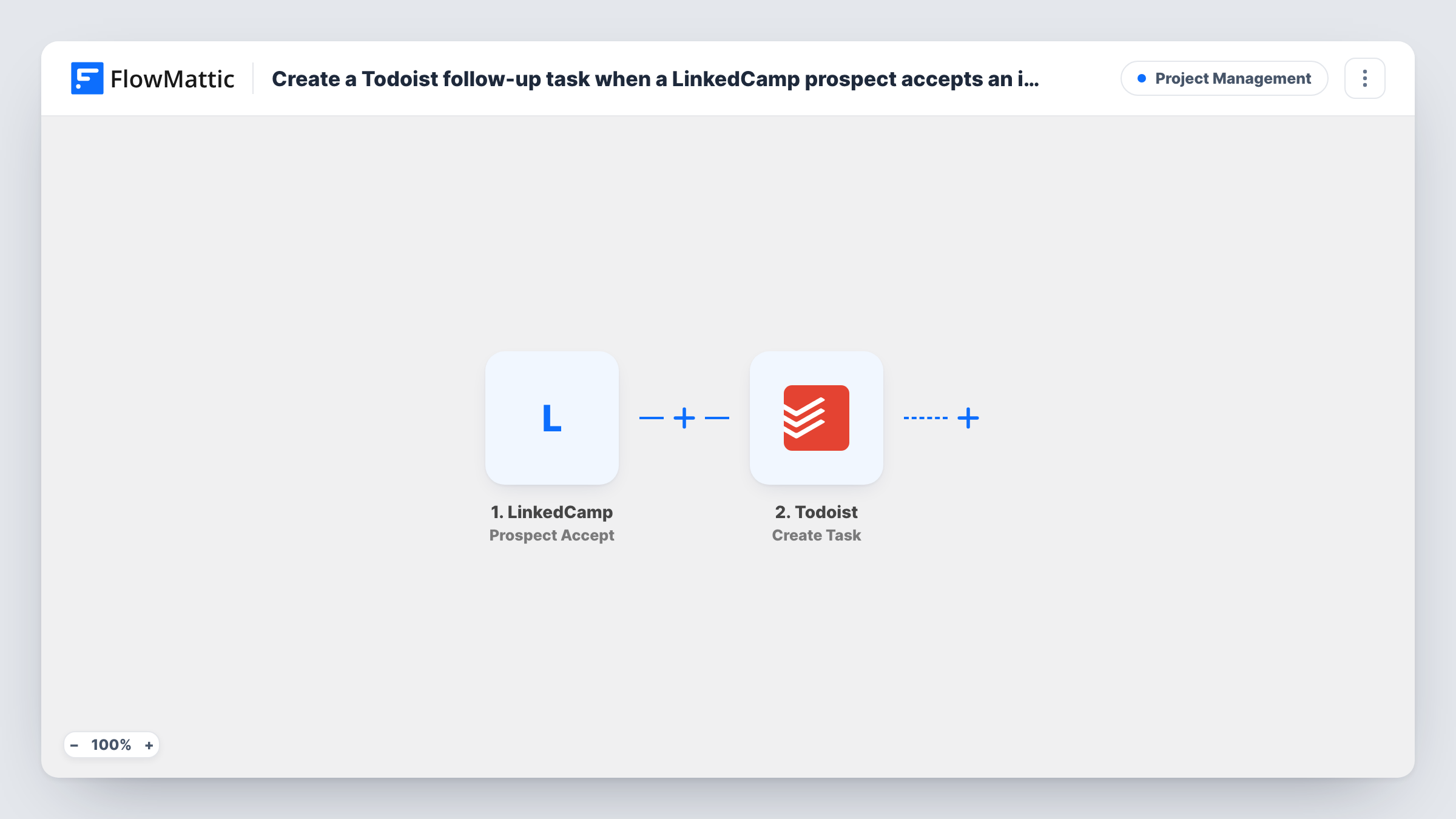
The LinkedCamp Prospect Accept trigger fires when a prospect accepts the invitation. FlowMattic passes the prospect data from that event to Todoist, where Create Task adds a new task. When you map the step, put the prospect's name and anything else useful into the task, such as a profile link if LinkedCamp sends one.
One acceptance gives one task. The workflow doesn't send a message on LinkedIn or change anything in LinkedCamp; it only creates the reminder. Task History records each run, which helps when you check that a new connection produced its task.
Founder doing their own outreach
You run a LinkedCamp campaign to potential customers. Each new connection appears in your Todoist inbox, ready to be worked through with your other tasks.
Recruiter building a candidate pipeline
Candidates who accept your invitation become tasks, so you remember to send a personal note about the role while the connection is new.
Sales rep sharing a Todoist project
Tasks land in a shared project, where a colleague can pick up acceptances from campaigns run on your LinkedIn account.
How this workflow runs
What happens at each step once the workflow is on, and what you need before you import it.
 LinkedCamp Prospect Accept
Fires when a prospect in your LinkedCamp campaign accepts the invitation to connect. The prospect data from LinkedCamp is passed to Todoist for mapping.
- Todoist Create Task
Creates a new Todoist task for the follow-up. Map the prospect's name and any useful details from LinkedCamp into the task, then check the result with a test run.
What you need
- FlowMatticCore
- LinkedCamp AccountAccount
- Todoist AccountAccount
After importing, map your own data. To keep the template universal, not every step is pre-filled. Open each step in the builder and connect your accounts and fields (channels, lists, sheets, recipients) before you switch the workflow on.
Make it yours
Changes worth making after you import it.
- Write the task title as a short instruction, such as "Message" followed by the mapped prospect name, so the task reads as an action in your list.
- Use a Router with one route per LinkedCamp campaign, each with a condition on the campaign value and its own Create Task step, to send tasks to different projects.
- Build a second workflow on LinkedCamp's Lead Replies trigger if you also want a task when a prospect answers one of your messages.
Questions about this workflow
Does the workflow send a LinkedIn message to the prospect?
No. Its single action is the Todoist reminder. You or LinkedCamp's own sequence handle the actual message.
Will older LinkedCamp acceptances create tasks?
No. Only invitations accepted after the workflow is active start a run, so earlier connections need to be added by hand.
Can I set a due date on the Todoist follow-up task?
Check the options in the Create Task step after import. If a due date is offered, you can fill it there; a test run shows whether the task arrives with it.
Will completing the Todoist task update the prospect in LinkedCamp?
No. Data only flows from LinkedCamp to Todoist. Ticking off the task has no effect on the prospect or the campaign.
More Project Management workflows
Other ready-to-import templates from the same category.




Import this workflow into your WordPress site
Download the JSON, import it from the Workflows screen and connect your accounts. Every run stays on your server, with no per-task fees.
30-day money-back guarantee Unlimited workflows and runs Self-hosted