

Create a Zoho CRM contact from each new Poper lead
When a visitor leaves their details in a Poper popup, this workflow creates a contact in Zoho CRM from that lead, so popup sign-ups reach your sales records without exporting and importing lists.
 Poper
 Zoho CRM
2 steps Setup ~5 min Used on 2.5k sites Free to import
What this workflow does
Popups collect names and emails all day, but those leads sit in the popup tool until someone exports them. By the time they reach your CRM, the visit that brought them in is days old. This workflow sends each new Poper lead to Zoho CRM as it arrives.
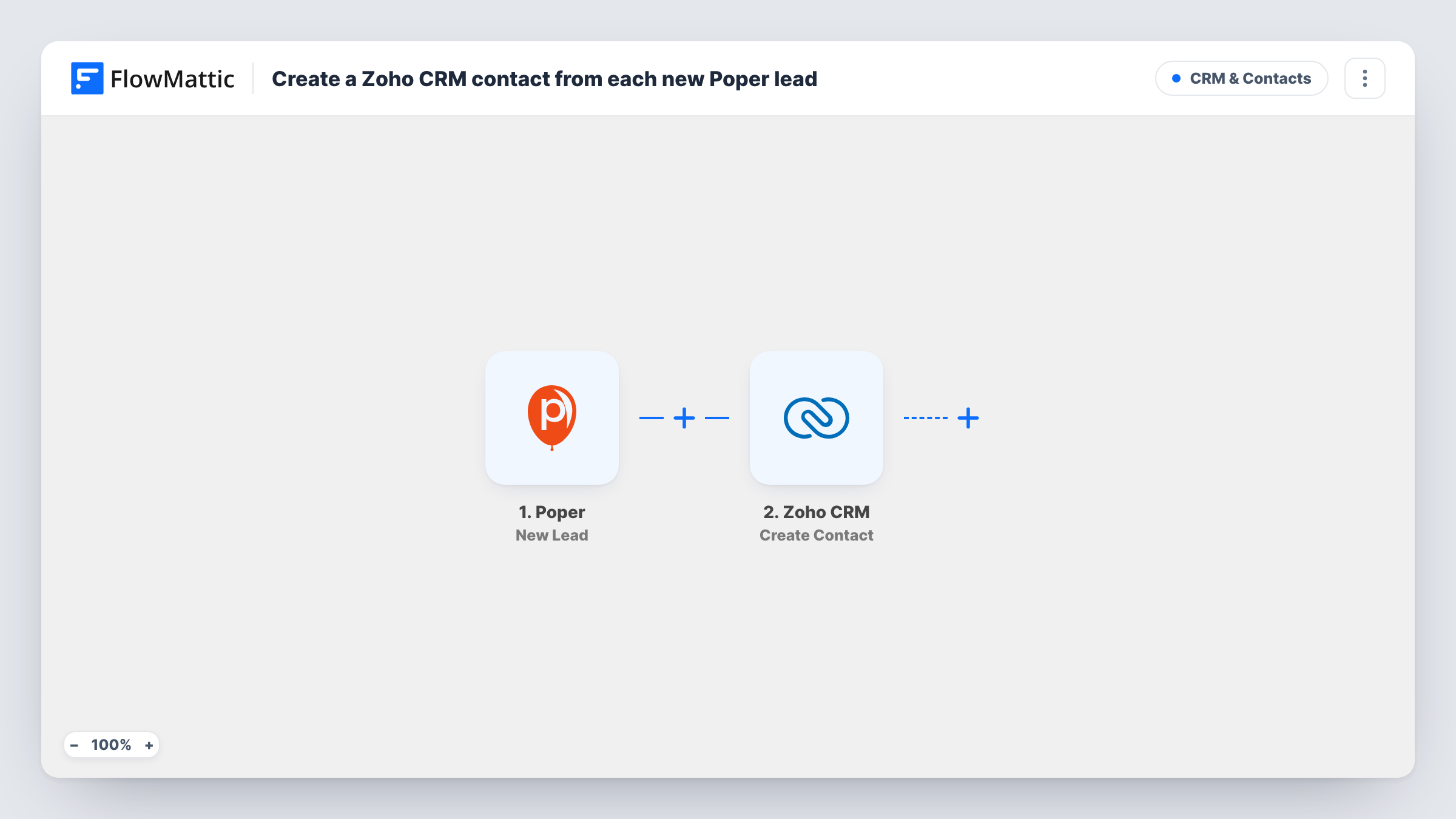
The Poper trigger fires for each new lead captured by a popup. FlowMattic receives the lead's details and passes them to Zoho CRM, where the Create Contact action adds a new contact. During setup you map the details your popup collects into the contact.
The template creates a contact for every lead and does not look for an existing one first. If someone fills in a popup twice, or is already in Zoho CRM, check how your Zoho account handles duplicates with a test run. Task History records what Poper sent and what Zoho CRM returned for each lead.
Discount popup on an online store
Shoppers enter their email for a first-order code in a Poper popup. Each one becomes a Zoho CRM contact your team can follow up with or add to campaigns.
Demo request popup on a SaaS site
A popup on the pricing page asks for name and work email. Every submission is created in Zoho CRM so a rep can reach out.
Content download popup
Readers request a guide through a Poper popup, and their details are stored as Zoho CRM contacts for later nurturing.
How this workflow runs
What happens at each step once the workflow is on, and what you need before you import it.
 Poper New Lead
Fires for each new lead captured by a Poper popup. The details the visitor entered are passed to Zoho CRM for mapping.
- Zoho CRM Create Contact
Creates a new contact in Zoho CRM from the Poper lead. Map the details the popup collected into the contact, and connect your Zoho CRM account on import.
What you need
- FlowMatticCore
- Poper AccountAccount
- Zoho CRM AccountAccount
After importing, map your own data. To keep the template universal, not every step is pre-filled. Open each step in the builder and connect your accounts and fields (channels, lists, sheets, recipients) before you switch the workflow on.
Make it yours
Changes worth making after you import it.
- Map the name of the Poper popup, if the lead data carries it, into a contact field so you know which offer each contact came from.
- If you run several popups and only some should reach the CRM, add a Filter after the trigger that checks a value in the lead data.
- Submit a test lead through your popup after import so FlowMattic captures the fields, then map them in the Zoho CRM step.
Questions about this workflow
What happens if the Poper lead is already a Zoho CRM contact?
Zoho CRM's Create Contact adds a record without checking for one first. Depending on your Zoho CRM duplicate settings, you may get a second record or an error, which Task History shows.
Can Poper leads go to the Zoho CRM Leads module instead?
Yes. Swap the Create Contact step for Zoho CRM's Create Lead action in FlowMattic and map the same popup data into it.
Are earlier Poper leads sent to Zoho CRM?
No. Only leads captured after the workflow is turned on create contacts. Older popup leads need to reach Zoho CRM some other way.
How do I avoid duplicate Zoho CRM contacts from repeat popup sign-ups?
Replace Create Contact with Zoho CRM's Find or Create Contact action, which FlowMattic also offers. Test it with an email that is already in your CRM.
More CRM & Contacts workflows
Other ready-to-import templates from the same category.






Import this workflow into your WordPress site
Download the JSON, import it from the Workflows screen and connect your accounts. Every run stays on your server, with no per-task fees.
30-day money-back guarantee Unlimited workflows and runs Self-hosted