

Create AddCal events from new or updated Google Sheets rows
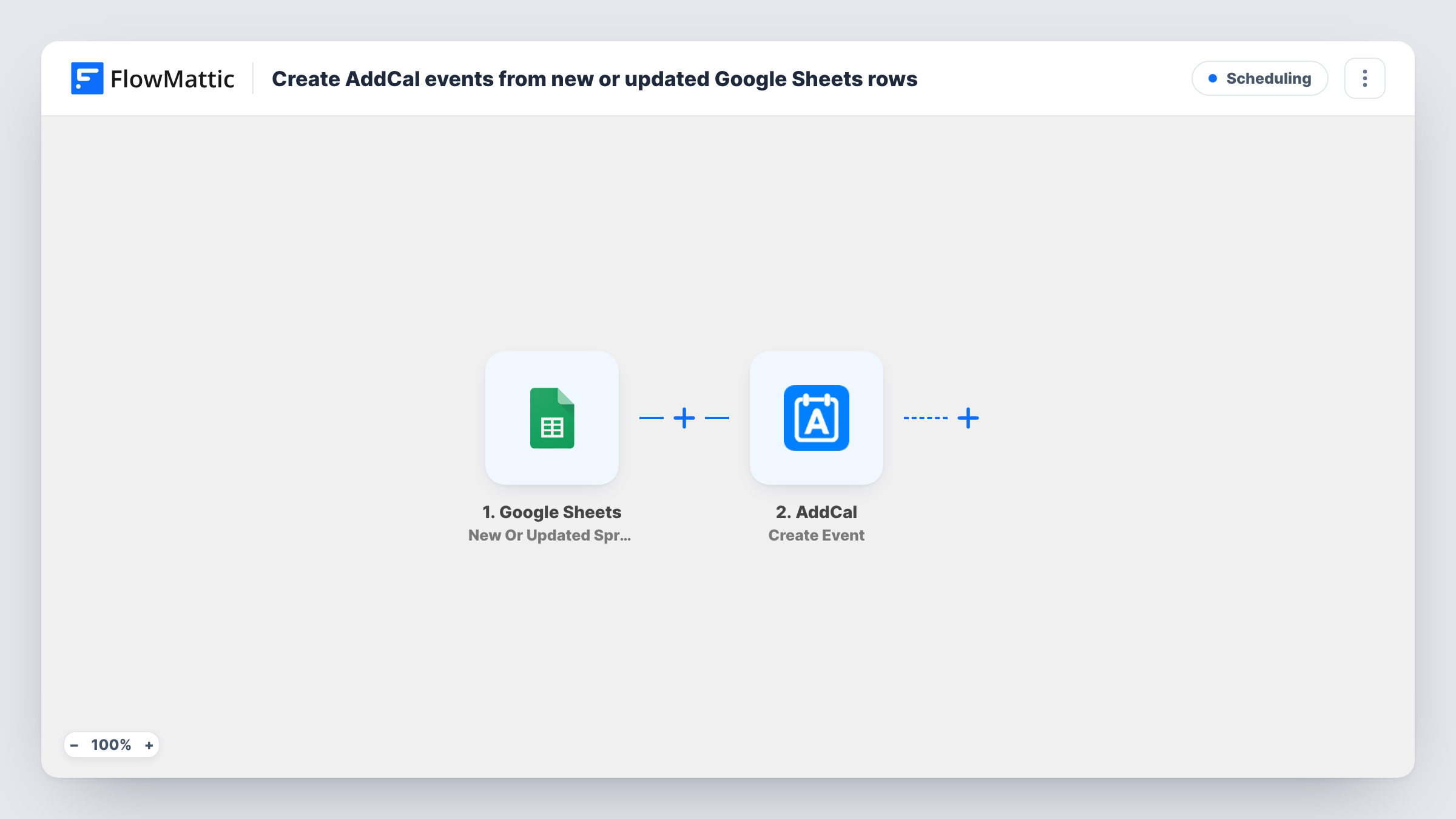
Each time a row is added or changed in your Google Sheets schedule, this workflow creates an event in AddCal from that row. Every edit makes a new event, so it suits sheets you fill in once per row.
 Google Sheets
 AddCal
2 steps Setup ~5 min Used on 2.8k sites Free to import
What this workflow does
Plenty of teams plan events in a spreadsheet first: a webinar calendar, a class timetable, a list of launch dates. AddCal turns events into calendar links people can add to their own calendars. This workflow builds an AddCal event from each sheet row, so you don't retype the dates.
The Google Sheets trigger is New Or Updated Spreadsheet Row, so it runs when a row is added and again whenever a row is changed. Each run passes the row's values to AddCal, whose Create Event action makes an event from the title, date and other columns you map.
Read this before you import it: AddCal's step here only creates events, and FlowMattic's AddCal actions don't include updating one. Editing a row therefore creates a second event rather than changing the first. The workflow fits best when each row is complete before anyone edits it, and a Filter on required columns stops half-typed rows from creating events.
Webinar schedule planned in a sheet
Marketing adds each webinar as a finished row with title, date and time. AddCal creates the event, ready for add-to-calendar links in your emails.
Class timetable for a studio
A studio pastes the next month's classes into the sheet in one go. Each class row becomes an AddCal event members can save to their calendars.
Product launch dates for customers
Each confirmed launch date goes into the sheet once. AddCal gives you an event per launch to share on your site or in a newsletter.
How this workflow runs
What happens at each step once the workflow is on, and what you need before you import it.
 Google Sheets New Or Updated Spreadsheet Row
Starts a run whenever a row in the spreadsheet you pick is added or changed. The whole row comes through, so each column can be mapped into the AddCal event.
- AddCal Create Event
Creates a new AddCal event from the row. Map your title, date and description columns into it, then run a test to check how AddCal reads your date format.
What you need
- FlowMatticCore
- Google Sheets AccountAccount
- AddCal AccountAccount
After importing, map your own data. To keep the template universal, not every step is pre-filled. Open each step in the builder and connect your accounts and fields (channels, lists, sheets, recipients) before you switch the workflow on.
Make it yours
Changes worth making after you import it.
- Add a Filter after the trigger that continues only when the title and start date columns are both filled in. Rows that are still being typed then don't create AddCal events.
- Keep dates in one consistent format in the sheet, and check the first test event in AddCal to confirm it shows the right day and time.
- If a row needs changing after its event exists, delete the old event in AddCal yourself, because the edit will create a fresh one.
Questions about this workflow
Does editing a Google Sheets row update its AddCal event?
No. The AddCal step only creates events, so an edited row produces another event. Remove the outdated one in AddCal by hand.
Why do new Google Sheets rows also create AddCal events?
The trigger is New Or Updated Spreadsheet Row, which covers rows being added as well as rows being changed. Both start a run.
Do the existing rows in my sheet become AddCal events on import?
Rows only start a run when they are added or changed after the workflow is turned on. Untouched rows don't create events.
Which sheet columns should feed the AddCal event?
Do a test run to see what the Create Event step asks for, then add a column for each item you want to fill, such as the event name and its date and time.
More Scheduling workflows
Other ready-to-import templates from the same category.





Import this workflow into your WordPress site
Download the JSON, import it from the Workflows screen and connect your accounts. Every run stays on your server, with no per-task fees.
30-day money-back guarantee Unlimited workflows and runs Self-hosted