

Create ClickUp Tasks from new Airtable Records
Each new record added to your Airtable table becomes a task in ClickUp, so requests, ideas or orders collected in Airtable turn into work items your team can assign and track.
 Airtable
 ClickUp
2 steps Setup ~5 min Used on 1.6k sites Productivity Free to import
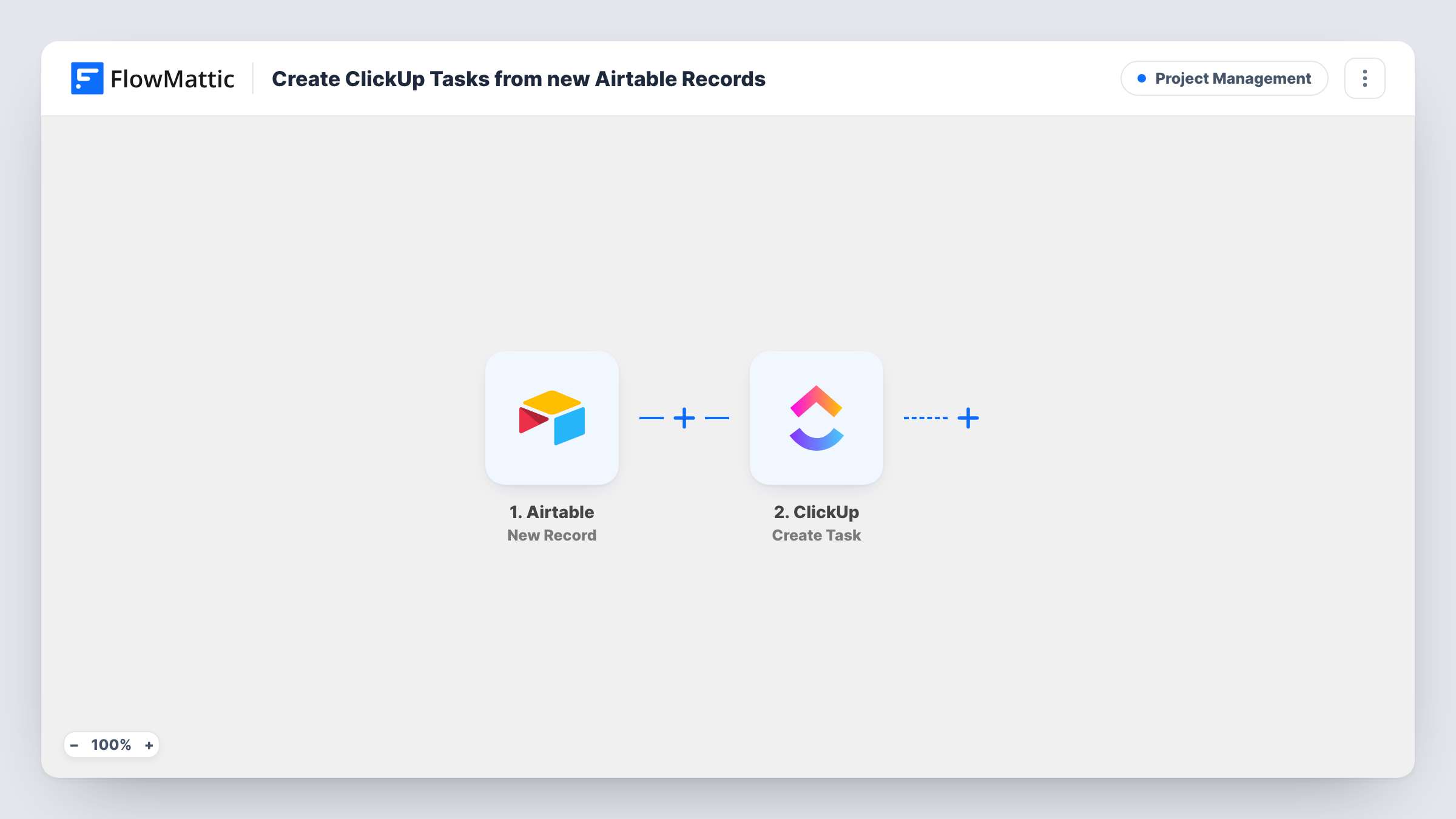
What this workflow does
Many teams collect requests in Airtable, through a form, an import or by hand, and then do the work in ClickUp. Copying each row into a task takes time, and rows get missed when the table is busy. This workflow creates the ClickUp task for you when the record appears.
The Airtable trigger watches the Airtable base and table you connect and picks up each record added there. The record's field values are passed on to the ClickUp step, which runs Create Task. You map Airtable fields into the task, for example a request title as the task name and a notes field as the description.
Only new records start a run. Editing a row later does not create another task or change the existing one, so updates made in Airtable after the task exists stay in Airtable. Every new record produces a task, with no check in between, so a table that also holds rows you do not want as tasks needs a Filter. Task History shows each run and the reply from ClickUp.
Content requests to the production team
Writers log article ideas in an Airtable table. Each new row becomes a ClickUp task in the editorial list, ready to assign to a writer.
Client intake for a design studio
An Airtable form collects project briefs. Every submitted brief becomes a ClickUp task, so the studio starts scoping from its usual workspace.
Bug reports gathered in Airtable
Testers add issues to an Airtable base. Each new record turns into a ClickUp task, and developers work through them in the list they already use.
How this workflow runs
What happens at each step once the workflow is on, and what you need before you import it.
 Airtable New Record
Starts a run for each record added to the Airtable table you point it at. The record's field values become available to map into the ClickUp task.
- ClickUp Create Task
Creates a task in ClickUp from the new Airtable record. Map the record's fields into the task, connect your ClickUp account, and add a test record to see the task it produces.
What you need
- FlowMatticCore
- Airtable AccountAccount
- ClickUp AccountAccount
After importing, map your own data. To keep the template universal, not every step is pre-filled. Open each step in the builder and connect your accounts and fields (channels, lists, sheets, recipients) before you switch the workflow on.
Make it yours
Changes worth making after you import it.
- Add a Filter after the Airtable trigger that continues only when a status or type field has the value you want, so rows meant for reference never become tasks.
- Add a ClickUp Post Task Comment step after Create Task to add longer Airtable notes as a comment on the new task.
- Fill in a test record in Airtable with every field completed after import, so FlowMattic captures each field you may want to map into ClickUp.
Questions about this workflow
Does editing an Airtable record update its ClickUp task?
No. The trigger fires only for new records, and the ClickUp step creates tasks. Changes made to the row later are not sent to ClickUp.
Will Airtable records that already exist become ClickUp tasks?
No. Rows added before you switch the workflow on never reach ClickUp. Rows already in the table are left alone.
Can a half-filled Airtable record create a ClickUp task?
Yes. The task uses the values the record holds when the trigger picks it up, so fields filled in afterwards are missing. A Filter on a required field stops empty rows, but those rows are not retried later, so fill records in fully before saving.
More Project Management workflows
Other ready-to-import templates from the same category.





Import this workflow into your WordPress site
Download the JSON, import it from the Workflows screen and connect your accounts. Every run stays on your server, with no per-task fees.
30-day money-back guarantee Unlimited workflows and runs Self-hosted