

Add a Zoho Creator record for each new task created in ClickUp
Every new task created in ClickUp is added as a record to a form in your Zoho Creator app, so work planned in ClickUp also shows up in the custom app your team uses.
 ClickUp
 Zoho Creator
2 steps Setup ~5 min Used on 564 sites Productivity Free to import
What this workflow does
Some teams plan work in ClickUp but run approvals, budgets or reporting in a Zoho Creator app. Without a link between them, someone retypes each task into Creator. This workflow copies new ClickUp tasks into a Creator form as they are created.
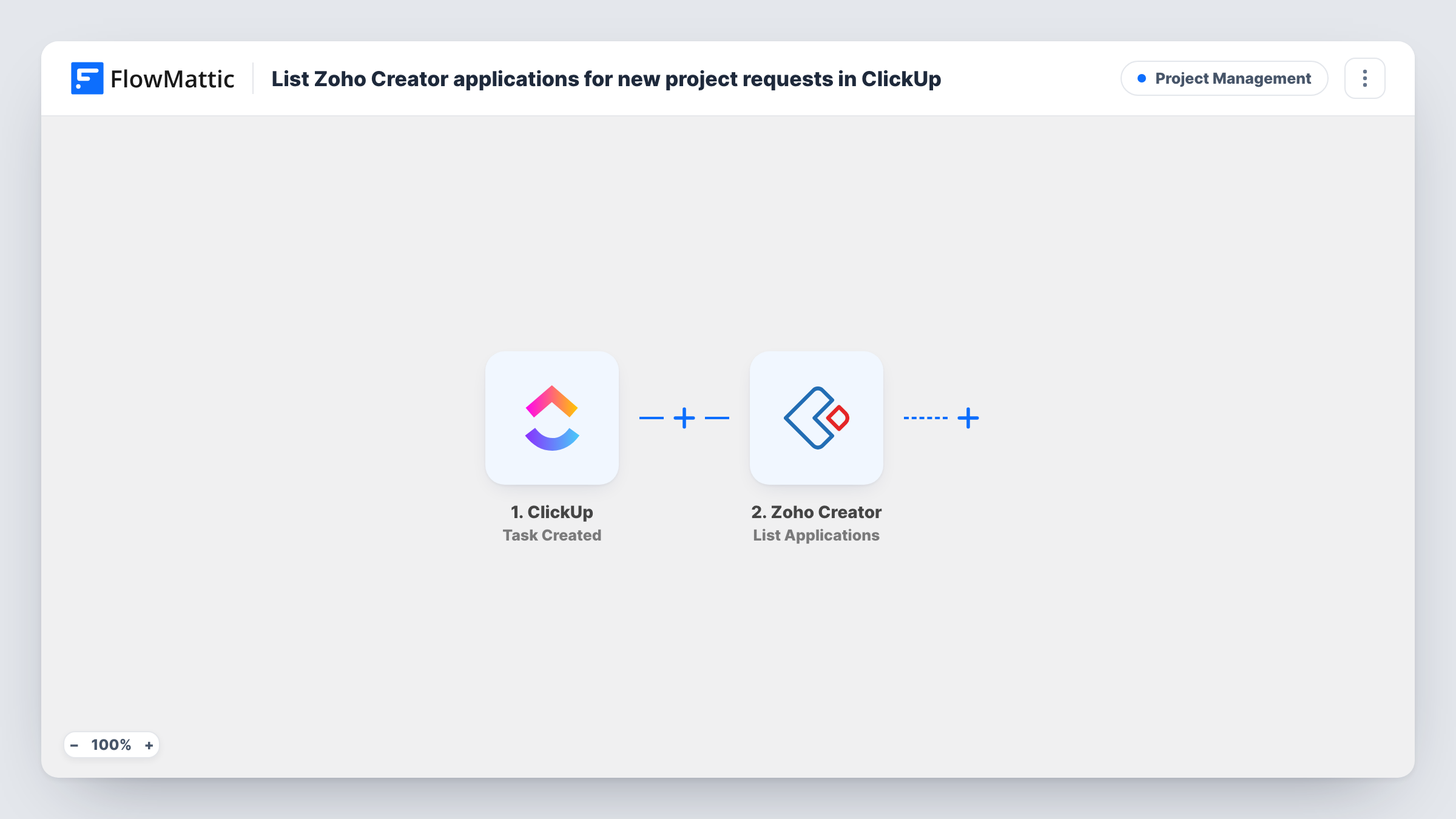
The ClickUp trigger fires when a new task is created and passes the task's details to the next step. The Zoho Creator step then adds a new record to a form in your Creator application.
The Add Record step ships unmapped. After import you connect your Zoho account, choose the application and form, and match the ClickUp task fields to the form's fields. Keeping the ClickUp task ID in a field of its own makes it easy to find the matching record later.
Each new task produces one new record. Editing the task in ClickUp afterwards doesn't change the record, because the trigger only fires on creation. Create a test task and check Task History to confirm the record arrived with the values you expect.
Project register for management
An operations team keeps a Zoho Creator app as the official project register. New ClickUp tasks for client projects appear there for the managers who never open ClickUp.
Cost tracking per task
A studio logs each ClickUp task in a Creator form that also holds budget and hours fields, which the finance team fills in.
Requests that need sign-off
A facilities team creates a task in ClickUp for every maintenance job. The Creator record starts the approval process the team built in its Creator app.
How this workflow runs
What happens at each step once the workflow is on, and what you need before you import it.
 ClickUp Task Created
Starts the workflow each time someone adds a task in ClickUp. Whatever task data the trigger receives can be mapped into your Zoho Creator form, so do a test run to see those values.
- Zoho Creator Add Record
Adds a new record to a form in your Zoho Creator application. The step ships unmapped: after import, pick the application and form, then match the ClickUp task fields to it.
What you need
- FlowMatticCore
- ClickUp AccountAccount
- Zoho Creator AccountAccount
After importing, map your own data. To keep the template universal, not every step is pre-filled. Open each step in the builder and connect your accounts and fields (channels, lists, sheets, recipients) before you switch the workflow on.
Make it yours
Changes worth making after you import it.
- Add a field for the ClickUp task ID to your Creator form and map it, so you can trace each record back to its task.
- If not every new task belongs in the app, put a Filter between the ClickUp trigger and the Zoho Creator step. Check a test run for a value that marks the right tasks and set the condition on it.
- Create a test task with a due date and a description before you map the fields, so you can see in Task History which values ClickUp sends.
Questions about this workflow
Will changes to a ClickUp task update the Zoho Creator record?
No. The trigger only fires when a task is created. To keep records in step, build a second workflow on ClickUp's Task Updated trigger that finds the record with Zoho Creator's Get Records action, using the stored task ID, and then runs Update Record.
Which Zoho Creator fields get filled?
Only the ones you map. The template leaves the Add Record step empty, so you choose the form and match the ClickUp values to its fields after import.
Are subtasks copied as well?
It depends on what ClickUp sends as a new task. Create a subtask while testing and check Task History to see whether it started a run.
More Project Management workflows
Other ready-to-import templates from the same category.






Import this workflow into your WordPress site
Download the JSON, import it from the Workflows screen and connect your accounts. Every run stays on your server, with no per-task fees.
30-day money-back guarantee Unlimited workflows and runs Self-hosted