

Add new record to Monday.com when a new feedback received in FeedLetter
New feedback submitted in FeedLetter becomes an item on the Monday.com board you choose, so your team can assign, discuss and track each request where it already plans its work.
 FeedLetter
 Monday.com
2 steps Setup ~5 min Used on 3.2k sites Productivity Free to import
What this workflow does
Feedback that sits in a separate tool tends to be read once and forgotten. When each submission turns into a board item, someone can own it, move it through your groups and close it when it's handled. This workflow puts every new FeedLetter submission onto a Monday.com board automatically.
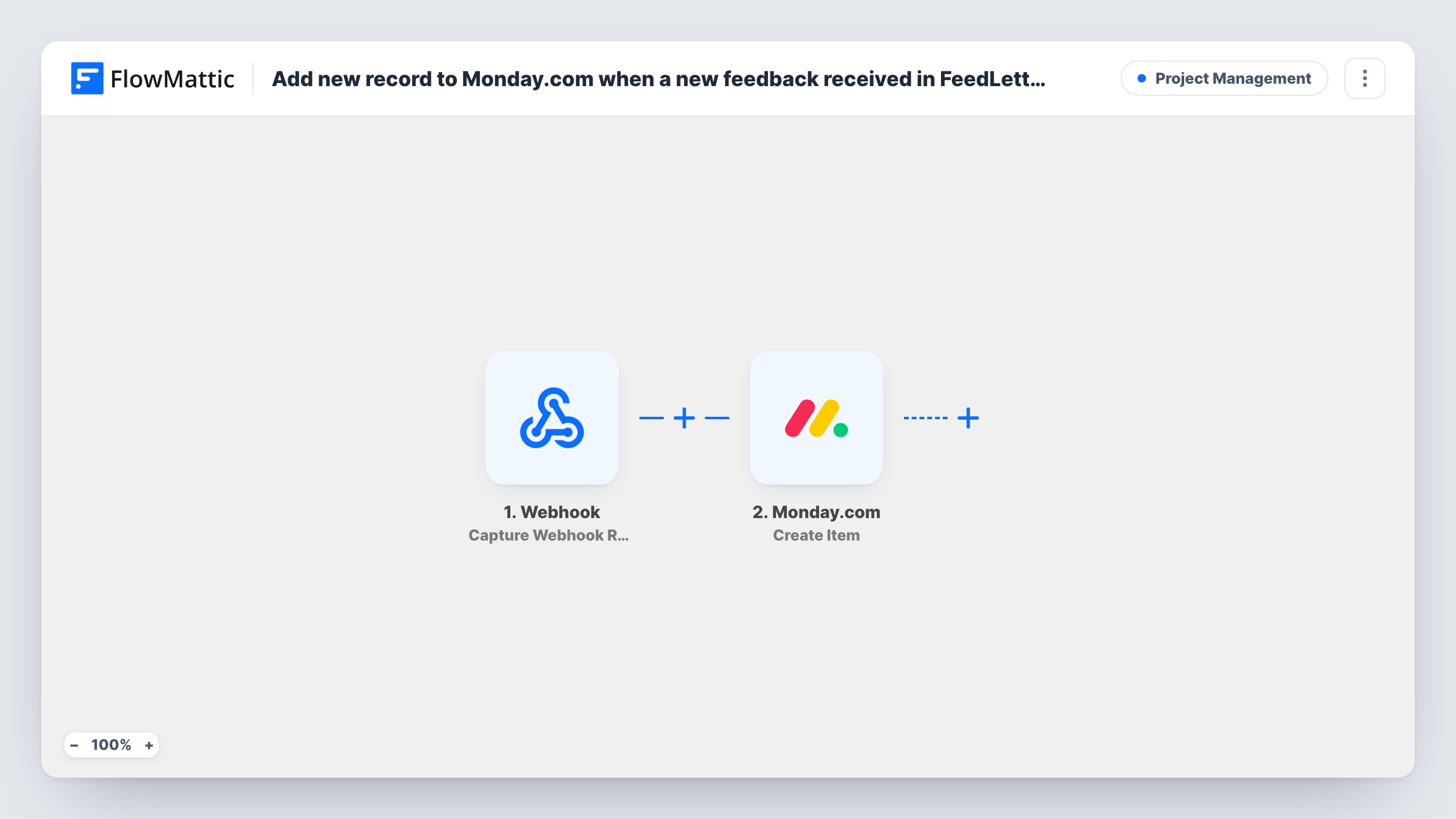
The FeedLetter trigger runs whenever new feedback is submitted. FlowMattic then uses the Monday.com Create Item action to add a new item to a board. That is the whole flow: one submission, one item.
The Create Item step is not mapped in the template. After import, connect your Monday.com account, select the board, and map feedback details into the item, for example a short summary as the item name and the full text in a column. Submit test feedback first so you have real fields to pick from.
Items are created as new every time. If the same person sends two pieces of feedback, you get two items. Task History shows what FeedLetter sent and what Monday.com returned for each run.
Feature requests on the product board
A SaaS team drops each FeedLetter request onto its roadmap board in Monday.com, where the product owner moves items into Planned or Declined groups.
Bug reports assigned to developers
An agency routes client feedback about a website into a Monday.com board, then assigns each item to the developer who built that page.
Feedback triage meeting
A small team opens the board in its weekly call and walks through every new item that arrived from FeedLetter since the last meeting.
How this workflow runs
What happens at each step once the workflow is on, and what you need before you import it.
 FeedLetter New Feedback Received
Fires on each new feedback submission in FeedLetter and hands the submission's data to the Monday.com step. Use a test submission to see the field names you can map.
- Monday.com Create Item
Creates a new item on a Monday.com board for every submission. The step ships unmapped: connect your account, choose the board, and map the feedback into the item name and any columns you use.
What you need
- FlowMatticCore
- FeedLetter AccountAccount
- Monday.com AccountAccount
After importing, map your own data. To keep the template universal, not every step is pre-filled. Open each step in the builder and connect your accounts and fields (channels, lists, sheets, recipients) before you switch the workflow on.
Make it yours
Changes worth making after you import it.
- Set up the board's columns, such as a long text column for the message and a status column, before you map the Create Item step, so each feedback field has a place to go.
- Keep the item name short by mapping a title or the first words of the feedback, and put the full text in a long text column.
- Add a Filter between the FeedLetter trigger and the Monday.com step to skip test or empty submissions. The FeedLetter field it checks is an example for you to choose after a test run.
Questions about this workflow
Does each FeedLetter submission create its own Monday.com item?
Yes. Every new submission runs the workflow once and the Create Item step adds one new item. It doesn't look for an existing item first, so repeated feedback appears as separate items.
Which Monday.com board does the feedback go to?
The board you choose when you set up the Create Item step after import. The template doesn't pick one, so you can point it at a roadmap board, a support board or a new board just for feedback.
Can I control where the new Monday.com item appears on the board?
The template doesn't set a location, so connect Monday.com after import, look at what the Create Item step lets you choose, and run a test submission to see where the item lands. Move it by hand or adjust the step until it matches how your board is organised.
More Project Management workflows
Other ready-to-import templates from the same category.




Import this workflow into your WordPress site
Download the JSON, import it from the Workflows screen and connect your accounts. Every run stays on your server, with no per-task fees.
30-day money-back guarantee Unlimited workflows and runs Self-hosted