

Create ClickUp tasks from completed Zoho Sign documents
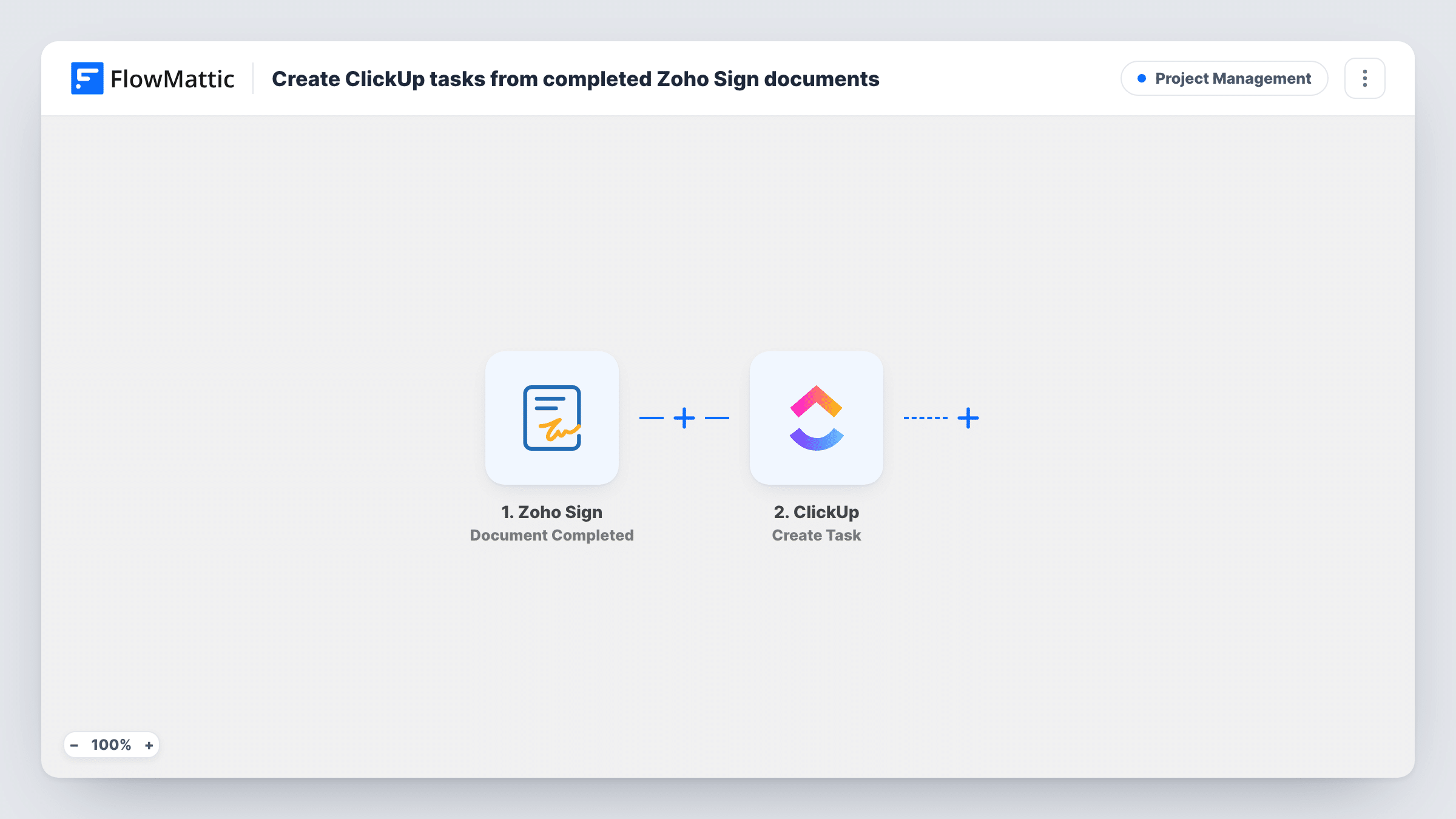
When every recipient has signed and approved a Zoho Sign document, this workflow creates a task in the ClickUp list you choose, so the work that follows a signed agreement is on your team’s board straight away.
 Zoho Sign
 ClickUp
2 steps Setup ~5 min Used on 2.9k sites Productivity Free to import
What this workflow does
A signed contract is usually the start of something: onboarding a client, kicking off a project, setting up an employee. If the signature only shows up in Zoho Sign, someone has to notice it and create the follow-up task by hand. This workflow creates that task in ClickUp once signing is finished.
The Zoho Sign trigger fires when a document is completely signed and approved by all of its recipients. A document that is only partly signed doesn't start a run. FlowMattic passes the document data to ClickUp, and the Create Task step adds a new task. You choose where the task goes and build its name and description from the Zoho Sign details, such as the document name.
Each completed document creates one task. Task History lists every run, so if a task doesn't appear in ClickUp you can open the run and read the response.
Client onboarding after a signed proposal
When a client signs your proposal in Zoho Sign, an onboarding task appears in ClickUp for the account manager to schedule the kickoff call.
New hire paperwork
Once an offer letter is fully signed, HR gets a ClickUp task to order equipment and set up accounts for the new starter.
Vendor agreements for operations
A completed supplier contract in Zoho Sign creates a task for the operations team to add the vendor to your systems.
How this workflow runs
What happens at each step once the workflow is on, and what you need before you import it.
 Zoho Sign Document Completed
Fires when a Zoho Sign document has been signed and approved by every recipient. The details of that signing request are made available for the ClickUp task.
- ClickUp Create Task
Opens a follow-up task in ClickUp for the signed document. Connect your ClickUp account, choose where the task should go, and map the Zoho Sign details into the task name and description so the team knows which document it is about.
What you need
- FlowMatticCore
- Zoho Sign AccountAccount
- ClickUp AccountAccount
After importing, map your own data. To keep the template universal, not every step is pre-filled. Open each step in the builder and connect your accounts and fields (channels, lists, sheets, recipients) before you switch the workflow on.
Make it yours
Changes worth making after you import it.
- Add a Filter after the trigger on the document name if only certain kinds of agreements, such as client contracts, should create ClickUp tasks.
- Replace the single task with a Router if different documents need different lists, for example contracts to sales and offer letters to HR, using names that can't both match.
- Sign a test document with a colleague after import, so FlowMattic captures the real Zoho Sign data before you map the task fields.
Questions about this workflow
Does a partly signed Zoho Sign document create a ClickUp task?
No. The trigger waits until all recipients have signed and approved, so only fully completed documents start a run.
Can the ClickUp task include the signed PDF?
Not as imported. The task is built from the document details. Zoho Sign's Download Signed Document action could fetch the PDF in an extra step if you need it elsewhere.
Where in ClickUp do the Zoho Sign follow-up tasks land?
The one you choose when you set up the Create Task step. Every completed document creates its task in that same place.
Are documents signed before import turned into tasks?
No. Only documents completed after you switch the workflow on start a run.
More Project Management workflows
Other ready-to-import templates from the same category.

Import this workflow into your WordPress site
Download the JSON, import it from the Workflows screen and connect your accounts. Every run stays on your server, with no per-task fees.
30-day money-back guarantee Unlimited workflows and runs Self-hosted