

When a Snackeet story is completed or abandoned, create a new task in ClickUp
When a visitor completes or abandons one of your Snackeet stories, this workflow creates a task in ClickUp with their answers, so someone on your team owns the follow-up for every session.
 Snackeet
 ClickUp
2 steps Setup ~5 min Used on 485 sites Productivity Free to import
What this workflow does
A Snackeet story or quiz can collect a lot about a visitor: what they need, their budget, how to reach them. Turning that into action means someone has to read it and follow up. This workflow hands each session to your team as a ClickUp task, where it can be assigned, scheduled and ticked off.
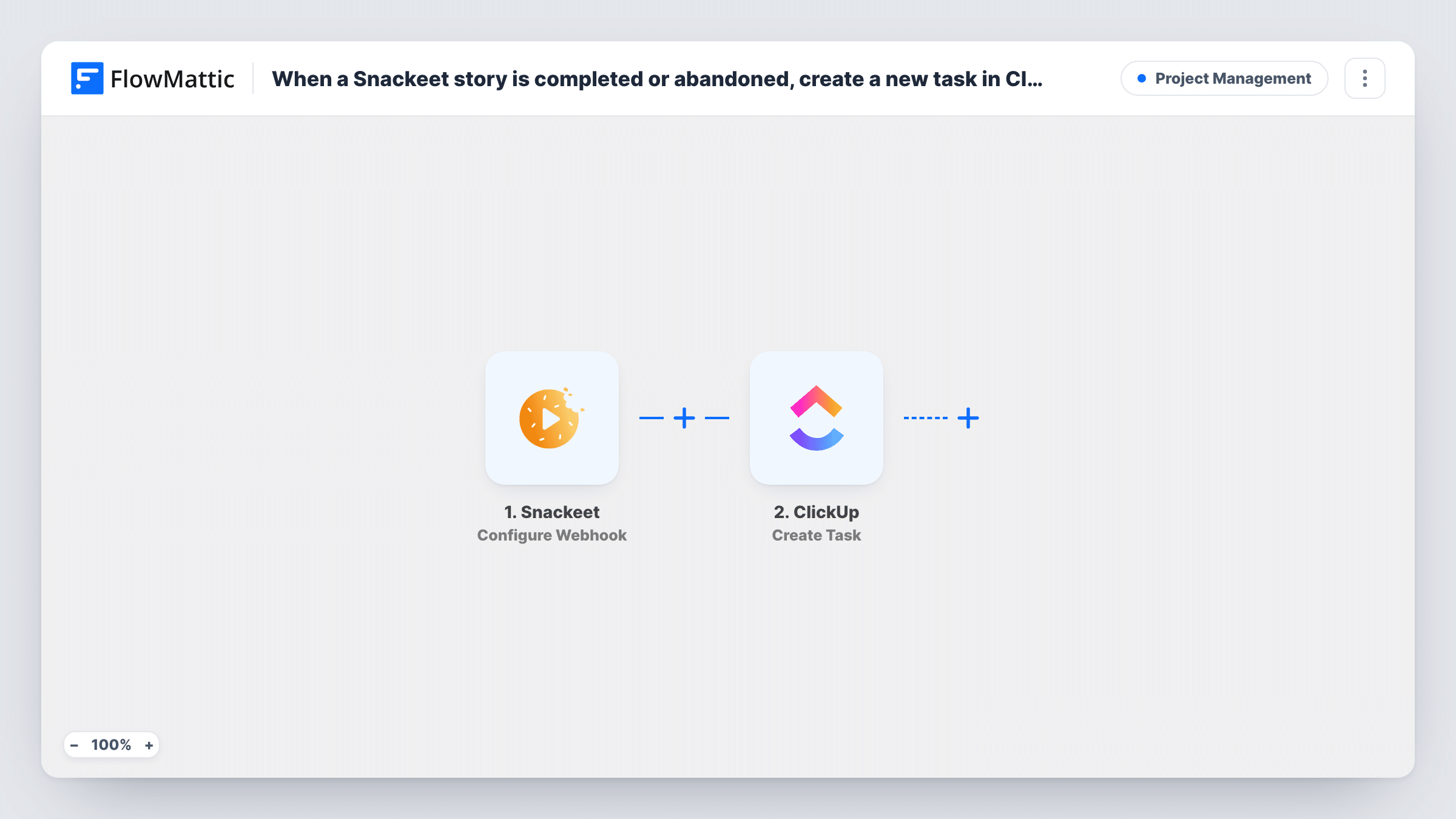
The Snackeet trigger, Configure Webhook, starts a run whenever a visitor either finishes a story or leaves it unfinished. A visitor who drops out partway therefore also produces a task with whatever they answered before leaving.
The ClickUp step creates a new task in the place you choose in your workspace. Build the task name from something recognisable, such as the visitor's name or email, and put their answers in the description so whoever picks it up has the full context. With no Filter in the template, every completed or abandoned session becomes its own task. Task History shows each run and the answers Snackeet delivered.
Sales follow-up after a qualifying quiz
Prospects answer a Snackeet quiz about their needs. Each finished quiz becomes a ClickUp task for a sales rep to call them back.
Project enquiries for an agency
A Snackeet story walks visitors through a project brief. The answers land in a ClickUp task that the account manager reviews before replying.
Reaching out to drop-offs
Visitors who abandon the story after leaving contact details still produce a task, so someone can check in with them.
How this workflow runs
What happens at each step once the workflow is on, and what you need before you import it.
 Snackeet Configure Webhook
Fires when a visitor completes or abandons a Snackeet story linked to this webhook. Whatever they answered during the session is passed on for mapping.
- ClickUp Create Task
Creates a new ClickUp task from the session. Choose where in your workspace it goes, then map the visitor's answers into the task. A test run shows the fields the step offers.
What you need
- FlowMatticCore
- Snackeet AccountAccount
- ClickUp AccountAccount
After importing, map your own data. To keep the template universal, not every step is pre-filled. Open each step in the builder and connect your accounts and fields (channels, lists, sheets, recipients) before you switch the workflow on.
Make it yours
Changes worth making after you import it.
- Only want finished sessions? Add a Filter after the trigger on the value that marks a story as completed, once your test run shows which value that is.
- Abandoned sessions with no contact details give your team little to act on. Add a Filter that continues only when the email answer is not empty.
- Run one completed and one abandoned test story after import and check both ClickUp tasks before you switch the workflow on.
Questions about this workflow
Do abandoned Snackeet stories create ClickUp tasks too?
Yes, as imported. The trigger fires on completed and abandoned stories, and each run creates a task. A Filter on the session's status keeps just the kind you want.
What Snackeet answers can appear in the ClickUp task?
Any value Snackeet sends for the session. Run a test story and map the answers you want into the task name and description.
Will a visitor who takes the Snackeet story twice get two tasks?
Yes. Each completed or abandoned session is a separate run, and the step does not look for an existing task first.
Do I need a particular ClickUp list ready before import?
You need somewhere in ClickUp for the tasks to go. Create the list you want to use, then choose it in the Create Task step when you connect your account.
More Project Management workflows
Other ready-to-import templates from the same category.




Import this workflow into your WordPress site
Download the JSON, import it from the Workflows screen and connect your accounts. Every run stays on your server, with no per-task fees.
30-day money-back guarantee Unlimited workflows and runs Self-hosted