

Create Notion database items from Zerowork.io research tasks
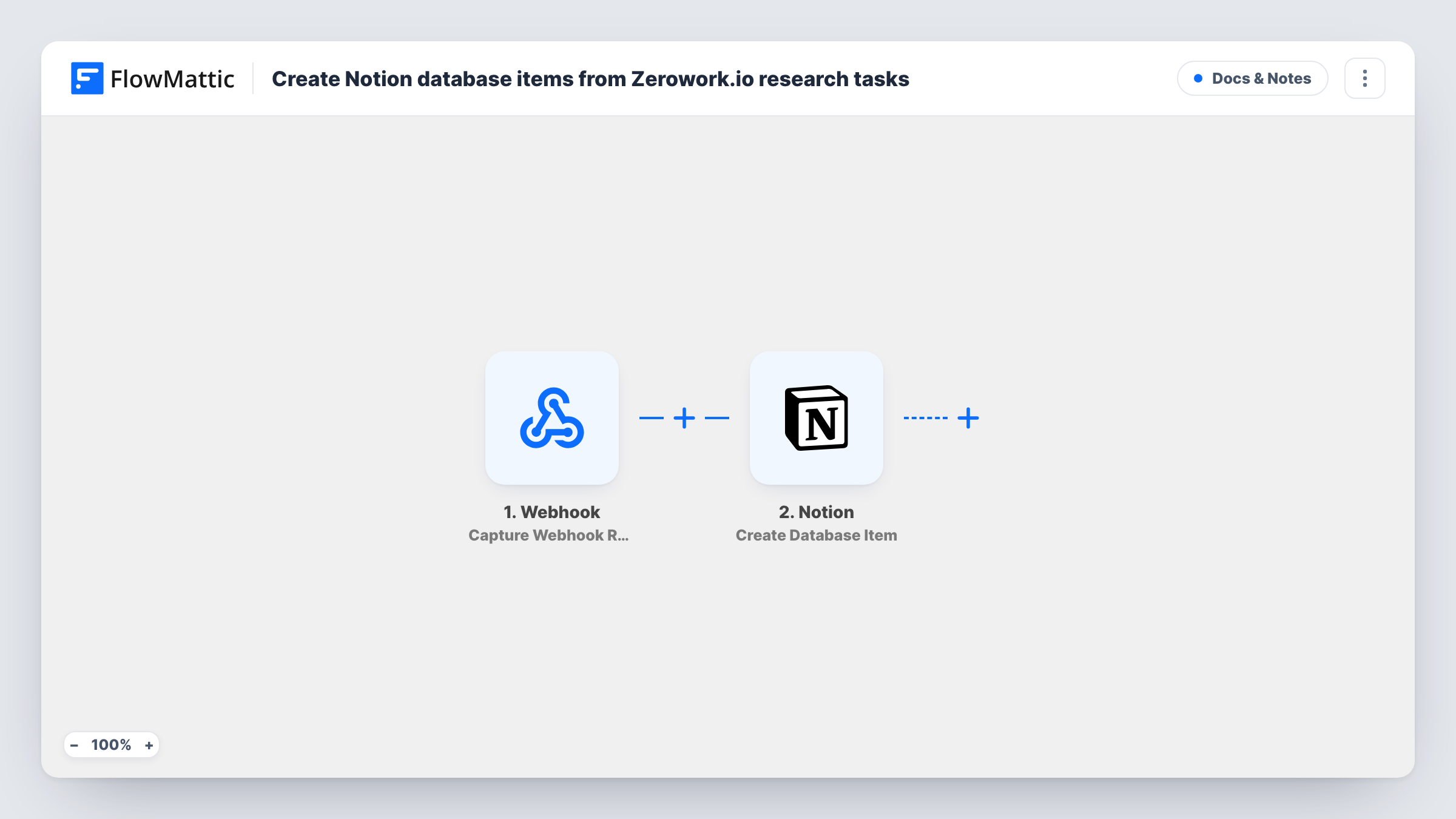
When a Zerowork.io TaskBot posts its research results to FlowMattic’s webhook, this workflow creates an item in your Notion database from that data, so findings from your bots collect in one place.
 Webhook
 Notion
2 steps Setup ~5 min Used on 476 sites Free to import
What this workflow does
Zerowork.io TaskBots can gather information from web pages for you, but the results are only useful once they reach the place your team reads. If that place is a Notion database, this workflow adds an item for each result your TaskBot sends.
The first step is the Webhook trigger. It gives you a URL, and your TaskBot needs a step that sends an HTTP request to it with the data you want stored. Each request starts a run, and whatever the TaskBot sends becomes available to map.
The Notion step uses Create Database Item to add an item to the database you choose. Map the TaskBot's fields, such as a company name, a page URL or a summary, to the database properties. Task History records each request and Notion's response, which helps while you set up the TaskBot's request.
Competitor price checks
A TaskBot visits competitor product pages and sends the prices it finds. Each result becomes a Notion item your team can sort by product and date.
Building a lead research list
Your TaskBot collects company details from a directory. Each company is added to a Notion database where sales can add notes.
Tracking job postings
A TaskBot gathers job listings from careers pages and sends each one to the webhook, filling a Notion database you review weekly.
How this workflow runs
What happens at each step once the workflow is on, and what you need before you import it.
 Webhook Capture Webhook Response
Gives you a webhook URL. Set your Zerowork.io TaskBot to send an HTTP request to it with the research data. Each request starts a run, so send one test request to capture the fields.
- Notion Create Database Item
Adds one Notion database item per TaskBot request, in the database you select. Map the fields from the TaskBot's request to the database's properties, such as title, URL or notes, and connect your Notion account.
What you need
- FlowMatticCore
- Notion AccountAccount
After importing, map your own data. To keep the template universal, not every step is pre-filled. Open each step in the builder and connect your accounts and fields (channels, lists, sheets, recipients) before you switch the workflow on.
Make it yours
Changes worth making after you import it.
- Turn on the Webhook trigger's Require authentication on incoming requests setting and have the TaskBot send the key, so only your bot can add items to Notion.
- Send one request per result from the TaskBot. If it sends a list in one request, add an Iterator before the Notion step so each entry becomes its own item.
- Add a date property to the Notion database and map the run time into it, so you can see when each result was collected.
Questions about this workflow
How does a Zerowork.io TaskBot send data to this workflow?
Through an HTTP request to the webhook URL FlowMattic gives you. Set up that request in the TaskBot with the fields you want, then send a test so FlowMattic captures them.
Can someone else send items to my Notion database through the webhook?
Anyone with the URL could send data unless authentication is on. Turn on the trigger's authentication setting so requests without your key are refused.
What if the TaskBot sends several results in one request?
As imported, one request creates one Notion item. Add an Iterator after the trigger to create an item for each result in a list.
More Docs & Notes workflows
Other ready-to-import templates from the same category.


Import this workflow into your WordPress site
Download the JSON, import it from the Workflows screen and connect your accounts. Every run stays on your server, with no per-task fees.
30-day money-back guarantee Unlimited workflows and runs Self-hosted