

Create Notion notes from MeetGeek meeting highlights
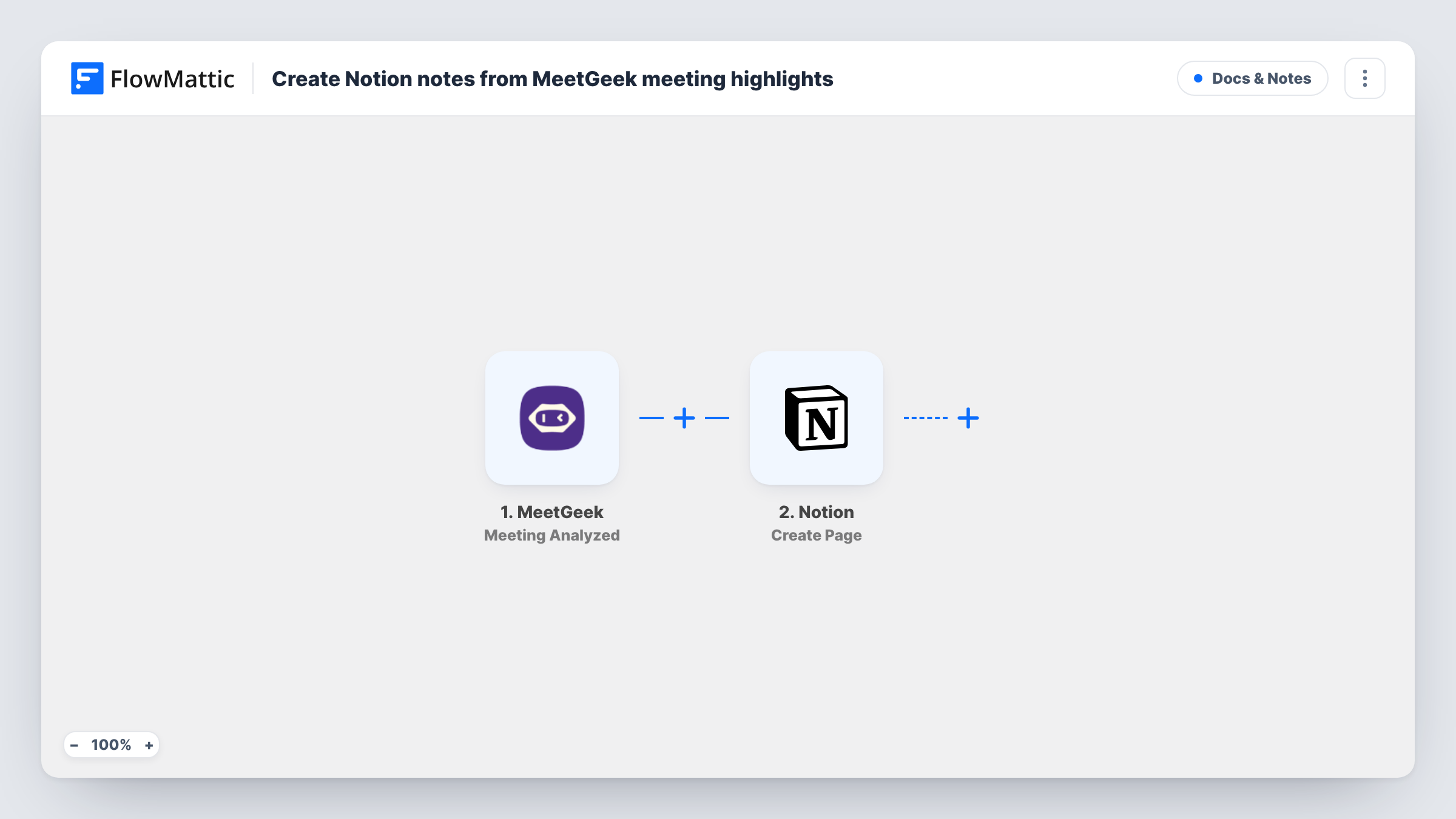
When MeetGeek finishes analyzing a meeting, FlowMattic fetches that meeting’s highlights and writes them into a new Notion page under the parent page you choose.
 MeetGeek
 Notion
3 steps Setup ~5 min Used on 1.4k sites Free to import
What this workflow does
Meeting recordings are long, and the useful parts tend to get lost. MeetGeek picks out highlights; this workflow moves them into Notion, where your team already keeps its notes, so each meeting leaves a short written record behind.
The MeetGeek Meeting Analyzed trigger fires when MeetGeek has analyzed a meeting successfully, and passes the meeting's details on. A second MeetGeek step, Get Highlights, then retrieves the highlights for that meeting. You map the meeting from the trigger into it so it fetches the right one.
Finally, Notion creates a page inside a parent page you pick, such as a Meeting Notes page. After import you connect Notion, choose the parent, and map the meeting title into the page title and the highlights into the content.
Every analyzed meeting creates a page, including short internal calls. Meetings whose analysis fails don't fire this trigger. Run one test meeting and look at Task History to see how MeetGeek returns the highlights, so you can lay them out the way you want in Notion.
Sales call notes for the account team
An account executive's client calls are analyzed by MeetGeek, and the highlights land in a Notion page under the team's Client Calls page for colleagues to read.
Product feedback from user interviews
A product manager runs user interviews through MeetGeek and keeps the highlights of each one in Notion beside the research plan.
Weekly team meeting record
A remote team's weekly meeting produces a Notion page of highlights, so people who missed it can catch up in a few minutes.
How this workflow runs
What happens at each step once the workflow is on, and what you need before you import it.
 MeetGeek Meeting Analyzed
Starts the workflow when MeetGeek finishes analyzing a meeting successfully. The meeting's details, including its identifier and title, are passed to the next steps.
- MeetGeek Get Highlights
Retrieves the highlights of the meeting from MeetGeek. Map the meeting from the trigger into this step after import, then check a test run to see how the highlights come back.
- Notion Create Page
Creates a new Notion page inside the parent page you choose. Map the meeting title into the page title and the highlights from step 2 into the page content.
What you need
- FlowMatticCore
- MeetGeek AccountAccount
- Notion AccountAccount
After importing, map your own data. To keep the template universal, not every step is pre-filled. Open each step in the builder and connect your accounts and fields (channels, lists, sheets, recipients) before you switch the workflow on.
Make it yours
Changes worth making after you import it.
- Create a dedicated parent page in Notion, such as Meeting Highlights, and share it with your FlowMattic Notion connection before you pick it in the step.
- Add MeetGeek's Get Summary action between Get Highlights and the Notion step, and map the summary into the top of the page above the highlights.
- If you only want notes for some meetings, put a Filter between the MeetGeek trigger and the Get Highlights step on the meeting title, for example continuing when it contains "client". Pick a word your own meeting names use.
Questions about this workflow
Do I need a MeetGeek account that records my meetings?
Yes. MeetGeek has to record and analyze the meeting before the trigger fires. Connect the same MeetGeek account in both MeetGeek steps.
Can the highlights go into a Notion database instead of a page?
This template uses Create Page, which adds a page under a parent page. For a database, swap the last step for Notion's Create Database Item action and map the highlights into a property.
What if a meeting has no highlights in MeetGeek?
Nothing in the workflow checks for that, so the Notion page may be created with little or nothing in it. Look at the Get Highlights output in Task History if a page comes out blank.
Is the full MeetGeek transcript added to Notion?
No, only the highlights. MeetGeek's Get Transcript action is available in FlowMattic if you want to add it as another step before the Notion page.
More Docs & Notes workflows
Other ready-to-import templates from the same category.





Import this workflow into your WordPress site
Download the JSON, import it from the Workflows screen and connect your accounts. Every run stays on your server, with no per-task fees.
30-day money-back guarantee Unlimited workflows and runs Self-hosted