

When a new booking received in Probooking, Generate a PDF document for user in Crove and share the link on email
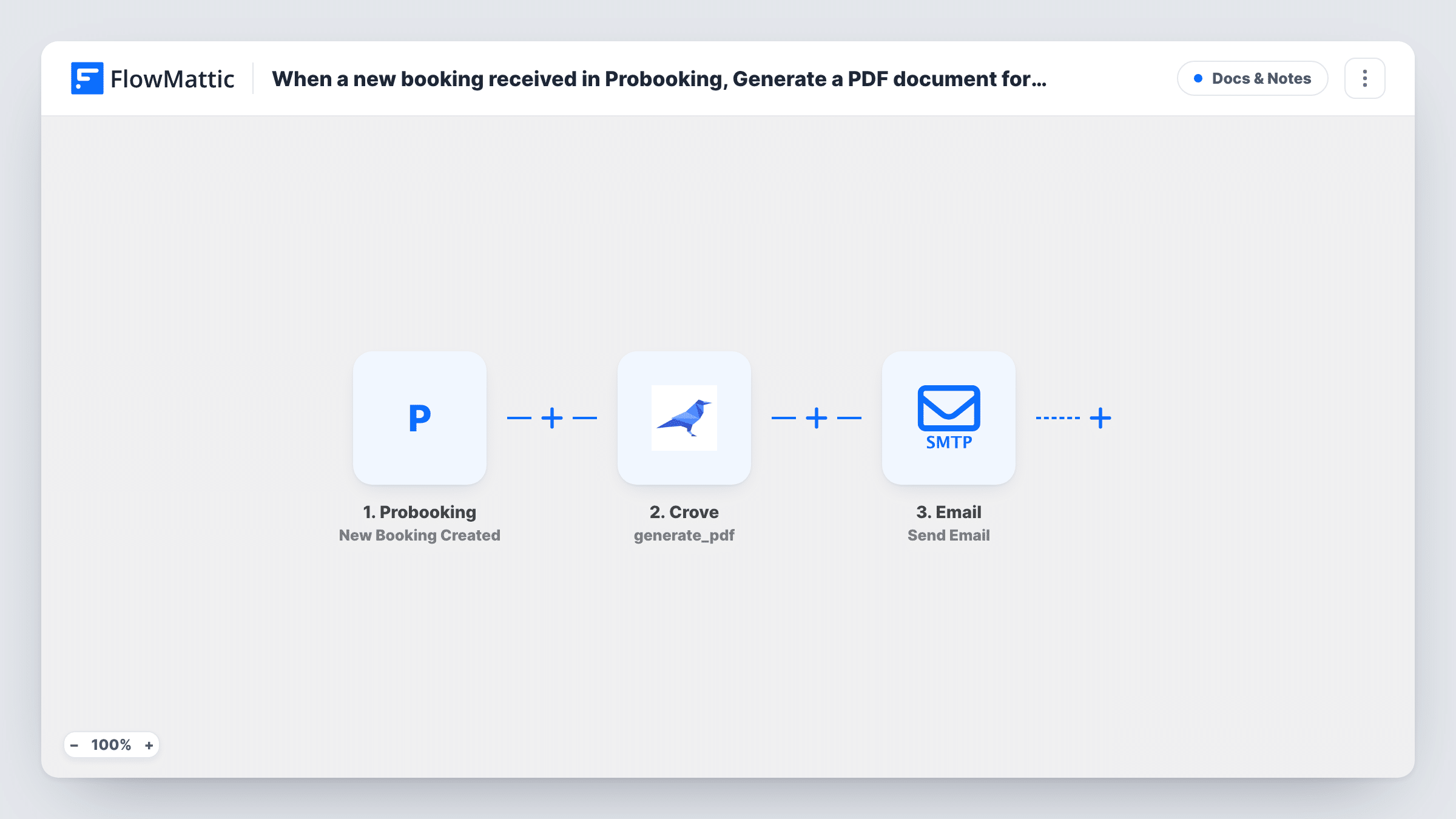
When a booking is created in Probooking, this workflow has Crove generate a PDF from your template with the booking details, then emails the client a link to the document.
 Probooking
 Crove
Crove
 Email
Email3 steps Setup ~5 min Used on 2.0k sites Free to import
What this workflow does
Some bookings need paperwork: a confirmation letter, terms of service or an intake summary. Producing a document for each client by hand is slow, and it is easy to forget to send it. This workflow creates the PDF and emails the link once the booking exists.
The Probooking trigger, New Booking Created, runs for each new booking. FlowMattic passes the booking details to Crove, where the Generate PDF step produces a PDF from your Crove template with the values you map. The last step is FlowMattic's Email module, which sends a message through WordPress mail or your SMTP account. Put the PDF link from Crove's response in the email body and send it to the client's address from the booking.
Every new booking produces a PDF and an email. Rescheduled and cancelled bookings have their own Probooking triggers and don't run this one. Task History shows each run with Crove's response, which helps when you map the link.
Consultation confirmation letters
A law or accounting practice books consultations in Probooking and sends each client a PDF confirming the appointment and what to bring.
Service terms for each booking
A photographer emails every new client a link to a Crove document with the session details and the terms that apply.
Pre-appointment intake summary
A clinic generates a summary of the booking for the patient to check before the visit, delivered as a link by email.
How this workflow runs
What happens at each step once the workflow is on, and what you need before you import it.
 Probooking New Booking Created
Runs when a new booking is created in Probooking. The booking details are passed on for mapping. A test booking shows which client details Probooking sends.
- Crove Generate PDF
Asks Crove to generate a PDF from your template with the Probooking values you map. Link Crove to FlowMattic, then book a test appointment to see the response it gives back.
 Email Send Email
Emails the client using WordPress mail or the SMTP account you set up. Map the client's email from the booking and place the PDF link from the Crove step in the message.
What you need
- FlowMatticCore
- Probooking AccountAccount
- Crove AccountAccount
After importing, map your own data. To keep the template universal, not every step is pre-filled. Open each step in the builder and connect your accounts and fields (channels, lists, sheets, recipients) before you switch the workflow on.
Make it yours
Changes worth making after you import it.
- Build and test the Crove template first, with a placeholder for each booking detail you plan to fill.
- Make a test booking in Probooking, then open Task History to find the link field in Crove's response before mapping it into the email.
- To give your team a copy, add a second Send Email step addressed to them after the first one.
Questions about this workflow
Is the Crove PDF attached to the email?
No. The template sends a link from Crove's response. The Email step can attach files stored on your WordPress site, and the Crove PDF isn't one of them.
Do I need an SMTP service to send the Probooking email?
Not necessarily. The Email module can use WordPress's own mail function or a custom SMTP account you set up.
Which Crove template does the Probooking PDF use?
Your own. The Generate PDF step ships unmapped, so build the template in Crove first, then connect Crove after import and map the booking values into it. A test booking shows what Crove sends back, including the link for the email.
Does a rescheduled Probooking booking get a new PDF?
No. This template listens only for newly created Probooking bookings. Probooking's Booking Rescheduled trigger could drive a separate one.
More Docs & Notes workflows
Other ready-to-import templates from the same category.





Import this workflow into your WordPress site
Download the JSON, import it from the Workflows screen and connect your accounts. Every run stays on your server, with no per-task fees.
30-day money-back guarantee Unlimited workflows and runs Self-hosted