

Create a HubSpot CRM contact when a Funraise transaction is created
When a new transaction is created in Funraise, FlowMattic creates a HubSpot CRM contact for the donor from the details you map, so new supporters appear in HubSpot without manual entry.
 Funraise
 HubSpot CRM
2 steps Setup ~5 min Used on 455 sites Free to import
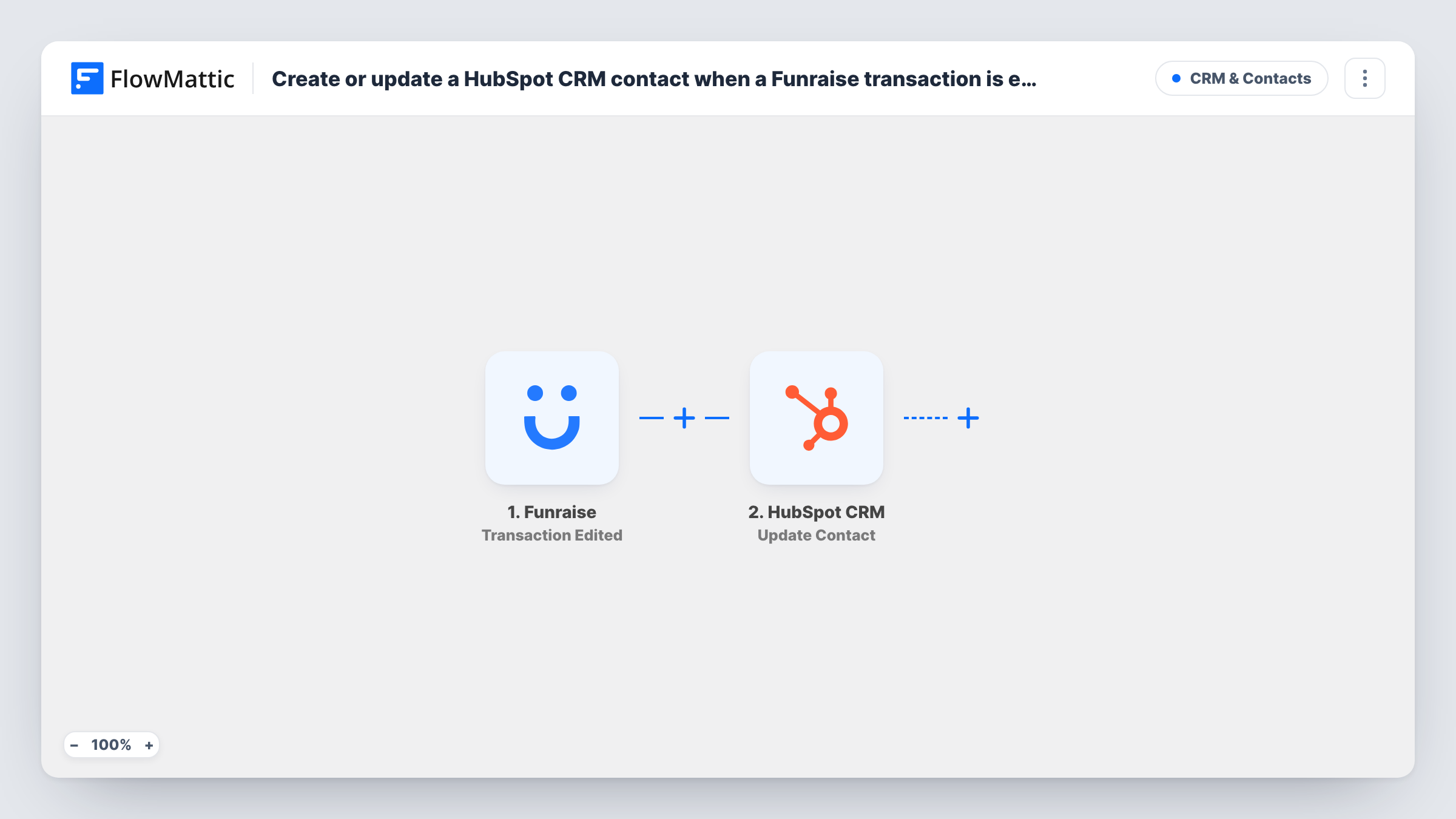
What this workflow does
Nonprofits that take donations through Funraise often run their outreach, newsletters or major-gift follow-up from HubSpot. Keying each donor into the CRM by hand delays the thank-you and invites typos. This workflow creates a HubSpot contact as soon as Funraise records a transaction.
The Funraise Transaction Created trigger fires when a new transaction is created, and passes the transaction's details on. Make a test donation to see exactly which donor values arrive, such as the name and email. Edits to a transaction are a separate Funraise event and don't start this workflow.
The HubSpot CRM Create Contact step then adds the donor as a contact. It ships unmapped: after import you connect HubSpot and map the donor's email, name and any other values you want on the contact.
HubSpot's Create Contact action never edits records. It doesn't update a contact that already exists, so a repeat donor, or a supporter already in HubSpot from another source, isn't changed. HubSpot may refuse a second contact with the same email; Task History shows its response for each transaction.
Thank-you sequences for first-time donors
A charity creates each new Funraise donor in HubSpot, where a HubSpot workflow it built sends a welcome email series to new contacts.
Donor list for the development team
A nonprofit's fundraising staff work from HubSpot and find each new online donor there, ready to log calls and notes.
Campaign donors in one CRM
An organisation running a year-end Funraise campaign adds each donor to HubSpot so its newsletter list grows with the campaign.
How this workflow runs
What happens at each step once the workflow is on, and what you need before you import it.
 Funraise Transaction Created
Starts when a new transaction is created in Funraise. Each transaction is one run, and the donor and donation details become available to map into HubSpot.
- HubSpot CRM Create Contact
Adds the donor to HubSpot CRM as a new contact record. The step ships unmapped: connect HubSpot and map the donor's email and name from the Funraise transaction, plus anything else you want stored.
What you need
- FlowMatticCore
- Funraise AccountAccount
- HubSpot CRM AccountAccount
After importing, map your own data. To keep the template universal, not every step is pre-filled. Open each step in the builder and connect your accounts and fields (channels, lists, sheets, recipients) before you switch the workflow on.
Make it yours
Changes worth making after you import it.
- Map the donor's email in every case. HubSpot identifies contacts by email, so a contact without one is hard to match with later donations.
- Set a fixed value in a HubSpot contact property you use for sources, if you have one, so you can see which contacts came from Funraise.
- Put a Filter between the Funraise trigger and the HubSpot step that checks the email from a test transaction is not empty, so transactions without an email stop before HubSpot.
Questions about this workflow
What happens when a returning donor gives again through Funraise?
A new transaction starts a run, and Create Contact tries to add the donor again. HubSpot may refuse a duplicate email, and the existing contact isn't updated. Open that donation's run in Task History to see whether HubSpot accepted the new contact.
Does editing a Funraise transaction create another HubSpot contact?
No. This workflow uses the Transaction Created trigger. Funraise edits are a separate Transaction Edited event, which this template doesn't listen to.
Which donor details reach HubSpot CRM?
The ones you map. The Create Contact step ships empty, so after import you choose which Funraise values fill the contact's email, name and other properties.
More CRM & Contacts workflows
Other ready-to-import templates from the same category.




Import this workflow into your WordPress site
Download the JSON, import it from the Workflows screen and connect your accounts. Every run stays on your server, with no per-task fees.
30-day money-back guarantee Unlimited workflows and runs Self-hosted