

Create a HubSpot contact for every new TuCalendi booking
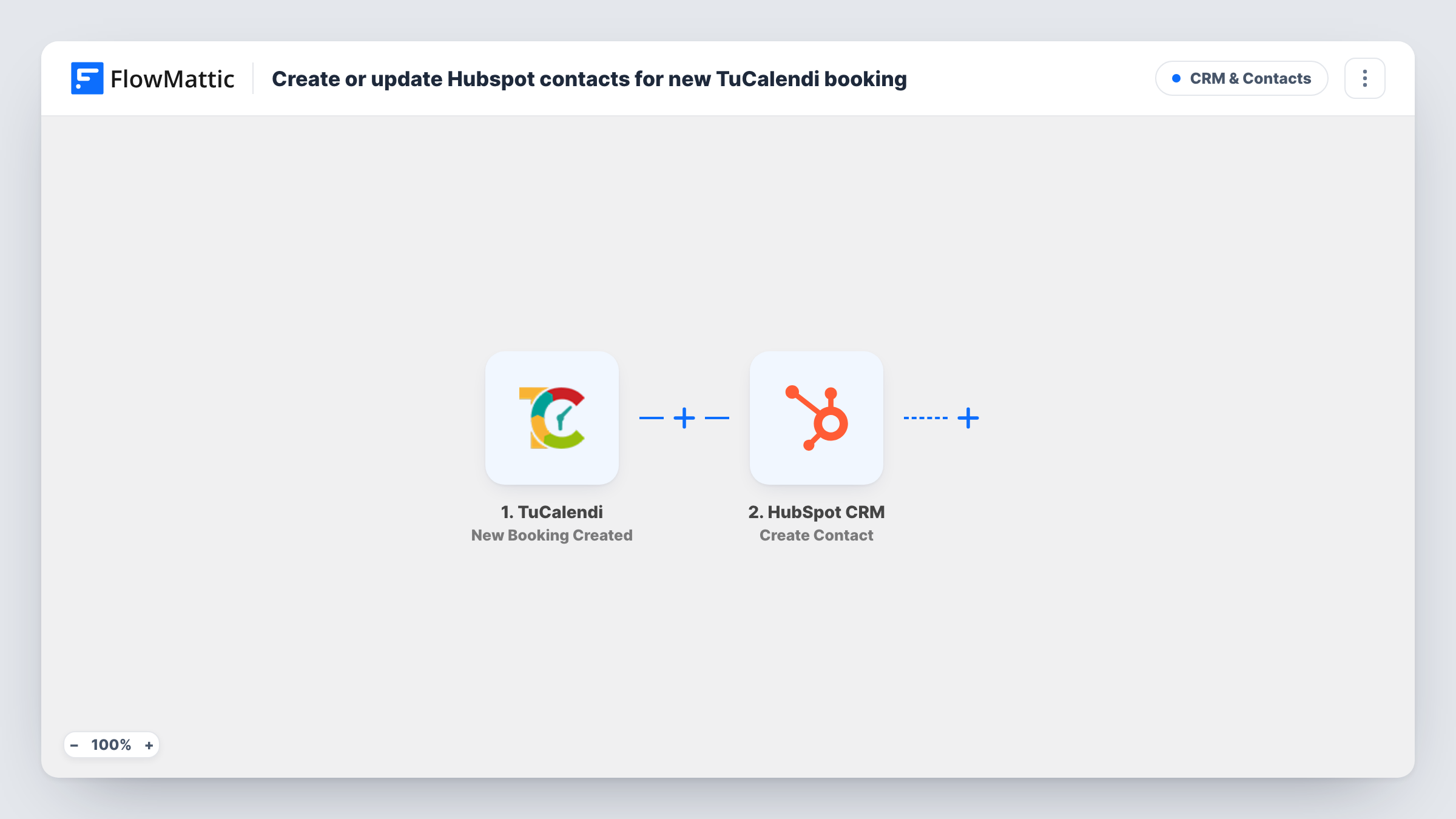
Every time someone books a slot through TuCalendi, FlowMattic creates a contact in HubSpot CRM with the booking details you map, so people who schedule a call are in your CRM before it starts.
 TuCalendi
 HubSpot CRM
2 steps Setup ~5 min Used on 965 sites Free to import
What this workflow does
A booked meeting usually means a warm prospect or a client who needs follow-up, and the CRM should know about them before the call. This workflow copies each TuCalendi booker into HubSpot as a contact, so you can prepare from their record and log the conversation in the same place afterwards.
The TuCalendi New Booking Created trigger fires whenever a new booking is made. It passes the booking and the details the person entered, such as name and email, on to HubSpot. Edits and cancellations don't start it; FlowMattic's TuCalendi integration has separate triggers for those.
The HubSpot CRM Create Contact step then adds the person. It ships unmapped: after import, connect HubSpot and map the booker's email into the contact's email, along with any name, phone or other fields your booking form collects.
This HubSpot step never looks for an existing record first. Someone who books a second time already exists in HubSpot, and HubSpot may refuse the duplicate email. Make a test booking and check Task History for HubSpot's response.
Discovery calls for a consultancy
A consultant shares a TuCalendi link in proposals, and every prospect who books a discovery call appears in HubSpot to be worked through the sales pipeline.
Demo requests for a software team
A SaaS company lets trial users book a demo in TuCalendi, and the sales rep finds the contact in HubSpot ahead of the call.
New client intake at a clinic
A practice that takes first appointments through TuCalendi keeps a HubSpot record of every new patient enquiry for reminders and follow-ups.
How this workflow runs
What happens at each step once the workflow is on, and what you need before you import it.
 TuCalendi New Booking Created
Starts a run as soon as a fresh TuCalendi booking comes in. The booker's details and the booking information are passed to HubSpot. Edited and cancelled bookings don't start this trigger.
- HubSpot CRM Create Contact
Turns the booker into a HubSpot CRM contact. The step is empty in the template, so connect HubSpot and map the booker's email, name and any other details you want on the contact.
What you need
- FlowMatticCore
- TuCalendi AccountAccount
- HubSpot CRM AccountAccount
After importing, map your own data. To keep the template universal, not every step is pre-filled. Open each step in the builder and connect your accounts and fields (channels, lists, sheets, recipients) before you switch the workflow on.
Make it yours
Changes worth making after you import it.
- Map the booking date or service name into a HubSpot contact property, so you can see which meeting brought each contact in.
- If you offer several booking types, put a Filter between the TuCalendi trigger and Create Contact that continues only for the ones sales should see. Find the field that names the type in a test booking.
- Add a HubSpot Create Deal step after Create Contact if every booking should also open a deal in your sales pipeline.
Questions about this workflow
Will a client who books through TuCalendi twice get two HubSpot contacts?
The Create Contact step tries to add them a second time, and HubSpot may refuse a contact whose email it already holds. Task History shows HubSpot's answer for that second booking.
Does a cancelled TuCalendi booking remove the HubSpot contact?
No. This workflow only runs on new bookings. FlowMattic's TuCalendi integration has a Booking Cancelled trigger you could use in a second workflow, for example to update the contact.
Which booking details reach HubSpot?
The fields you pick when you set up Create Contact, and nothing else. Make a test booking, then choose from the data the TuCalendi trigger received.
More CRM & Contacts workflows
Other ready-to-import templates from the same category.





Import this workflow into your WordPress site
Download the JSON, import it from the Workflows screen and connect your accounts. Every run stays on your server, with no per-task fees.
30-day money-back guarantee Unlimited workflows and runs Self-hosted