

When a new user is created in BrainCert, add them as a contact in FluentCRM and send a welcome email
When a new user account is created in BrainCert, this workflow adds that person to FluentCRM as a contact and then sends them a welcome email, so each new learner lands in your CRM and hears from you.
 BrainCert
 FluentCRM
 Email
3 steps Setup ~5 min Used on 2.2k sites Free to import
What this workflow does
BrainCert holds your learners, while your email list lives in FluentCRM on your WordPress site. Without a link between them, each new BrainCert account means copying a name and address across and writing a welcome note yourself. This workflow handles both tasks for every new account.
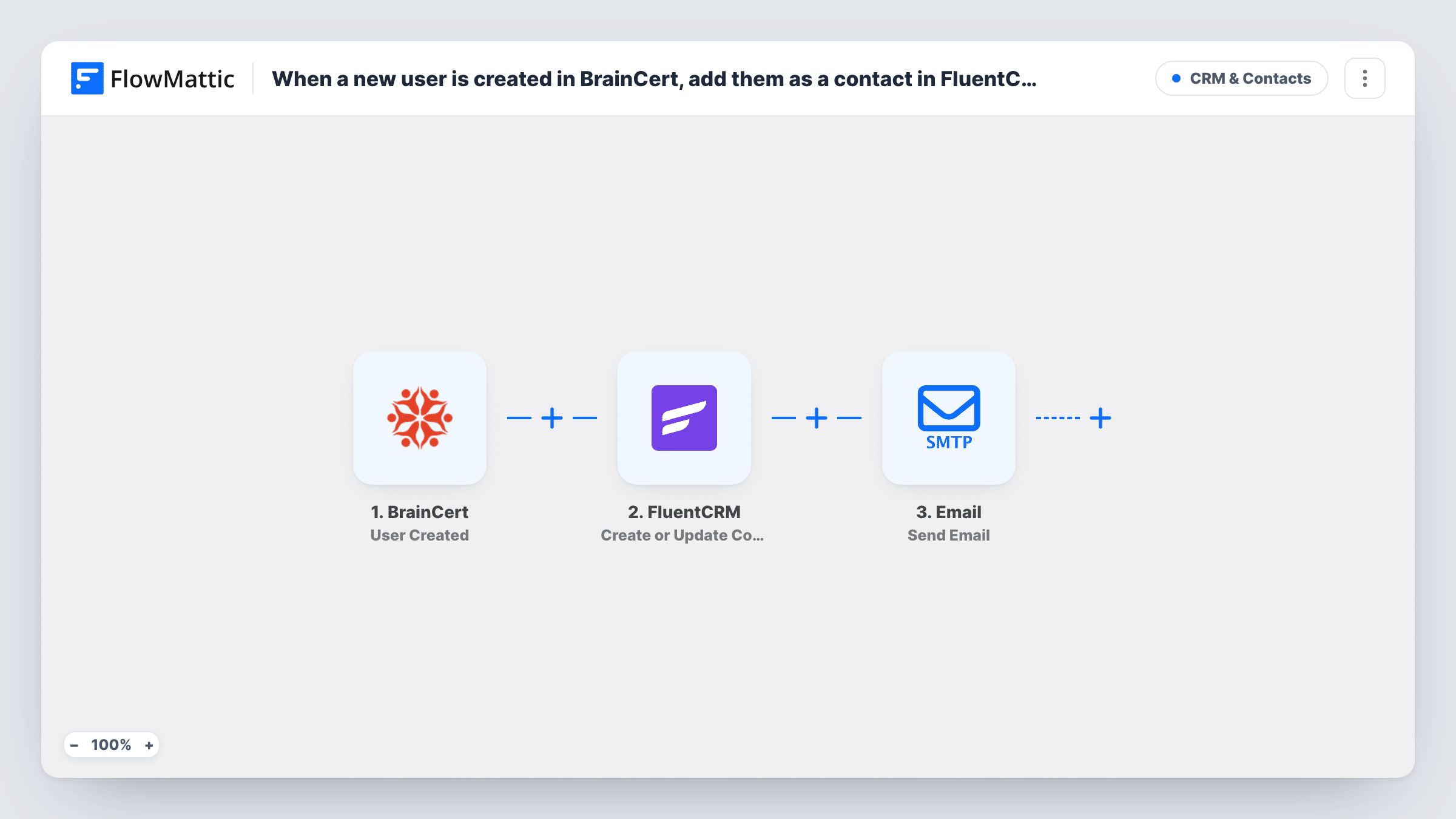
The BrainCert trigger fires when a new user account is created there. FlowMattic passes the user's details to FluentCRM, which creates a contact or, if that email address is already in your CRM, updates the existing one. The last step uses Email by FlowMattic to send a message through WordPress mail or the SMTP server you set up, addressed to the email that came from BrainCert.
You write the subject and body of the welcome email in that step and can map in the learner's name or any other BrainCert field. The email goes out on every run, including runs where FluentCRM only updated a contact that already existed.
Online course academy on BrainCert
Each learner who registers on your BrainCert academy becomes a FluentCRM contact you can email about new courses, and gets a note telling them where to log in.
Corporate training accounts
When you create staff accounts in BrainCert for a client's team, each person is added to FluentCRM and receives an email explaining how their training works.
Tutor building a mailing list
A tutor running live classes in BrainCert keeps every student in FluentCRM, ready for class reminders and announcements sent from WordPress.
How this workflow runs
What happens at each step once the workflow is on, and what you need before you import it.
 BrainCert User Created
Fires when a new user account is created in BrainCert. The new user's details are passed on so the FluentCRM and email steps can use them.
- FluentCRM Create or Update Contact
Creates a FluentCRM contact from the BrainCert user, or updates the contact if that email address is already in FluentCRM. Map the user's email and name fields into the contact.
 Email Send Email
Sends the welcome email through WordPress mail or your own SMTP server. Map the BrainCert email address as the recipient, then write the subject and message, adding the learner's name where you want it.
What you need
- FlowMatticCore
- BrainCert AccountAccount
- FluentCRM PluginPlugin
After importing, map your own data. To keep the template universal, not every step is pre-filled. Open each step in the builder and connect your accounts and fields (channels, lists, sheets, recipients) before you switch the workflow on.
Make it yours
Changes worth making after you import it.
- Put a Delay between FluentCRM and the email step if you would rather the welcome arrive an hour after sign-up than straight away.
- Set up an SMTP connection in the email step rather than relying on default WordPress mail, which some hosts deliver poorly or send to spam.
- Create a test user in BrainCert after import, then check Task History to see the user fields FlowMattic received and confirm the contact and email look right.
Questions about this workflow
What happens if the BrainCert user is already a FluentCRM contact?
FluentCRM matches contacts by email address, so the existing contact is updated rather than duplicated. The welcome email still goes out, because the email step runs on every new BrainCert account.
Does this send the welcome email from FluentCRM?
No. The email is sent by FlowMattic's own Send Email action, using WordPress mail or an SMTP server you configure. It does not appear as a FluentCRM campaign or email sequence.
Will learners created in BrainCert before import be added?
No. The User Created trigger fires only for accounts created after the workflow is turned on, so existing BrainCert users are left as they are.
Does FluentCRM have to run on the same site as FlowMattic?
Yes. FluentCRM is a WordPress plugin, and this workflow writes contacts to the FluentCRM install on the site where FlowMattic runs.
More CRM & Contacts workflows
Other ready-to-import templates from the same category.





Import this workflow into your WordPress site
Download the JSON, import it from the Workflows screen and connect your accounts. Every run stays on your server, with no per-task fees.
30-day money-back guarantee Unlimited workflows and runs Self-hosted