

Create tasks in ClickUp for new SuiteDash projects
When a project is created in SuiteDash, FlowMattic creates a task in ClickUp from the project details you map, so client work set up in your portal also shows up where your team plans it.
 SuiteDash
 ClickUp
2 steps Setup ~5 min Used on 683 sites Productivity Free to import
What this workflow does
If you run client portals and billing in SuiteDash but plan the actual work in ClickUp, each new client project has to be set up twice, and a project that only exists in SuiteDash can sit for days before anyone starts on it. This workflow opens the ClickUp side for you.
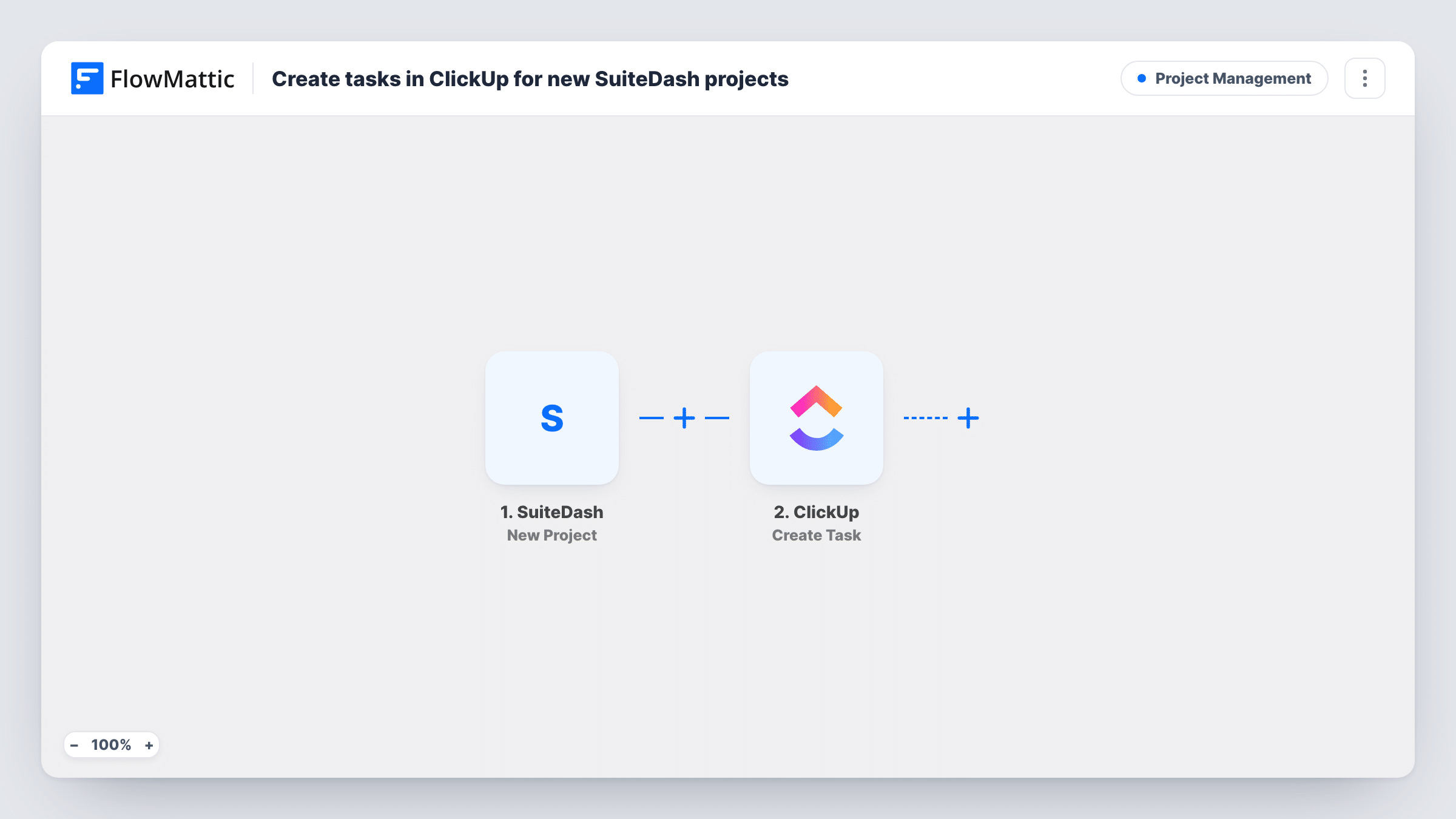
The SuiteDash trigger fires when a new project is created. FlowMattic captures the project's data for mapping. The ClickUp step then creates one new task. You decide what goes into it from the SuiteDash values, such as the project name and the client it belongs to, after a test project shows which values are sent.
The link between the two runs one way and only at creation. Later changes to the SuiteDash project, such as a new due date or a status change, are not copied to the ClickUp task. Task History keeps a record of each project that came through and the task data sent to ClickUp.
Kick-off task for every new client project
An agency creates projects in SuiteDash when a client signs. Each one becomes a ClickUp task the project manager uses to schedule the kick-off.
Bookkeeping engagements
A bookkeeping firm opens a SuiteDash project per client engagement. The matching ClickUp task gives the team a place to plan the monthly work.
Web builds managed from a portal
A web studio sets up each build as a SuiteDash project for the client to follow, while developers track it as a ClickUp task.
How this workflow runs
What happens at each step once the workflow is on, and what you need before you import it.
 SuiteDash New Project
Fires when a new project is created in SuiteDash. The project's details are captured and passed to the ClickUp step.
- ClickUp Create Task
Opens one ClickUp task for the new SuiteDash project. Connect your ClickUp account, map the SuiteDash project values into the task, and create a test project to check where the task appears.
What you need
- FlowMatticCore
- SuiteDash AccountAccount
- ClickUp AccountAccount
After importing, map your own data. To keep the template universal, not every step is pre-filled. Open each step in the builder and connect your accounts and fields (channels, lists, sheets, recipients) before you switch the workflow on.
Make it yours
Changes worth making after you import it.
- Put the SuiteDash project name at the start of the ClickUp task so the two are easy to match when you search either app.
- Add a Filter after the trigger if only some SuiteDash projects need ClickUp work, using a project value from your test data to decide.
- If one ClickUp task is not enough, add further ClickUp Create Task steps after the first one for the standard stages each project goes through.
Questions about this workflow
Does a SuiteDash project update change the ClickUp task?
No. The trigger fires only when a project is created, so edits made in SuiteDash afterwards are not sent to ClickUp.
Is a whole ClickUp project or list created for each SuiteDash project?
No. The template creates a single task per new SuiteDash project. Add more steps after import if you want more than that.
What happens with SuiteDash projects created before import?
They are not sent. Only projects created after you turn the workflow on start a run.
Will SuiteDash tasks be copied to ClickUp too?
Not by this workflow. SuiteDash has a separate New Task trigger in FlowMattic if you want to build a workflow for tasks as well.
More Project Management workflows
Other ready-to-import templates from the same category.




Import this workflow into your WordPress site
Download the JSON, import it from the Workflows screen and connect your accounts. Every run stays on your server, with no per-task fees.
30-day money-back guarantee Unlimited workflows and runs Self-hosted