

Create WordPress posts with Google AI responses generated from Google Sheets rows
Each new row in your Google Sheet becomes a prompt for Google AI, and the generated text is saved as a new WordPress post, so a list of topics in a spreadsheet turns into drafts on your site.
 Google Sheets
 Google AI
 WordPress
3 steps Setup ~5 min Used on 1.2k sites Free to import
What this workflow does
Planning content in a spreadsheet is common: one row per topic, with a keyword, angle or outline in the columns. Turning each row into a post still means writing a prompt, copying the output and pasting it into WordPress. This workflow does that for every row you add.
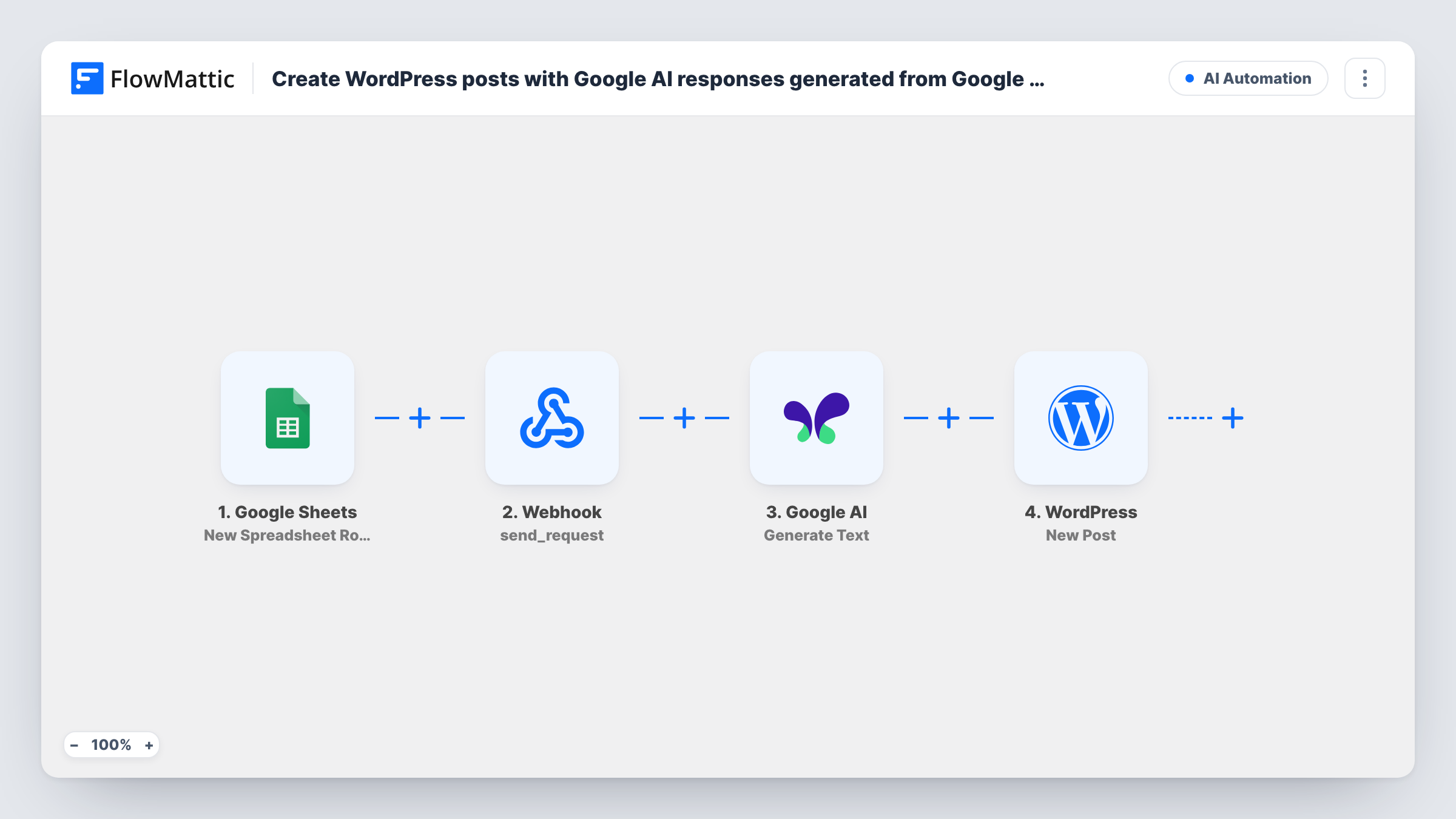
The Google Sheets trigger fires when a new row is added to the spreadsheet you connect and passes that row's values on. The Google AI Generate Text step then produces text from the prompt you give it. It ships unmapped, so after import you write the instruction and map the row's columns into it, for example "Write a 600-word blog post about" followed by the topic column.
The WordPress New Post step turns that output into a post on your site. The template already maps the Google AI response into the post content. Everything else is yours to set: map a column, such as the topic, into the post title, and run a test row to see whether the post was saved as a draft or published, then adjust the step if needed.
Every new row starts a run, including blank or half-filled rows. Read the generated posts before they are published, since AI text can contain mistakes.
Drafts from an editorial calendar
A content team adds next month's topics to a Google Sheet, and each row arrives in WordPress as a draft post an editor can rework.
Product guides from a feature list
A software company lists features in a sheet with a short description, and Google AI writes a how-to post for each one.
Local pages for a service business
A cleaning company keeps a sheet of the towns it serves, and each new town produces a post describing the service there, ready to edit.
How this workflow runs
What happens at each step once the workflow is on, and what you need before you import it.
 Google Sheets New Spreadsheet Row
Starts a run whenever a row is added to the Google Sheets spreadsheet you connect. The new row's column values are passed to Google AI for the prompt.
- Google AI Generate Text
Generates text from your prompt with Google AI. The step ships unmapped: after import, write the instruction and map the topic, keyword or outline columns from the new row into it.
- WordPress New Post
Creates a WordPress post with the Google AI response already mapped as the content. Map a title, for example the topic column, and confirm with a test row whether the post is saved as a draft or goes live.
What you need
- FlowMatticCore
- Google Sheets AccountAccount
- Google AI AccountAccount
After importing, map your own data. To keep the template universal, not every step is pre-filled. Open each step in the builder and connect your accounts and fields (channels, lists, sheets, recipients) before you switch the workflow on.
Make it yours
Changes worth making after you import it.
- Put a Filter between the Google Sheets trigger and the Generate Text step that continues only when the topic column is not empty, so blank rows don't create empty posts. Use whichever column holds your topic.
- Save posts as drafts while you test, so you can review the AI text and formatting before anything appears on your site.
- Add a column for the post's category or author and map it into the New Post step, if the step offers those, so posts land in the right place without editing.
Questions about this workflow
Are the Google AI posts published straight away?
That depends on how you configure the New Post step. Add a test row, look at the post in WordPress, and set the step to save drafts if you want to review each post first.
Does the WordPress post get a title from the sheet?
Only if you map one. The template maps the AI text into the content and leaves the title empty, so map a column such as the topic into it.
Do I need a Google AI account for this?
Yes. The Generate Text step runs through your Google AI connection, which you set up in the step after import.
Will existing rows in my Google Sheet create posts?
No. Only rows added after the workflow is active start a run, so earlier topics stay in the sheet without becoming posts.
More AI Automation workflows
Other ready-to-import templates from the same category.





Import this workflow into your WordPress site
Download the JSON, import it from the Workflows screen and connect your accounts. Every run stays on your server, with no per-task fees.
30-day money-back guarantee Unlimited workflows and runs Self-hosted