

Email a personalized welcome to each new Picreel lead via Gmail
Send a welcome email from your Gmail account to every new Picreel lead, with their own details mapped into the message, so people who sign up through your popups hear from you straight away.
 Picreel
 Gmail
Gmail2 steps Setup ~5 min Used on 1.2k sites Free to import
What this workflow does
Someone just gave you their email address in a Picreel popup, usually for an offer or a download. That is the moment they expect to hear from you. If the welcome waits until you export leads, the offer has gone cold. This workflow sends it from Gmail as soon as Picreel records the lead.
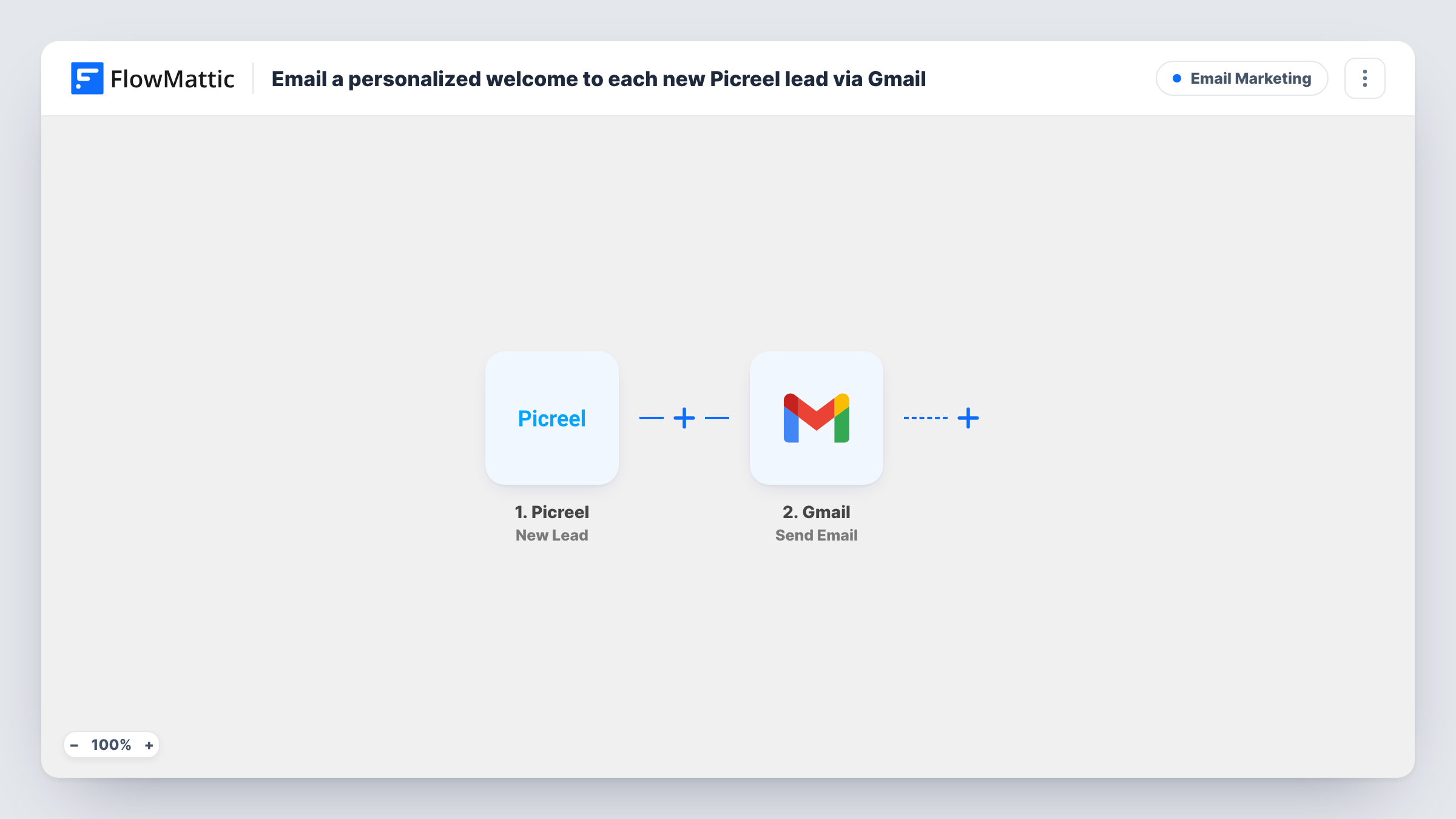
The Picreel New Lead trigger fires when a lead is created. FlowMattic passes the lead's details to Gmail, and Send Email sends a message from the Gmail account you connect. You write the subject and body, and personalize them by mapping in values from the lead, such as a name if your popup asks for one.
Because the email comes from your own Gmail account, it shows up in that account's Sent folder and replies come back to your inbox. Every lead gets the same template with their own details filled in. Task History records each send, including any error Gmail returns.
Delivering a popup discount code
Your Picreel popup promises a code for a first order. The Gmail welcome repeats the code and links to your shop, so the visitor has it in writing.
Sending a promised download
A visitor swaps an email for a checklist. The welcome email carries the link to the file, so you don't need a separate email tool for a single message.
Personal hello from a founder
A small business owner sends the welcome from their own Gmail, inviting each new lead to reply with questions.
How this workflow runs
What happens at each step once the workflow is on, and what you need before you import it.
 Picreel New Lead
Starts each time a Picreel popup produces a new lead. The values the visitor entered become available to map into the email.
- Gmail Send Email
Sends an email from your connected Gmail account to the lead. Map the lead's email address as the recipient, then write the subject and body with their details mapped in.
What you need
- FlowMatticCore
- Picreel AccountAccount
- Gmail AccountAccount
After importing, map your own data. To keep the template universal, not every step is pre-filled. Open each step in the builder and connect your accounts and fields (channels, lists, sheets, recipients) before you switch the workflow on.
Make it yours
Changes worth making after you import it.
- Add a Filter after the Picreel trigger so only leads with an email address continue, if any of your popups can be submitted without one.
- Prefer a designed layout? Swap Send Email for Gmail's Send Template Email action, which sends using a FlowMattic email template.
- Add a Delay before the Gmail step if you want the welcome to arrive a little after the sign-up rather than within moments.
Questions about this workflow
Does every Picreel lead get the Gmail welcome, even repeat visitors?
Yes. There is no Filter or check for earlier sends, so each lead Picreel creates gets one email. If a person signs up twice, they receive it twice.
Can I use a different sender address from my Gmail account?
The email is sent through the Gmail account you connect. Open the Send Email step after import to see which sender options it shows, and send yourself a test lead.
What if the visitor left their name blank in the Picreel popup?
A mapped value that is empty comes through as blank, so a greeting like Hi followed by the name would read oddly. Write the greeting so it still reads well without a name.
More Email Marketing workflows
Other ready-to-import templates from the same category.






Import this workflow into your WordPress site
Download the JSON, import it from the Workflows screen and connect your accounts. Every run stays on your server, with no per-task fees.
30-day money-back guarantee Unlimited workflows and runs Self-hosted