

Email an invoice receipt via Gmail when a PayWhirl invoice is paid
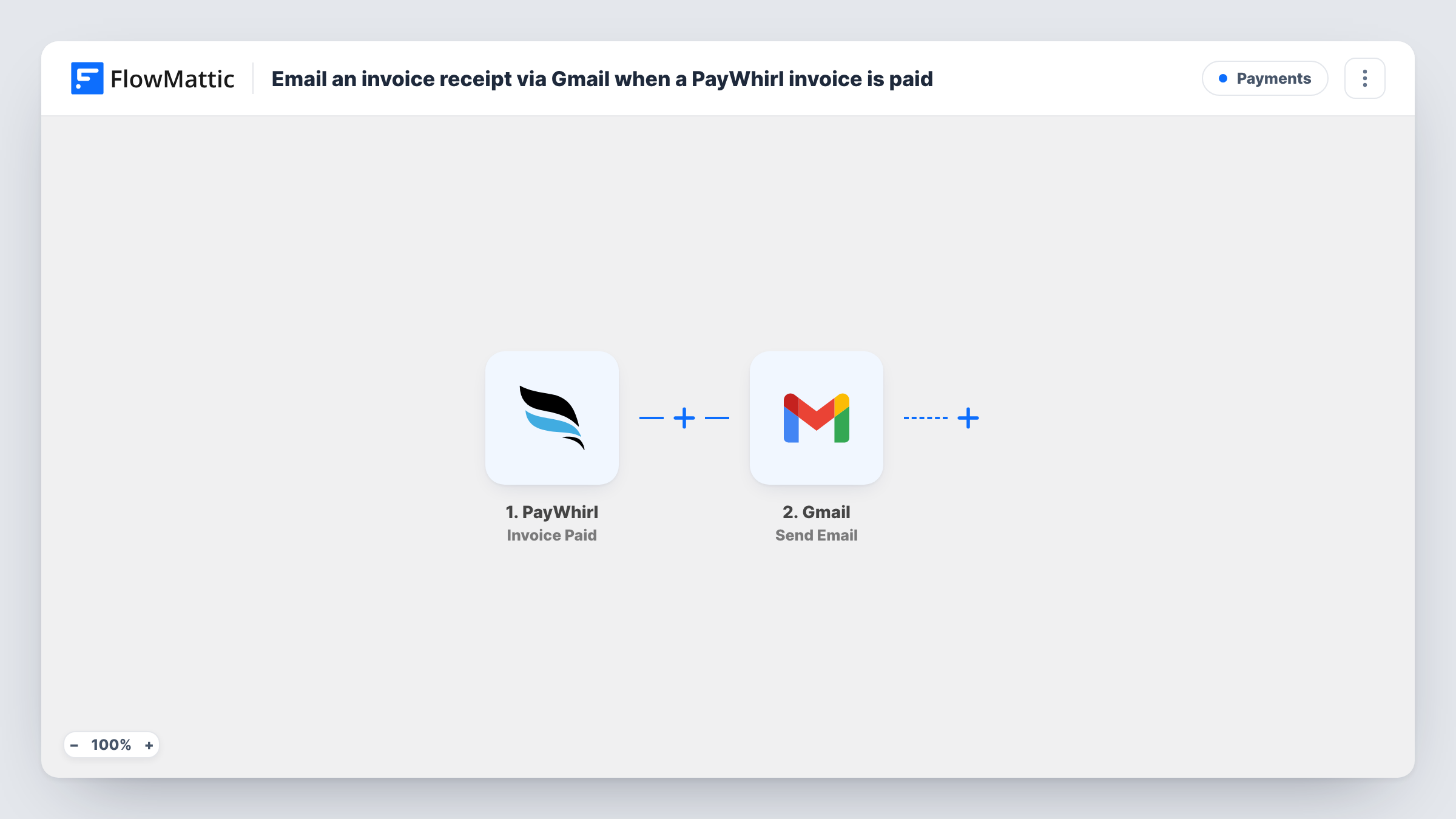
When a PayWhirl invoice is marked as paid, this workflow sends the customer a receipt email from your Gmail account, written by you and filled with details from the paid invoice.
 PayWhirl
 Gmail
Gmail2 steps Setup ~5 min Used on 1.2k sites Free to import
What this workflow does
Subscription customers like to know a payment went through, and a short note from a real inbox reads more personal than a system notice. Writing those notes by hand for every renewal does not scale. This workflow sends one from Gmail each time an invoice is paid.
The PayWhirl trigger, Invoice Paid, fires when an invoice is marked as paid in your account. That covers first payments and renewals alike, since each one is an invoice. FlowMattic then runs Gmail Send Email from the account you connect. You write the subject and body yourself and drop in invoice data where it belongs, such as the amount or invoice number, plus the customer's address as the recipient.
The receipt is the text of the email itself. The Gmail step sends a message; it does not generate or attach a PDF invoice. Each run, with the recipient and the response from Gmail, shows up in Task History.
Thank-you note on each subscription renewal
A subscription box customer is charged for the next month. Once PayWhirl marks the invoice paid, they get a short Gmail message confirming the amount and thanking them.
Receipts for a membership with manual invoices
You raise a one-off invoice in PayWhirl for a custom package. When the client pays it, the same Gmail receipt goes out without you writing it.
Sending from the owner's own inbox
A small shop owner wants payment confirmations to come from their personal Gmail address, so customers can reply straight to them with questions.
How this workflow runs
What happens at each step once the workflow is on, and what you need before you import it.
 PayWhirl Invoice Paid
Fires when a PayWhirl invoice is marked as paid. The invoice data PayWhirl sends, including details about the customer and the payment, becomes available to map.
- Gmail Send Email
Gmail sends the receipt from the Google account you link at import. Map the customer's email address as the recipient, then write the subject and body using invoice fields such as the amount paid.
What you need
- FlowMatticCore
- PayWhirl AccountAccount
- Gmail AccountAccount
After importing, map your own data. To keep the template universal, not every step is pre-filled. Open each step in the builder and connect your accounts and fields (channels, lists, sheets, recipients) before you switch the workflow on.
Make it yours
Changes worth making after you import it.
- Run one real or test payment after import so FlowMattic captures an Invoice Paid sample, then check which fields hold the customer's email and the invoice total before mapping them.
- Add a Filter after the trigger if some invoices should not get a receipt, for example continuing only when the amount is greater than 0 so free trial invoices are left out.
- Add a Google Sheets Add New Row step after Gmail to keep a log of every receipt you sent, with the invoice number, customer and date.
Questions about this workflow
Does PayWhirl still send its own receipt?
This workflow does not change PayWhirl's settings. If PayWhirl already emails customers, they may get both messages, so check your PayWhirl notifications and turn one off if you want a single receipt.
Can the Gmail receipt include a PDF of the PayWhirl invoice?
Not with this template. The Gmail step sends the message text you write. You can include invoice details in the body, but no file is attached.
Will renewals of a PayWhirl subscription send a receipt each time?
Yes. Each renewal creates an invoice, and every invoice marked as paid starts a run, so the customer gets a receipt for each payment.
Which Gmail account do the receipts come from?
The Google account you connect to the Gmail step when importing. Customers see that address as the sender and their replies go to it.
More Payments workflows
Other ready-to-import templates from the same category.





Import this workflow into your WordPress site
Download the JSON, import it from the Workflows screen and connect your accounts. Every run stays on your server, with no per-task fees.
30-day money-back guarantee Unlimited workflows and runs Self-hosted