

Email customers a shipping update when a Prodigi order status changes
Each time a Prodigi print-on-demand order changes status, this workflow emails the customer from your Gmail account with the new status, so buyers hear about their order without you checking Prodigi.
 Prodigi
 Gmail
Gmail2 steps Setup ~5 min Used on 3.2k sites Free to import
What this workflow does
When you sell printed products fulfilled by Prodigi, customers want to know where their order is. Watching the Prodigi dashboard and writing updates by hand does not scale past a handful of orders. This workflow sends an email each time Prodigi reports a change.
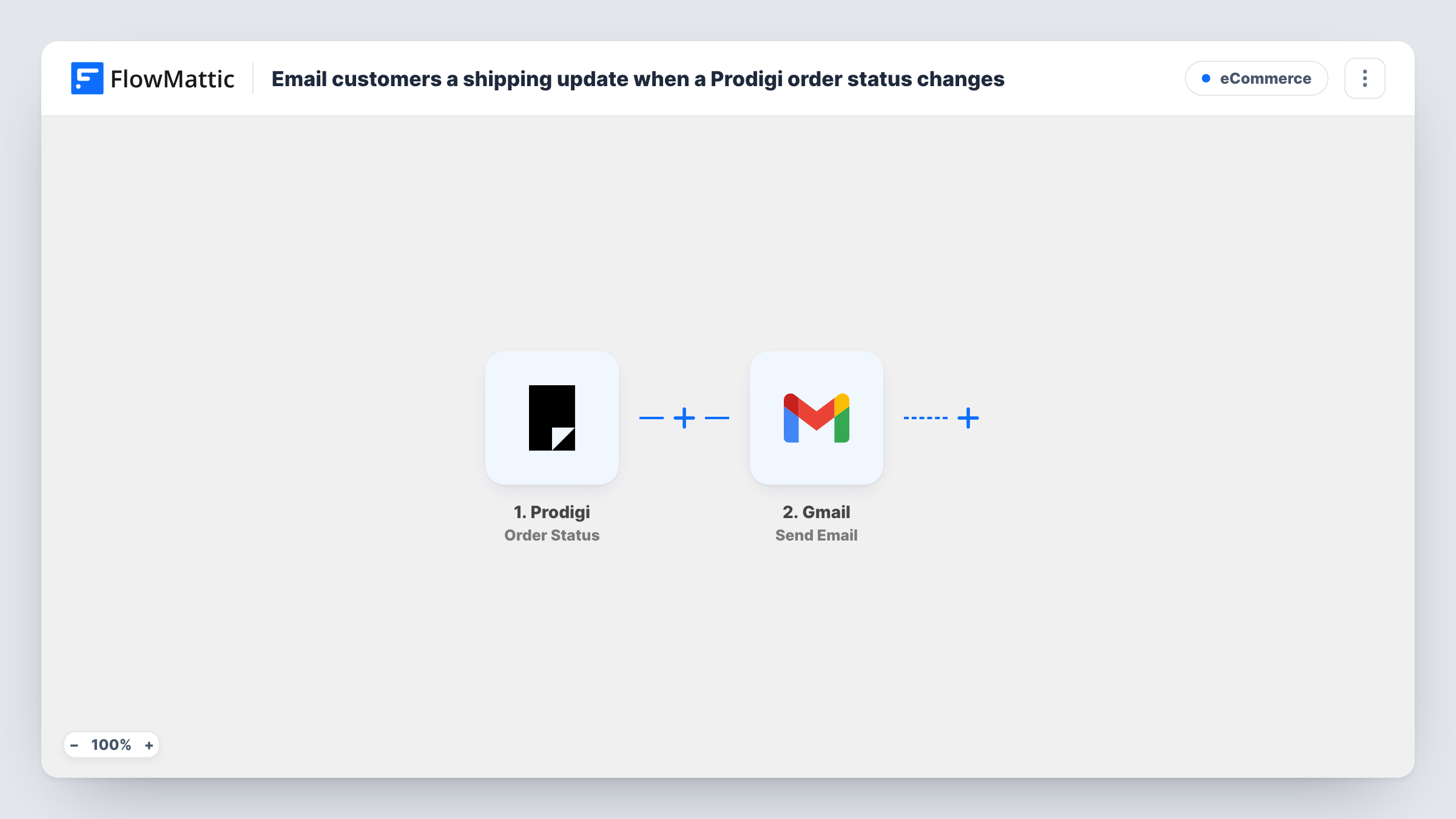
The Prodigi trigger fires when an order's status changes. FlowMattic passes the order data from Prodigi to Gmail, which sends an email from your connected account. You map the customer's address as the recipient and write a message that includes the new status and any other order details you want to show.
There is no Filter in the template, so every status change sends an email, not only the ones about shipping. If you only want to tell customers when an order ships, add a Filter after the trigger. Check with a test order that Prodigi's data includes the customer's email address, since the email step needs one to send to. Task History shows each run and what was sent.
A photographer selling prints online
Buyers of framed prints get an email from your own address whenever Prodigi moves their order along, so they know it is progressing.
A merch shop for a small band
Fans who order posters and mugs fulfilled by Prodigi receive status emails without the band managing each order by hand.
An illustrator's print-on-demand store
Each change Prodigi reports becomes a short email to the buyer, and replies come back to your Gmail inbox if they have questions.
How this workflow runs
What happens at each step once the workflow is on, and what you need before you import it.
 Prodigi Order Status
Fires when the status of a Prodigi order changes. The order data Prodigi sends, including the new status, becomes available to the Gmail step.
- Gmail Send Email
Emails the buyer through the Gmail account you link. Map the customer's email address from the Prodigi order, and write a subject and message that include the new status.
What you need
- FlowMatticCore
- Prodigi AccountAccount
- Gmail AccountAccount
After importing, map your own data. To keep the template universal, not every step is pre-filled. Open each step in the builder and connect your accounts and fields (channels, lists, sheets, recipients) before you switch the workflow on.
Make it yours
Changes worth making after you import it.
- Add a Filter after the trigger that continues only when the status matches the shipped value Prodigi sends, if you want emails about shipping and nothing else.
- Place a test order in Prodigi after import and open the run in Task History. Confirm the customer's email address is in the data before mapping the recipient.
- Use a Router with one route per status value, each with its own Gmail step, to send a different message when an order is received and when it ships.
Questions about this workflow
Will customers get an email for every Prodigi status change?
Yes, as imported. The trigger fires on any status change and the template has no Filter, so each change sends an email. Add a Filter if you only want certain statuses.
How does Gmail know which Prodigi customer to email?
From the order data Prodigi sends with the status change. If your orders do not carry the buyer's email, the Gmail step has no recipient and Task History shows the error.
Does this change anything in my Prodigi orders?
No. The workflow only listens for status changes and sends an email. It does not edit, cancel or resubmit orders in Prodigi.
Can the Prodigi update come from my shop's own address?
The email is sent from the Gmail account you connect. Connect the Google account behind your shop's address to send from it.
More E-Commerce workflows
Other ready-to-import templates from the same category.








Import this workflow into your WordPress site
Download the JSON, import it from the Workflows screen and connect your accounts. Every run stays on your server, with no per-task fees.
30-day money-back guarantee Unlimited workflows and runs Self-hosted