

Send order notification to Slack if new WooCommerce order value is greater than $500 else send confirmation message to customer
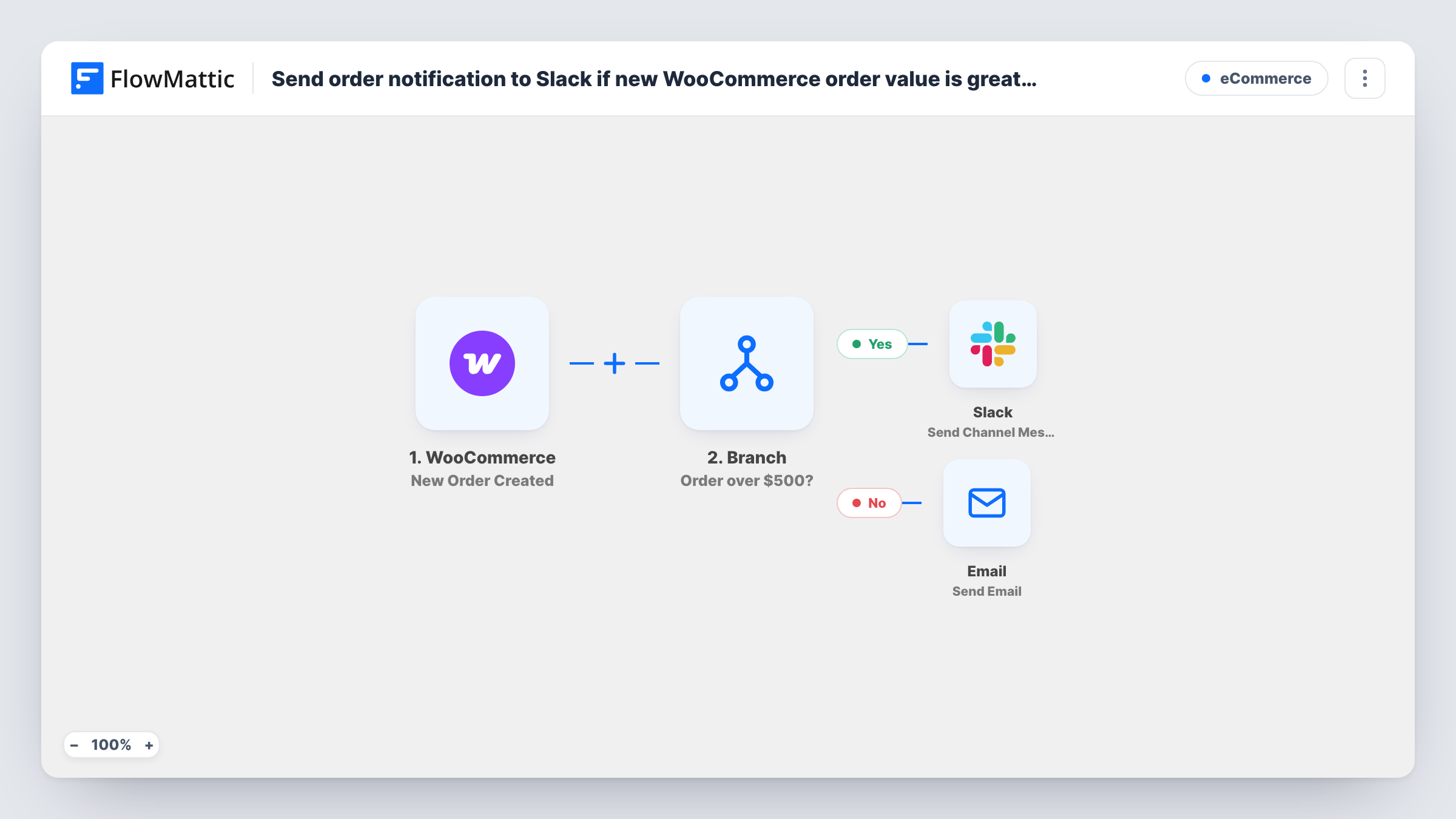
Each new WooCommerce order is checked by a Branch: orders with a total over 500 post a message to a Slack channel, and every other order sends the customer an email through WordPress mail or SMTP.
 WooCommerce
 Branch
 Slack
Slack
 Email
Email4 steps Setup ~8 min Used on 1.6k sites Free to import
What this workflow does
Large orders often deserve a person's attention: a quick check for fraud, a personal thank-you or a priority packing slot. Smaller orders just need a clear confirmation. This workflow sorts each new WooCommerce order into one of those two paths based on its total.
The WooCommerce trigger, New Order Created, fires for every new order on your store. A Branch step labelled "Order over $500?" then compares the order total with 500. The comparison uses whole numbers in your store's currency, so a total of 500.75 counts as 500 and is not over the line.
On the Yes path, Slack posts a message to the channel you choose, with the order details you map. On the No path, the Email app's Send Email action sends the customer a message through WordPress mail or your SMTP connection. Each order follows exactly one path, so a customer whose order is over 500 gets no email from this workflow. Only the Slack alert goes out for those orders. WooCommerce's own order emails are not affected.
Personal follow-up on big orders
Your sales lead sees each order over 500 in a #big-orders channel and sends the buyer a personal thank-you or a call.
Manual checks before shipping high-value goods
Orders above the threshold land in Slack so someone reviews the address and payment before packing. Smaller orders get the standard customer email.
Extra confirmation for everyday orders
Use the No path to send customers a short note with delivery times or care instructions that your WooCommerce emails don't include.
How this workflow runs
What happens at each step once the workflow is on, and what you need before you import it.
 WooCommerce New Order Created
Starts a run for every new WooCommerce order on your store. The order details, including the total and the customer's email, are passed to the Branch and the two actions.
- Branch Evaluate Condition
Checks whether the order total is greater than 500. Whole numbers are compared, so decimals are cut off. Orders over 500 take the Yes path; all others, including exactly 500, take the No path.
- Slack Send Channel Message
On the Yes path, posts a message to the Slack channel you pick. Map the order number, total and customer name so the team can find the order quickly.
 Email Send Email
On the No path, emails the customer using WordPress mail or your SMTP settings. Map the billing email as the recipient and write a confirmation with the order details.
What you need
- FlowMatticCore
- WooCommerce PluginPlugin
- Slack AccountAccount
After importing, map your own data. To keep the template universal, not every step is pre-filled. Open each step in the builder and connect your accounts and fields (channels, lists, sheets, recipients) before you switch the workflow on.
Make it yours
Changes worth making after you import it.
- Change the threshold by editing the Branch condition value from 500 to the figure that matters for your store. Remember that only the whole-number part of the total is compared.
- If big-order customers should get the email too, add a Send Email step on the Yes path after Slack, so both paths email the customer.
- Send yourself one test order above 500 and one below, then check Task History to confirm each took the path you expect.
Questions about this workflow
Do customers with WooCommerce orders over 500 get the confirmation email?
Not from this workflow. Each order takes one path, and the Yes path only posts to Slack. Add an email step to the Yes path if you want them emailed too.
What happens with a WooCommerce order of exactly 500?
It takes the No path. The Branch checks for greater than 500, so 500 and anything below it, including 500.99, sends the customer email instead of a Slack message.
Is the 500 limit in US dollars?
It is compared with the order total as WooCommerce stores it, which is in your store's currency. Adjust the number if your store sells in a different currency.
Will customers stop getting WooCommerce's standard order emails?
No. WooCommerce keeps sending its usual emails as configured. The email in this workflow is an extra message on top of those.
More E-Commerce workflows
Other ready-to-import templates from the same category.





Import this workflow into your WordPress site
Download the JSON, import it from the Workflows screen and connect your accounts. Every run stays on your server, with no per-task fees.
30-day money-back guarantee Unlimited workflows and runs Self-hosted