

Email customers a note via Gmail when a Peggy Pay order status changes
Each time a Peggy Pay order changes status, Gmail sends the customer an email you write, so buyers hear about their order without you composing each message by hand.
 Peggy Pay
 Gmail
Gmail2 steps Setup ~5 min Used on 1.8k sites Free to import
What this workflow does
Peggy Pay handles the payment side of your sales, but customers still wonder what happened after they paid. This workflow turns every order status change into an email from your own Gmail address, so the update arrives from a name the buyer recognises.
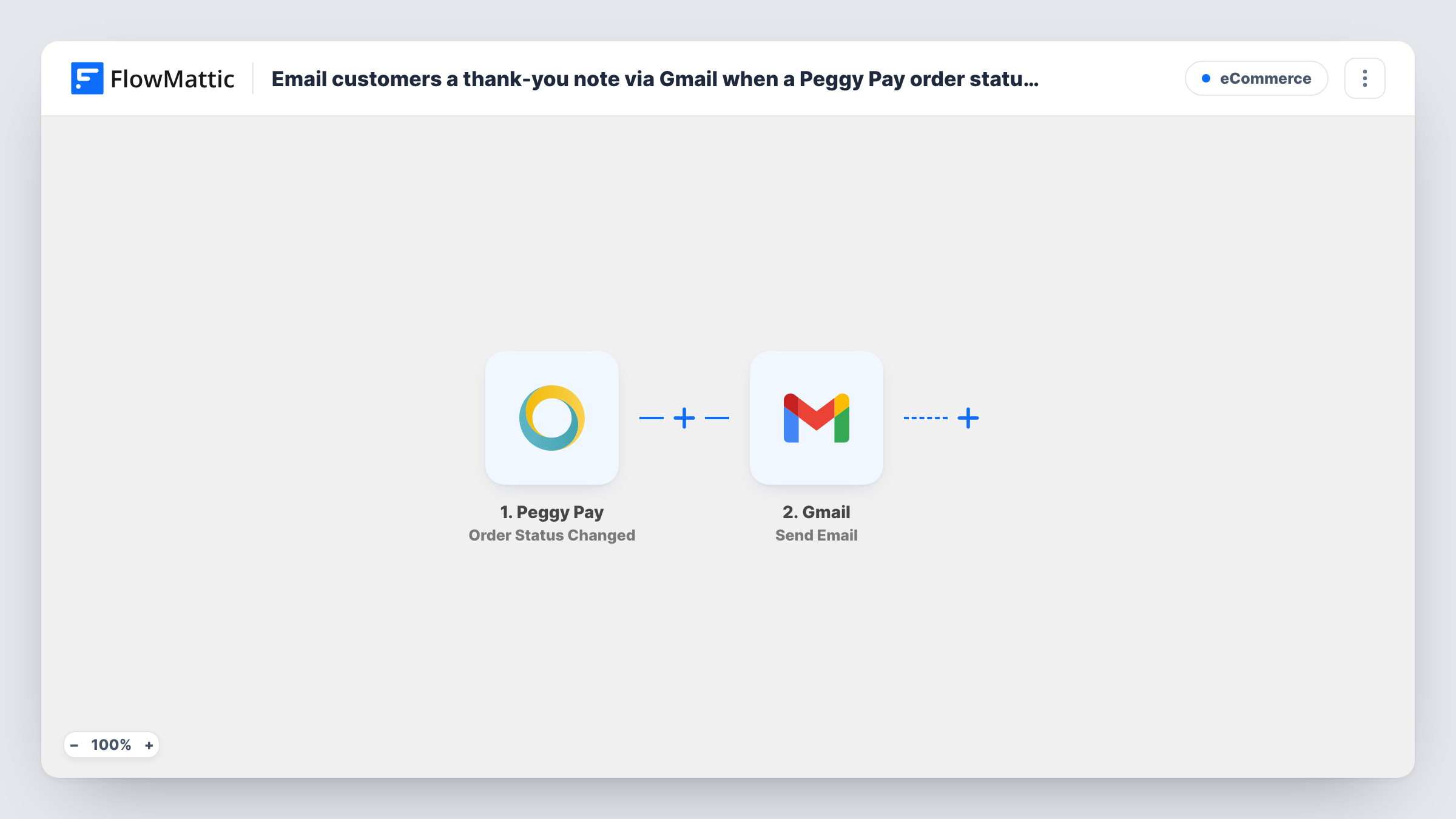
The Peggy Pay trigger fires whenever an order status has been adjusted. It does not care which status the order moved to, so a run starts for every change. The order data from that event is then available to map into the email.
The Gmail Send Email step ships unmapped. After import you connect your Google account, map the customer's email address from the Peggy Pay data into the recipient, and write the subject and body. Use the order details and the new status inside the text so each note says what changed. Run a test status change first and look at the fields Peggy Pay sent, because that tells you which customer and order values you can use.
Since the template sends on every change, think about which statuses deserve a message. A refund, a cancellation and a completed order all trigger the same email unless you add a Filter or word the note so it reads well for any status.
Status updates for course buyers
A coach who sells a programme through Peggy Pay emails each buyer from their own Gmail when the order moves on, with the status in the subject line.
Personal notes for a small shop
A maker selling through Peggy Pay wants every update to come from the owner's inbox, so customers can simply hit reply with questions.
Keeping buyers informed about changes
When staff adjust an order in Peggy Pay, the customer gets an email naming the new status instead of finding out when they log in.
How this workflow runs
What happens at each step once the workflow is on, and what you need before you import it.
 Peggy Pay Order Status Changed
Starts a run whenever an order status is adjusted in Peggy Pay, whatever the new status is. The order details from the event are passed on for mapping.
- Gmail Send Email
Sends the customer a message through your connected Gmail inbox. The step ships unmapped: after import, map the customer's email from the Peggy Pay data as the recipient and write the subject and message, using the order fields you need.
What you need
- FlowMatticCore
- Peggy Pay AccountAccount
- Gmail AccountAccount
After importing, map your own data. To keep the template universal, not every step is pre-filled. Open each step in the builder and connect your accounts and fields (channels, lists, sheets, recipients) before you switch the workflow on.
Make it yours
Changes worth making after you import it.
- Put a Filter between the Peggy Pay trigger and the Gmail step on the order status field, so only the statuses you choose, such as completed, send an email. Check a test run for the field's name and values.
- Include the new status in the email subject, so customers can tell several updates for one order apart in their inbox.
- For different wording per status, replace the single Gmail step with a Router after the trigger. Give each route an exact status condition and its own Gmail Send Email step; exact values can't both match one order.
Questions about this workflow
Does the Gmail email go out for every Peggy Pay status?
Yes, as imported. The trigger fires for any order status change, and nothing in the template checks which status it is. Add a Filter on the status between the trigger and the Gmail step to send for selected statuses only.
How does the Gmail step know the Peggy Pay customer's address?
From the Peggy Pay order data, mapped into the Gmail step's recipient after import. Run a test status change and check Task History to see which customer fields Peggy Pay sends.
Is the email text already written in this template?
No. The Send Email step is empty, so you write the subject and body yourself and map in the order details and status you want to show.
Which Gmail address do the Peggy Pay updates come from?
Whichever Google account you link when setting up Send Email. Customers see that address as the sender and their replies go back to it.
More E-Commerce workflows
Other ready-to-import templates from the same category.




Import this workflow into your WordPress site
Download the JSON, import it from the Workflows screen and connect your accounts. Every run stays on your server, with no per-task fees.
30-day money-back guarantee Unlimited workflows and runs Self-hosted