

Email the customer via Gmail when their MoonClerk plan ends
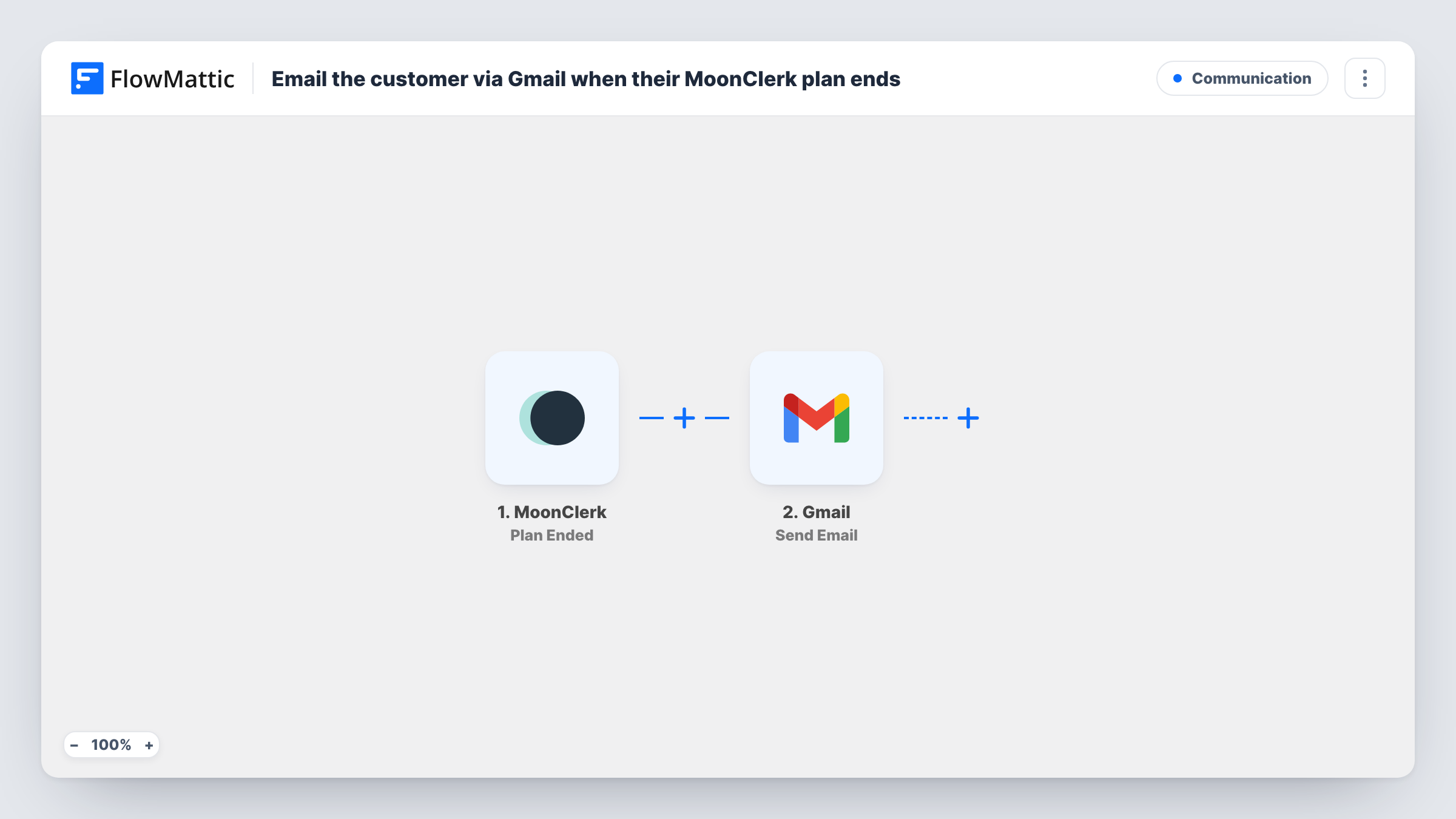
When a MoonClerk plan ends, whether the customer canceled or the set number of payments ran out, this workflow emails the customer from your Gmail account with the message you write.
 MoonClerk
 Gmail
2 steps Setup ~5 min Used on 1.6k sites Free to import
What this workflow does
A recurring plan ending is a moment worth a personal note: a thank-you, a receipt summary, or details on how to restart. Without automation, someone has to notice each ended plan in MoonClerk and write the email. This workflow sends it through Gmail as soon as MoonClerk reports the end.
The MoonClerk trigger, Plan Ended, fires when a plan is canceled or when its set number of periods has been used up. The customer and plan values in that event become data you can map. The Gmail step sends an email from your connected Gmail account to the customer's address, with the subject and text you write.
Both kinds of ending fire the same trigger, so a customer who canceled gets the same email as one who finished a fixed number of payments. Write the message so it fits both, or add a Router on a value that tells them apart. Run a test to see which values MoonClerk sends, and check Task History for each email.
Thank-you after an installment plan
A customer paying for a course in six installments makes the last payment. MoonClerk ends the plan, and they get a thank-you email confirming they are paid in full.
Donor stewardship for a nonprofit
A monthly donor's plan ends. The email thanks them for their support and links to the page where they can start giving again.
Service subscription offboarding
A client cancels a recurring service plan, and the email explains what happens next with their account and who to contact with questions.
How this workflow runs
What happens at each step once the workflow is on, and what you need before you import it.
 MoonClerk Plan Ended
Fires when a MoonClerk plan is canceled or its set number of periods has been used up. The customer and plan details in the event are passed to the Gmail step.
- Gmail Send Email
Sends an email from your connected Gmail account to the customer. Map their email address from the MoonClerk event into the recipient, then write a subject and message that suit both kinds of ending.
What you need
- FlowMatticCore
- MoonClerk AccountAccount
- Gmail AccountAccount
After importing, map your own data. To keep the template universal, not every step is pre-filled. Open each step in the builder and connect your accounts and fields (channels, lists, sheets, recipients) before you switch the workflow on.
Make it yours
Changes worth making after you import it.
- Use a Router with one route for canceled plans and one for completed plans, if MoonClerk's event includes a value that tells them apart, so each customer gets wording that fits.
- Add a Delay before the Gmail step if you would rather the note reach the customer a day or so after the plan ends.
- Send a copy to your own address by adding it to the recipients, so you know which customers' plans ended.
Questions about this workflow
Does a canceled MoonClerk plan send the same email as a finished one?
Yes, as imported. Plan Ended fires for both a cancellation and a plan whose set number of periods is used up, and there is no Router, so everyone gets the same message.
Which address does the MoonClerk customer email come from?
From the Gmail account you link to the step when you import the workflow. Replies go to that inbox.
Can the email go out when a MoonClerk payment fails instead?
Not with this trigger. MoonClerk has a separate Plan Payment Failed trigger in FlowMattic; build another workflow on it for failed payments.
More Communication workflows
Other ready-to-import templates from the same category.





Import this workflow into your WordPress site
Download the JSON, import it from the Workflows screen and connect your accounts. Every run stays on your server, with no per-task fees.
30-day money-back guarantee Unlimited workflows and runs Self-hosted