

Send a Twilio SMS when a new Waitwhile visit is created
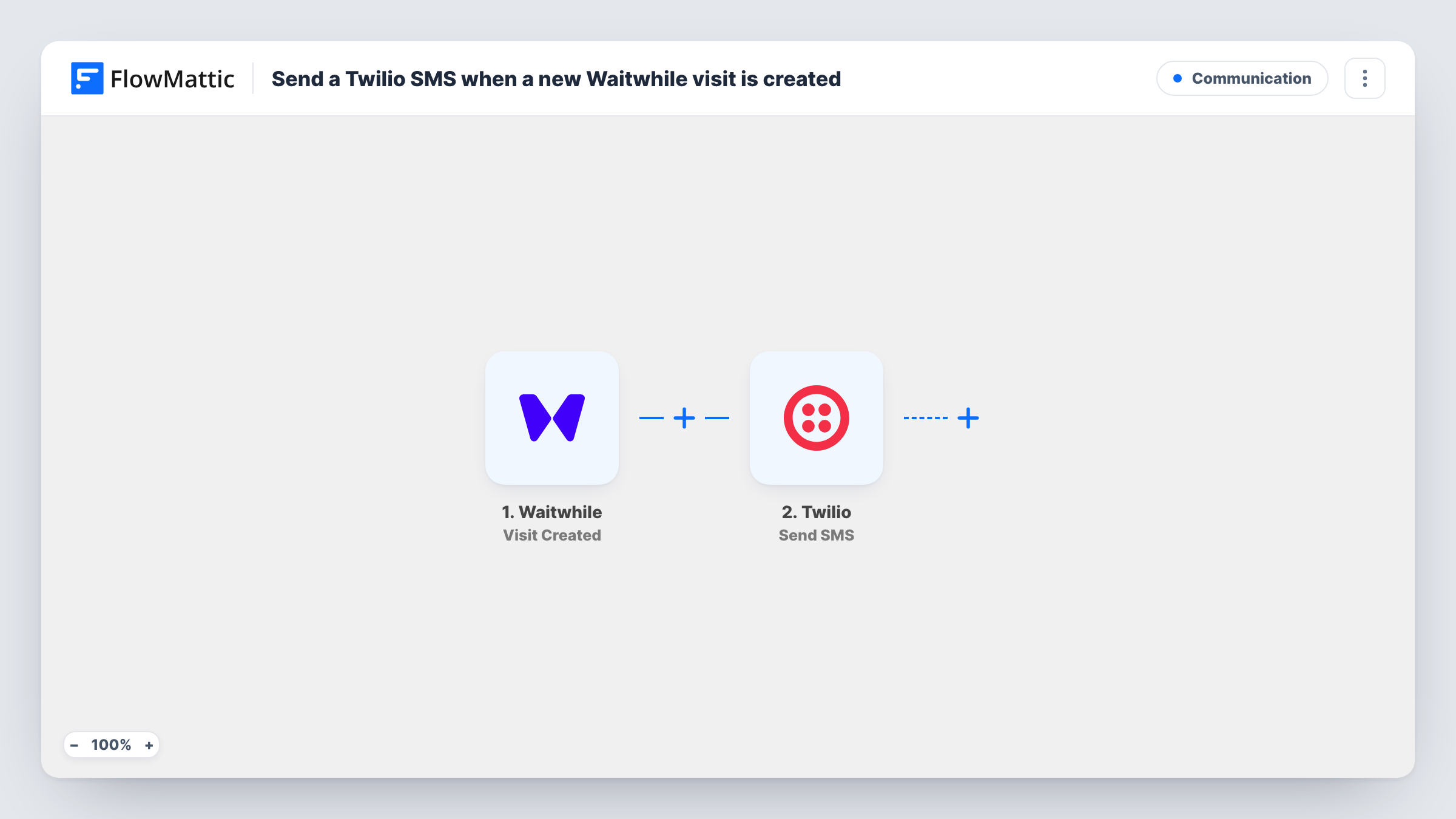
When a visit or booking is created in Waitwhile, this workflow sends a text message through your Twilio account, so the visitor or your staff get a confirmation by SMS.
 Waitwhile
 Twilio
2 steps Setup ~5 min Used on 3.0k sites Free to import
What this workflow does
People joining a waitlist or booking a slot want to know it worked. Staff on the floor may also want a heads-up when someone is added. This workflow sends that text from your own Twilio number, with wording you write yourself.
The Waitwhile trigger starts a run each time someone joins the waitlist or a booking is made. FlowMattic then runs the Send SMS action in Twilio. You set the recipient number and the message body, and you can drop in visit details such as the visitor's name or booking time. To text the visitor, map the phone number from the visit data; to text staff, type a fixed number instead.
Every new visit sends one message. If a visit carries no phone number, the Twilio step has nobody to send to, and Task History shows the error on that step. Waitwhile can send its own notifications too, so check that visitors aren't getting two confirmations.
Barber shop queue confirmation
A customer is added to the Waitwhile waitlist at the counter and gets a text from the shop's Twilio number confirming their place.
Alerting the on-call staff member
A small office sends each new Waitwhile booking to the phone of whoever is covering reception, using a fixed number in the Twilio step.
Booking reference by text
A service centre includes the booking time and location in the SMS, so the customer has the details on their phone when they arrive.
How this workflow runs
What happens at each step once the workflow is on, and what you need before you import it.
 Waitwhile Visit Created
Starts as soon as Waitwhile records a new visit or booking. The visit data it sends, which may include the visitor's name and phone number, is available to the SMS step.
- Twilio Send SMS
Texts the recipient from your connected Twilio account. Map the recipient number from the visit or enter a fixed one and write the message with visit details mapped in.
What you need
- FlowMatticCore
- Waitwhile AccountAccount
- Twilio AccountAccount
After importing, map your own data. To keep the template universal, not every step is pre-filled. Open each step in the builder and connect your accounts and fields (channels, lists, sheets, recipients) before you switch the workflow on.
Make it yours
Changes worth making after you import it.
- Add a Filter after the trigger that continues only when the visit's phone field is not empty, so visits without a number don't produce failed Twilio steps.
- Make a test visit after import and check how Waitwhile formats the phone number. Twilio expects numbers with the country code, so adjust your Waitwhile form if needed.
- Text both the visitor and your staff by adding a second Twilio Send SMS step with a fixed number and its own wording.
Questions about this workflow
Do I need my own Twilio account and number?
Yes. The SMS is sent through the Twilio account you connect, from a Twilio number you own. Twilio charges for messages under your own account.
What happens when a Waitwhile visit has no phone number?
The Twilio step still runs but has no valid recipient, so it returns an error. Task History shows that error on the SMS step for that run.
Does this text visitors when their turn comes up?
No. It sends one message when the visit is created. A turn-is-up text would need a workflow on Waitwhile's Visit Updated trigger with a Filter on the visit's status.
More Communication workflows
Other ready-to-import templates from the same category.




Import this workflow into your WordPress site
Download the JSON, import it from the Workflows screen and connect your accounts. Every run stays on your server, with no per-task fees.
30-day money-back guarantee Unlimited workflows and runs Self-hosted