

Email the operations team via Gmail when an applicant is deactivated
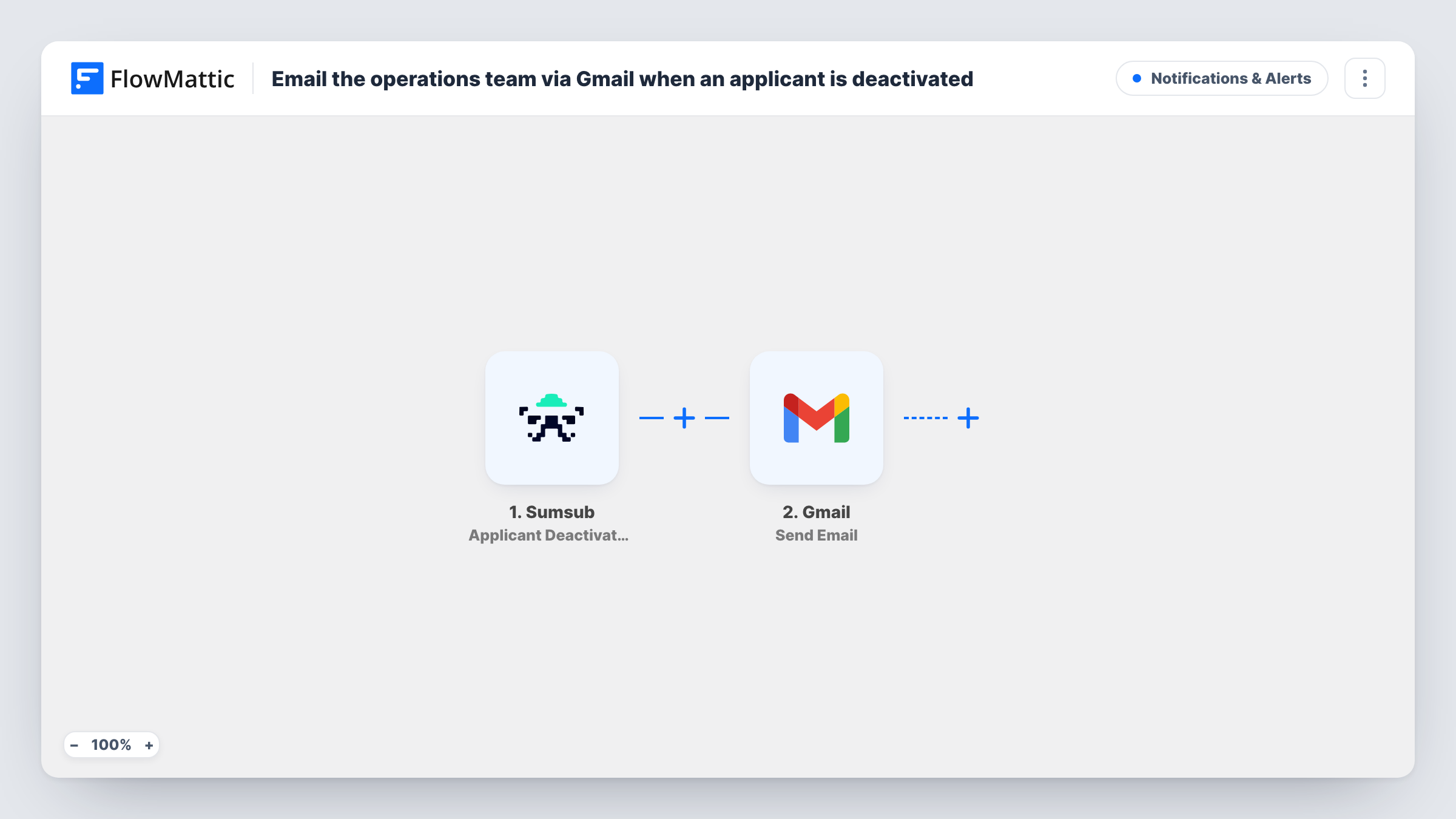
When an applicant is deactivated in Sumsub, FlowMattic sends an email from your Gmail account to your operations team, so the people who manage accounts hear about it straight away.
 Sumsub
 Gmail
2 steps Setup ~5 min Used on 485 sites Free to import
What this workflow does
A deactivated applicant in Sumsub often means work elsewhere: an account to restrict, a customer to contact, a record to update. If nobody is watching the Sumsub dashboard, that work waits. This workflow emails your operations team each time an applicant is deactivated.
The Sumsub Applicant Deactivated trigger runs when an applicant is deactivated and passes the event data to FlowMattic. The Gmail Send Email action then sends a message from your connected Google account to the address you set, such as a shared operations inbox. You write the subject and body and include the applicant details from the event that your team needs.
The workflow only sends an email; it does not change the applicant in Sumsub or any account on your side. Think about which details belong in an email before you map them. Task History keeps a record of each alert sent.
Fintech operations inbox
Each deactivated Sumsub applicant triggers an email to the operations inbox, where the team checks whether the matching customer account needs restricting.
Marketplace seller onboarding
When a seller's applicant record is deactivated in Sumsub, the onboarding team gets an email and pauses that seller's listing work.
Compliance hand-off
The compliance lead is copied on the Gmail alert so they can note the deactivation in their own review records.
How this workflow runs
What happens at each step once the workflow is on, and what you need before you import it.
 Sumsub Applicant Deactivated
Runs when an applicant is deactivated in your Sumsub account. The data in the event is passed on so you can reference the applicant in the email.
- Gmail Send Email
Sends an email from your Gmail account. Set your operations team's address as the recipient, write the subject and message, and include the Sumsub applicant details they need to act.
What you need
- FlowMatticCore
- Sumsub AccountAccount
- Gmail AccountAccount
After importing, map your own data. To keep the template universal, not every step is pre-filled. Open each step in the builder and connect your accounts and fields (channels, lists, sheets, recipients) before you switch the workflow on.
Make it yours
Changes worth making after you import it.
- Deactivate a test applicant in your Sumsub sandbox or test setup, if you have one, so FlowMattic captures the event data before you write the email.
- Send the alert to a shared team address or Google Group rather than one person, so it is still seen when someone is away.
- Build similar workflows on other Sumsub triggers, such as Applicant OnHold or Applicant Reviewed, if your team needs to hear about those events too.
Questions about this workflow
Does this workflow deactivate anything outside Sumsub?
No. It only sends an email. Any change to the customer's account on your side is up to your team.
Which Sumsub applicant details can go in the Gmail alert?
Those included in the Applicant Deactivated event. Run a test after import to see them, and include only what your team needs.
Can the Sumsub alert go to several people?
Send it to a group address, or open the Send Email step after import to see how it handles more than one recipient.
Will reactivated Sumsub applicants trigger an email?
Not from this workflow. Sumsub has a separate Applicant Activated trigger you can use in a second workflow.
More Notifications & Alerts workflows
Other ready-to-import templates from the same category.




Import this workflow into your WordPress site
Download the JSON, import it from the Workflows screen and connect your accounts. Every run stays on your server, with no per-task fees.
30-day money-back guarantee Unlimited workflows and runs Self-hosted