

Enroll students in Tutor LMS courses with new successful payments on Razorpay
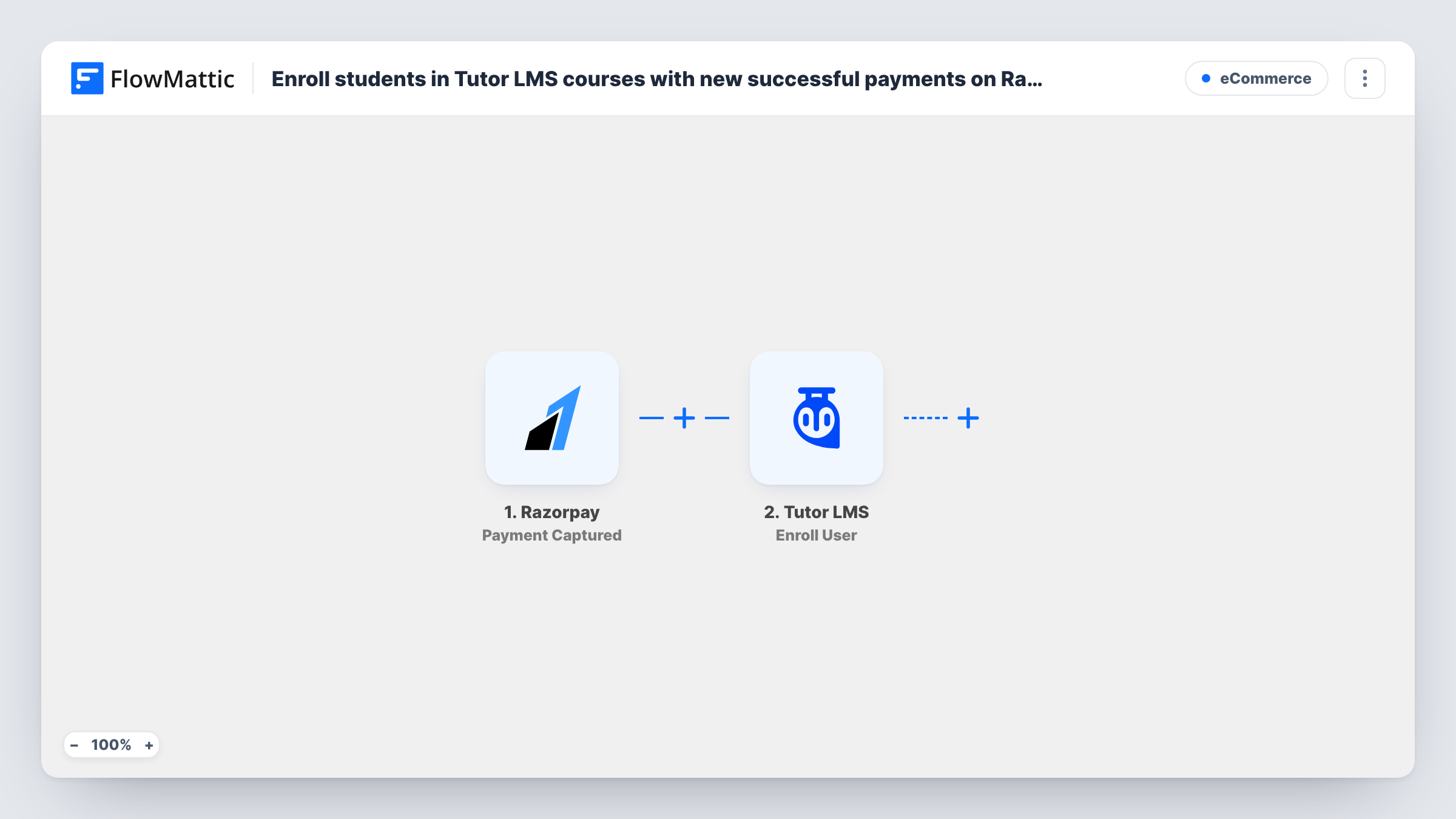
When Razorpay captures a payment, FlowMattic looks up the payer’s WordPress account by email and enrolls them in your Tutor LMS course, first creating a WordPress user for payers who don’t have an account yet.
 Razorpay
 WordPress
 Branch
 Tutor LMS
6 steps Setup ~12 min Used on 1.6k sites Free to import
What this workflow does
If you sell a course through Razorpay rather than a WordPress checkout, students can pay and then wait for someone to give them access. This workflow handles access straight away: it matches the payment to a WordPress account, or makes one, and enrolls that account in Tutor LMS.
A run begins as soon as Razorpay reports a captured payment. A WordPress Get User by Email step then searches your site for the payer's address; map the email from the Razorpay payment into it after import. A Branch named "Does the user already exist?" checks whether that search returned a user ID.
On the Yes path, the first Tutor LMS Enroll User step enrolls the found user, with the user ID already mapped; you pick the course. On the No path, a WordPress New User step creates the account and a second Enroll User step enrolls it. Both No-path steps ship unmapped: map the payer's details into New User, then map the new user's ID and choose the same course in the last step.
Every captured payment on your Razorpay account starts a run, whatever it was for, and each run enrolls into the course you set. If you sell more than one thing through Razorpay, add a Filter as the tips explain. Test with a known account and a new email, then check Task History for both paths.
Course sales from a Razorpay payment link
A coding instructor shares a Razorpay link on social media, and each buyer is given a WordPress login and enrolled in the Tutor LMS course after paying.
Returning students buying a second course
A language school's existing students pay through Razorpay for an advanced level, and the Yes path enrolls their current account without creating a duplicate.
Workshop recordings for paid attendees
A trainer sells access to recorded sessions held in a Tutor LMS course, and every payer gets an account and access to the recordings.
How this workflow runs
What happens at each step once the workflow is on, and what you need before you import it.
 Razorpay Payment Captured
Starts a run each time Razorpay marks one of your payments as captured. The payment data, including the payer's email when Razorpay has it, is passed to the WordPress lookup.
- WordPress Get User by Email
Looks for a WordPress user with the payer's email address. The step ships unmapped, so map the email from the Razorpay payment into it after import.
- Branch Branch
Checks whether the lookup returned a WordPress user ID. If it did, the run takes the Yes path to enroll that user; if not, it takes the No path to create an account first.
- Tutor LMS Enroll User
Yes path: enrolls the existing WordPress user in a Tutor LMS course, using the user ID from the lookup. Choose the course after import.
- WordPress New User
No path: creates a new WordPress user for the payer. The step ships unmapped, so map the payer's email and any name Razorpay sends, and check a test run to see the user ID it returns.
- Tutor LMS Enroll User
No path: enrolls the newly created user in a Tutor LMS course. Map the user ID from the New User step and pick the same course as on the Yes path.
What you need
- FlowMatticCore
- Razorpay AccountAccount
- Tutor LMS PluginPlugin
After importing, map your own data. To keep the template universal, not every step is pre-filled. Open each step in the builder and connect your accounts and fields (channels, lists, sheets, recipients) before you switch the workflow on.
Make it yours
Changes worth making after you import it.
- If your Razorpay account takes payments for other products, put a Filter between the Razorpay trigger and the Get User by Email step that continues only for this course's payments, for example on the amount or a note you add to the payment. That condition is an example to adapt.
- To send the new student their login details, add a WordPress Send Password Reset step after the New User step on the No path, before the last Enroll User step.
- Pick the same course in both Enroll User steps, since existing and new students take different paths through the Branch.
Questions about this workflow
What if the Razorpay payer already has an account on my WordPress site?
The Get User by Email step finds it, the Branch takes the Yes path, and Tutor LMS enrolls that existing account. The No path, with its New User step, is never reached for that payer.
Does every Razorpay payment enroll someone in the Tutor LMS course?
Yes, as imported. The trigger fires for each captured payment on your account. Put a Filter between the Razorpay trigger and the Get User by Email step if only some payments are for this course.
What if the payment has no email address?
The lookup has nothing to search for, so the Branch takes the No path and the New User step has no email either. Make sure your Razorpay payment form collects an email, and check Task History for runs without one.
Do I need to set the course in both Tutor LMS steps?
Yes. The Yes path and the No path each have their own Enroll User step, and neither has a course chosen in the template.
More E-Commerce workflows
Other ready-to-import templates from the same category.






Import this workflow into your WordPress site
Download the JSON, import it from the Workflows screen and connect your accounts. Every run stays on your server, with no per-task fees.
30-day money-back guarantee Unlimited workflows and runs Self-hosted