

When a new order is placed in WooCommerce, send order details to users WhatsApp using WhatsApp Cloud API
When a new WooCommerce order is created, this workflow sends the buyer a WhatsApp text with the order details through the WhatsApp Cloud API. Buyers who haven’t written to your number in the past 24 hours usually won’t get it.
 WooCommerce
 WhatsApp Cloud API
2 steps Setup ~5 min Used on 3.3k sites Free to import
What this workflow does
Many shoppers check WhatsApp more often than email, so an order summary there is easy for them to find. This workflow sends one from your WhatsApp business number when an order comes in. Before you rely on it, read the delivery rule in the last paragraph.
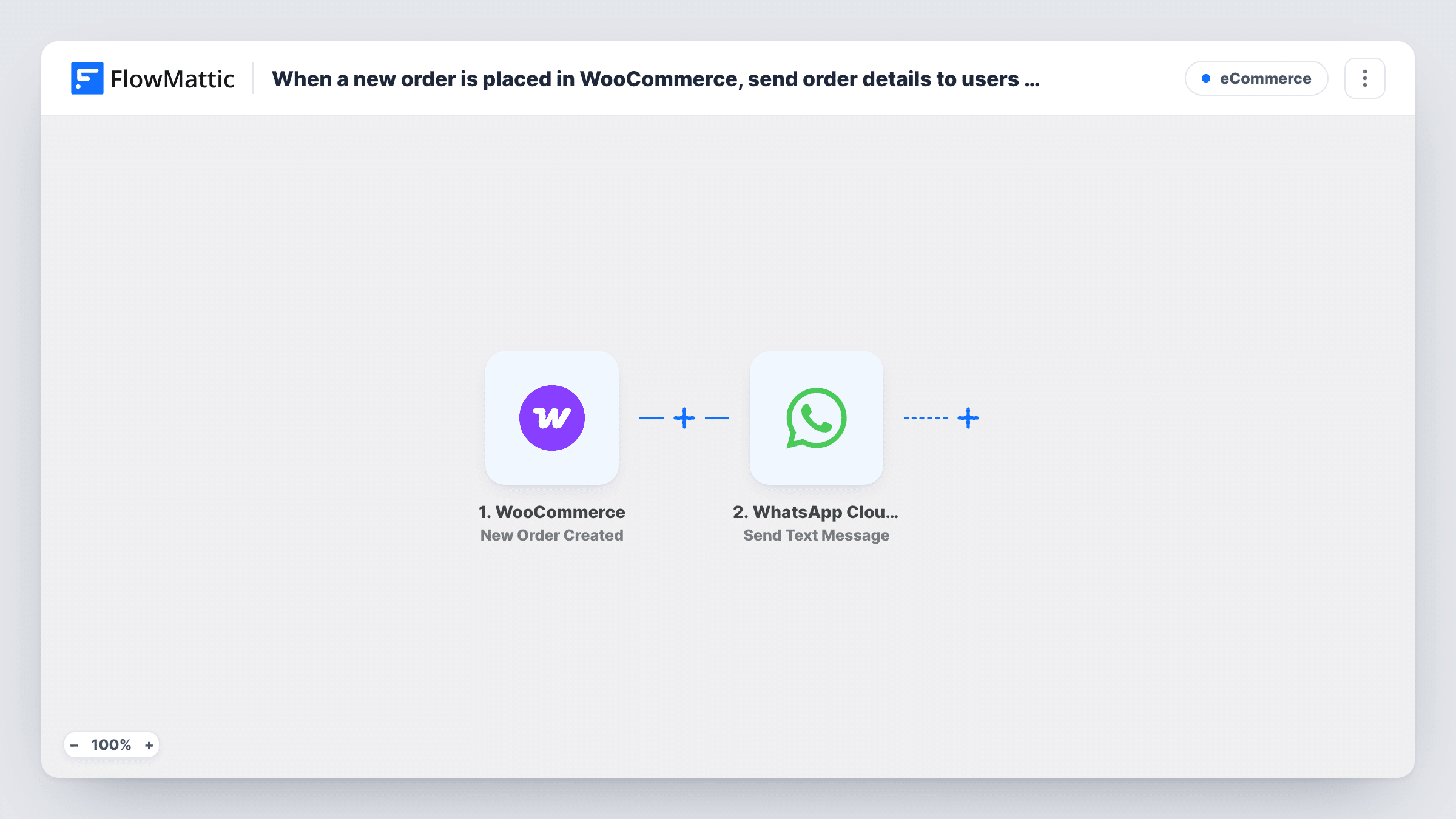
The WooCommerce trigger, New Order Created, fires when a new order is created in your store and passes on the order data, including the billing phone number. The WhatsApp Cloud API step, Send Text Message, then sends a text to the number you map. You write the message and add order details such as the order number, items and total.
WhatsApp only delivers free-form text like this within 24 hours of the person messaging your business number. A customer who has never written to you, or not recently, usually won't receive it. For order confirmations to new buyers, swap the step for Send Template Message and use a message template approved in your WhatsApp account. Task History shows each attempt and WhatsApp's reply.
Customers who order after chatting
A shopper asks about sizes on WhatsApp, then orders the same day. The order summary arrives in the chat they already have open with you.
Switching to an approved template
You import this workflow, swap in Send Template Message with an approved order-confirmation template, and keep the same WooCommerce mapping for every buyer.
Click-to-chat shop
Your store's product pages link to WhatsApp, and most buyers message you before paying. Their order details then reach the same conversation.
How this workflow runs
What happens at each step once the workflow is on, and what you need before you import it.
 WooCommerce New Order Created
Starts a run as soon as WooCommerce records a new order. The order number, items, totals and billing details, including the phone number, are passed on for mapping.
- WhatsApp Cloud API Send Text Message
Sends a WhatsApp text from your business number to the phone you map, usually the billing phone. Write the message with order fields. Only delivered within 24 hours of the buyer messaging you.
What you need
- FlowMatticCore
- WooCommerce PluginPlugin
- WhatsApp Cloud API AccountAccount
After importing, map your own data. To keep the template universal, not every step is pre-filled. Open each step in the builder and connect your accounts and fields (channels, lists, sheets, recipients) before you switch the workflow on.
Make it yours
Changes worth making after you import it.
- To reach buyers who have not messaged you, replace the step with WhatsApp Cloud API Send Template Message and pick an approved template that holds the order fields.
- Numbers must include the country code for WhatsApp to accept them. Check a test order's billing phone in Task History and make the phone a required checkout field.
- Add a Filter after the trigger that continues only when the billing phone is not empty, so orders without a number do not create failed runs.
Questions about this workflow
Will every WooCommerce buyer get the WhatsApp message?
No. WhatsApp hands over a plain text like this only if the buyer has messaged your business number within the previous 24 hours. Others need a template message, which this workflow does not send as imported.
Does the message go out before the WooCommerce order is paid?
The trigger fires when the order is created, which can be before payment completes for some payment methods. Word the message as an order received note, not a payment receipt.
Which phone number does WhatsApp use?
The one you map into the step, normally the billing phone from the order. It has to be a WhatsApp number in full international format.
What do I connect for the WooCommerce to WhatsApp step?
Your WhatsApp Cloud API credentials, which come from the business phone number set up through Meta. You add them in FlowMattic when you import, and WooCommerce must be on the same WordPress site.
More E-Commerce workflows
Other ready-to-import templates from the same category.





Import this workflow into your WordPress site
Download the JSON, import it from the Workflows screen and connect your accounts. Every run stays on your server, with no per-task fees.
30-day money-back guarantee Unlimited workflows and runs Self-hosted