

Generate Pxl short links every month with Schedule by FlowMattic
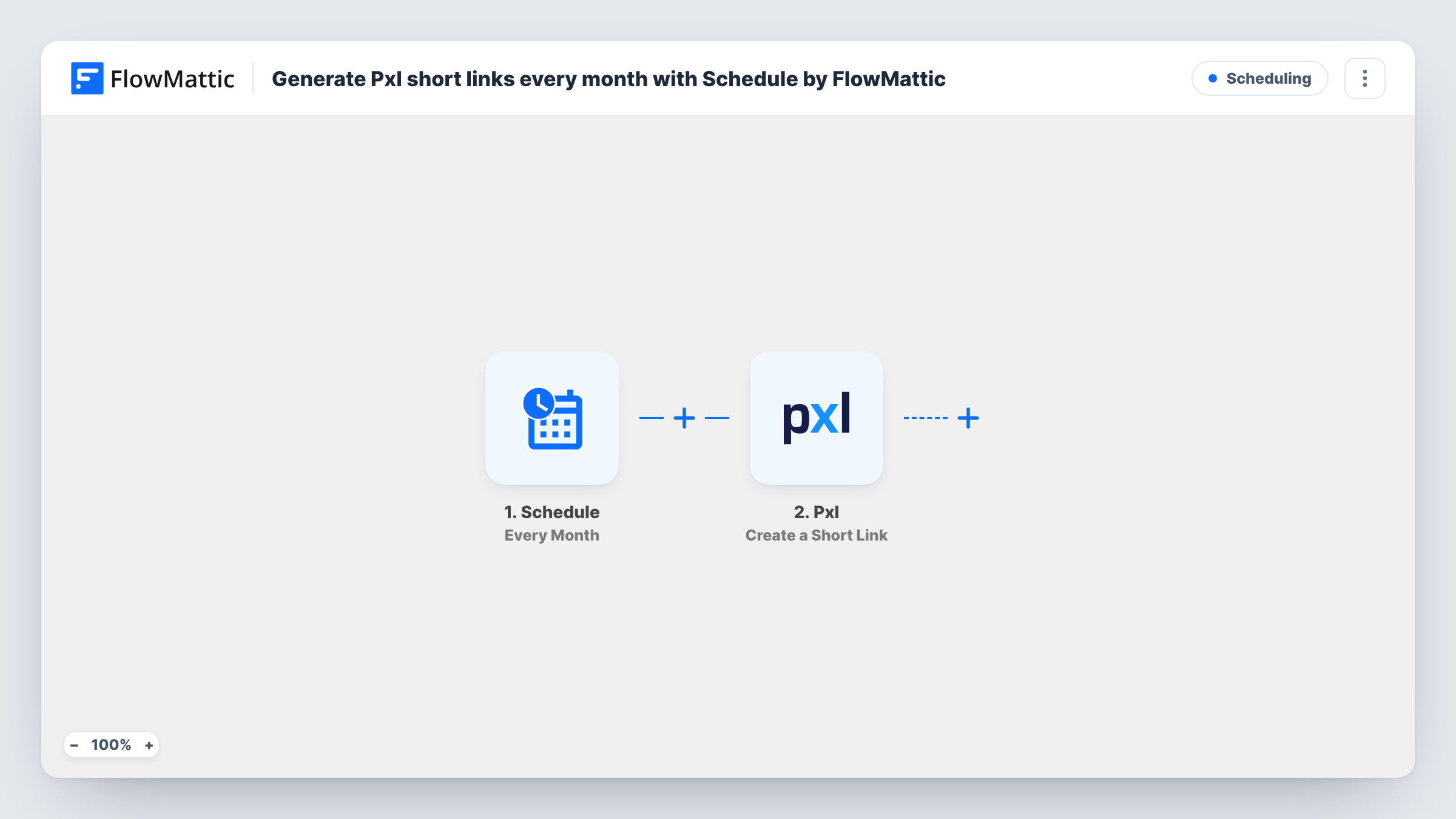
Once a month, this workflow runs on a FlowMattic schedule and creates a short link in Pxl from the values you set, giving you a fresh link each month for recurring campaigns or reports.
 Schedule
 Pxl
2 steps Setup ~5 min Used on 1.4k sites Free to import
What this workflow does
Some links are part of a monthly routine: the link in a monthly newsletter, a recurring promotion, or a report you share with the same people every month. Creating a new short link by hand each time is a small chore that is easy to forget. This workflow creates one for you on a monthly schedule.
The Schedule trigger runs the workflow every month. There is no incoming data, so each run uses only what you set in the next step. The Pxl Create a Short Link action then creates a short link from those values.
Because the values stay the same, each run creates a new short link to the same destination unless you change the step or build the URL from something that varies, such as the date. The link is created in Pxl; nothing in this template sends or posts it. Add a step if you want the new link emailed or stored. Task History shows the link Pxl returns each month.
A monthly newsletter link
Each month you need a new tracked link for the newsletter's main call to action. The workflow creates it in Pxl so it's ready when you write the issue.
Recurring promotions
A monthly offer page gets a new Pxl short link every month, so clicks for each month's promotion are counted separately.
Monthly client report links
An agency shares a report location each month. Building the destination with the month in the URL gives every report its own short link.
How this workflow runs
What happens at each step once the workflow is on, and what you need before you import it.
 Schedule Every Month
Runs the workflow once every month on the schedule you set in FlowMattic. It passes no data from another app, only the timing.
- Pxl Create a Short Link
Makes a new Pxl short link each time the schedule fires. Connect Pxl and set the destination URL and any other values in the step. Run it once to see the link Pxl returns.
What you need
- FlowMatticCore
- Pxl AccountAccount
After importing, map your own data. To keep the template universal, not every step is pre-filled. Open each step in the builder and connect your accounts and fields (channels, lists, sheets, recipients) before you switch the workflow on.
Make it yours
Changes worth making after you import it.
- Add a Gmail or Slack step after Pxl to send yourself the new short link each month, so you don't have to look it up in Pxl.
- If you can insert a date value in the step, add the month to the destination URL as a campaign parameter, so each month's link points somewhere distinct.
- Add a Google Sheets step to log each month's short link, giving you a list of every link the workflow has created.
Questions about this workflow
Does the monthly Pxl workflow create a different link every month?
It creates a new short link on every run. It points to the same destination unless you make the URL change, for example by including the date.
Where do I find the Pxl short link once it is created?
In your Pxl account, and in the step's output in Task History. Add a messaging or sheet step if you want it delivered somewhere.
Can the Schedule run on a particular day of the month?
You set the timing in the Schedule trigger after import. Check its options to pick when in the month it runs.
Is any app needed besides Pxl?
No. The Schedule trigger is built into FlowMattic, so only your Pxl account needs connecting.
More Scheduling workflows
Other ready-to-import templates from the same category.





Import this workflow into your WordPress site
Download the JSON, import it from the Workflows screen and connect your accounts. Every run stays on your server, with no per-task fees.
30-day money-back guarantee Unlimited workflows and runs Self-hosted